
TiviMate Firestick Setup: The Best Free Guide to Live TV in 2026
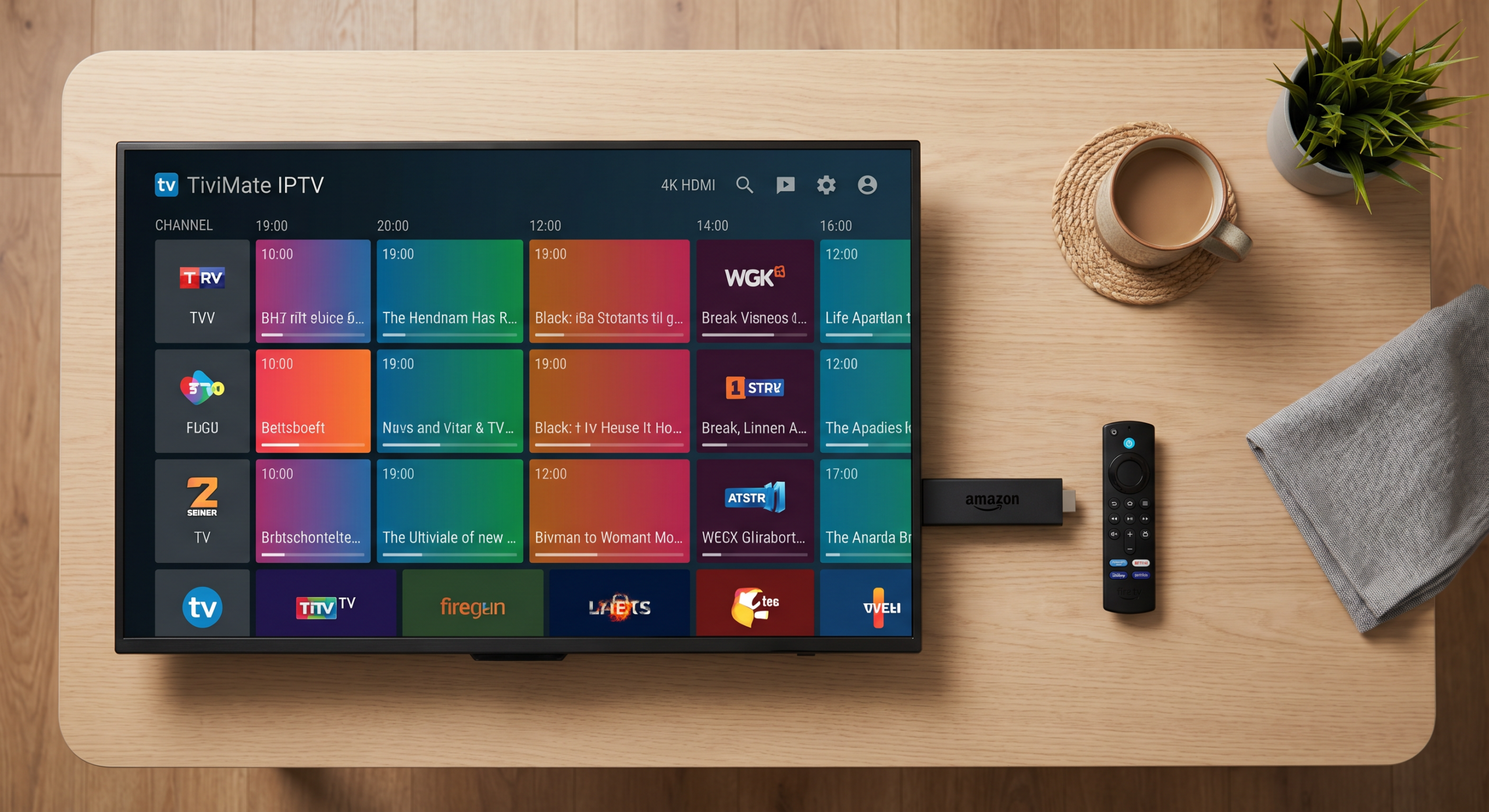
If you want the best IPTV player on Fire TV, the tivimate firestick setup is the first thing every serious streamer completes. I'm Yassine, and after 3 years testing IPTV apps on every device, TiviMate stands out for its clean interface, rock-solid EPG guide, and smooth performance on Amazon Fire TV.
In this complete tivimate firestick setup guide, I'll walk you through every step — from enabling unknown sources to loading your IPTV playlist and getting live TV running in under 10 minutes.
This 2026 tivimate firestick setup guide covers everything: the free version, TiviMate Companion Premium, EPG configuration, and the best player settings to eliminate buffering.
TiviMate works on all current Fire TV devices — check your model on the official Amazon Fire TV page. If you're still choosing your IPTV player, check our best IPTV apps for Firestick 2026 comparison first. Otherwise, let's get your tivimate firestick setup done right.
What You Need Before Installing TiviMate on Firestick
Before you start your TiviMate setup, make sure you have three things ready: a Fire TV Stick (any model — Lite, 4K, or 4K Max), an active IPTV subscription with M3U URL or Xtream Codes login, and a WiFi connection running at least 25 Mbps. Missing any of these will cause the setup to fail at different stages.
You'll also need the Downloader app installed on your Firestick — it's free on the Amazon App Store and is the only way to sideload TiviMate since it's not available directly from Amazon. If you already have Downloader installed, you're ahead of the curve.
One thing to confirm with your IPTV provider before starting: ask them specifically for your Xtream Codes login (server URL, username, password) rather than just an M3U link. TiviMate works with both, but Xtream Codes gives you a live EPG, catch-up TV, and faster channel switching. Most providers offer both formats — just ask.
Already have everything ready? Jump straight to Step 1: Enable Unknown Sources on Firestick below. If you're still deciding on a provider, read our IPTV free trial USA guide first to test before you subscribe.
Why TiviMate Is the Best IPTV Player for Firestick in 2026
The tivimate firestick setup has become the go-to choice for IPTV users in the USA — and for good reason. Unlike other apps that feel clunky on a TV remote, TiviMate was built from the ground up for Android TV and Fire TV devices.
The navigation is smooth, the channel guide is accurate, and it handles large M3U playlists with thousands of channels without crashing. Every tivimate firestick setup takes under 10 minutes, and once it's running, the experience is closer to a real cable TV interface than any other IPTV app available in 2026.
Here's what makes TiviMate stand out from other IPTV players in 2026:
- Full EPG (Electronic Program Guide): See what's on now and schedule recordings, just like a real cable TV guide.
- Multiple playlist support: Add several IPTV providers and switch between them from one app.
- Catch-up / timeshift: Rewind live TV and resume missed content when your provider supports it.
- Favorites and groups: Organize thousands of channels into custom lists so you find your channels instantly.
- Stable performance: Handles 4K streams and large playlists without the lag you get from other apps on older Firestick models.
TiviMate has a free version that covers the basics, and a Premium version (TiviMate Companion, around $4.99/year via Google Play on Android) that unlocks recordings, multiple playlists, and advanced panel settings. Once you have TiviMate running, pair it with a reliable provider — see our best IPTV for Firestick USA guide to find one that works in 2026.
TiviMate Firestick Compatibility and Requirements
Before you install TiviMate, make sure your Firestick model and internet connection meet the minimum requirements. TiviMate runs on all current Fire TV devices but performance varies by model. Here's the full breakdown:
| Device | TiviMate Support | Best For |
|---|---|---|
| Firestick 4K Max (2023) | ✅ Full support | 4K + large playlists |
| Firestick 4K (2nd Gen) | ✅ Full support | 4K streams, EPG |
| Firestick HD (3rd Gen) | ✅ Full support | HD streams, best value |
| Fire TV Cube (3rd Gen) | ✅ Full support | Best overall performance |
| Firestick Lite | ⚠️ Supported, limited RAM | HD only, small playlists |
| Firestick 2nd Gen (old) | ⚠️ May lag on large playlists | Consider upgrading |
Your device model matters for the tivimate firestick setup — newer Firestick 4K Max models handle large playlists and 4K streams without any lag, while older Lite models may struggle with more than 2,000 channels. If you're unsure which Firestick you have, go to Settings → My Fire TV → About → Device Model to check.
Internet speed is equally important — HD streams need at least 10 Mbps and 4K streams need 25 Mbps or more. For best results, connect your Firestick via ethernet adapter rather than Wi-Fi — this eliminates most buffering issues. If you're still getting buffering after your tivimate firestick setup is complete, visit our IPTV not working on Firestick fix guide.
You'll also need an active IPTV subscription with an M3U URL or Xtream Codes login. If you don't have one yet, check our IPTV free trial USA guide to test a provider before paying.
TiviMate Free vs Premium: Which Version Do You Need?
TiviMate offers a free version installed via Downloader, and a Premium upgrade purchased through the TiviMate Companion app on Android.
Here's exactly what you get with each version so you can decide before installing:
| Feature | Free | Premium (~$4.99/yr) |
|---|---|---|
| M3U playlist support | ✅ 1 playlist | ✅ Multiple playlists |
| Xtream Codes login | ✅ | ✅ |
| EPG guide | ✅ | ✅ Advanced |
| Favorites and groups | ✅ | ✅ |
| Recordings (DVR) | ❌ | ✅ |
| Catch-up / timeshift | ❌ | ✅ |
| Panel customization | Limited | ✅ Full |
| Parental controls | ❌ | ✅ |
Verdict: The free version is perfectly usable for watching live TV with a single provider.
If you want catch-up, recordings, or multiple providers in one place, Premium is worth every cent at under $5 a year. For a broader look at top players, see our best IPTV apps for Firestick 2026 roundup.
What You Need Before Installing TiviMate on Firestick
The TiviMate Firestick setup takes about 10 minutes when you have everything ready. Make sure you have these three things in place before you start.
1. An active IPTV subscription with credentials. TiviMate is the player — it doesn't provide channels. You need a separate IPTV service.
Your provider will give you either an M3U URL or Xtream Codes credentials (server URL, username, and password). Write these down before starting. Don't have a provider yet? See our IPTV free trial USA guide.
2. The Downloader app installed on your Firestick. TiviMate is not on the Amazon App Store, so you install it via the free Downloader app. Search "Downloader" in the Firestick app store — it's free and made by AFTVnews.
If you've never sideloaded an app before, our full how to install IPTV on Firestick guide covers the whole process.
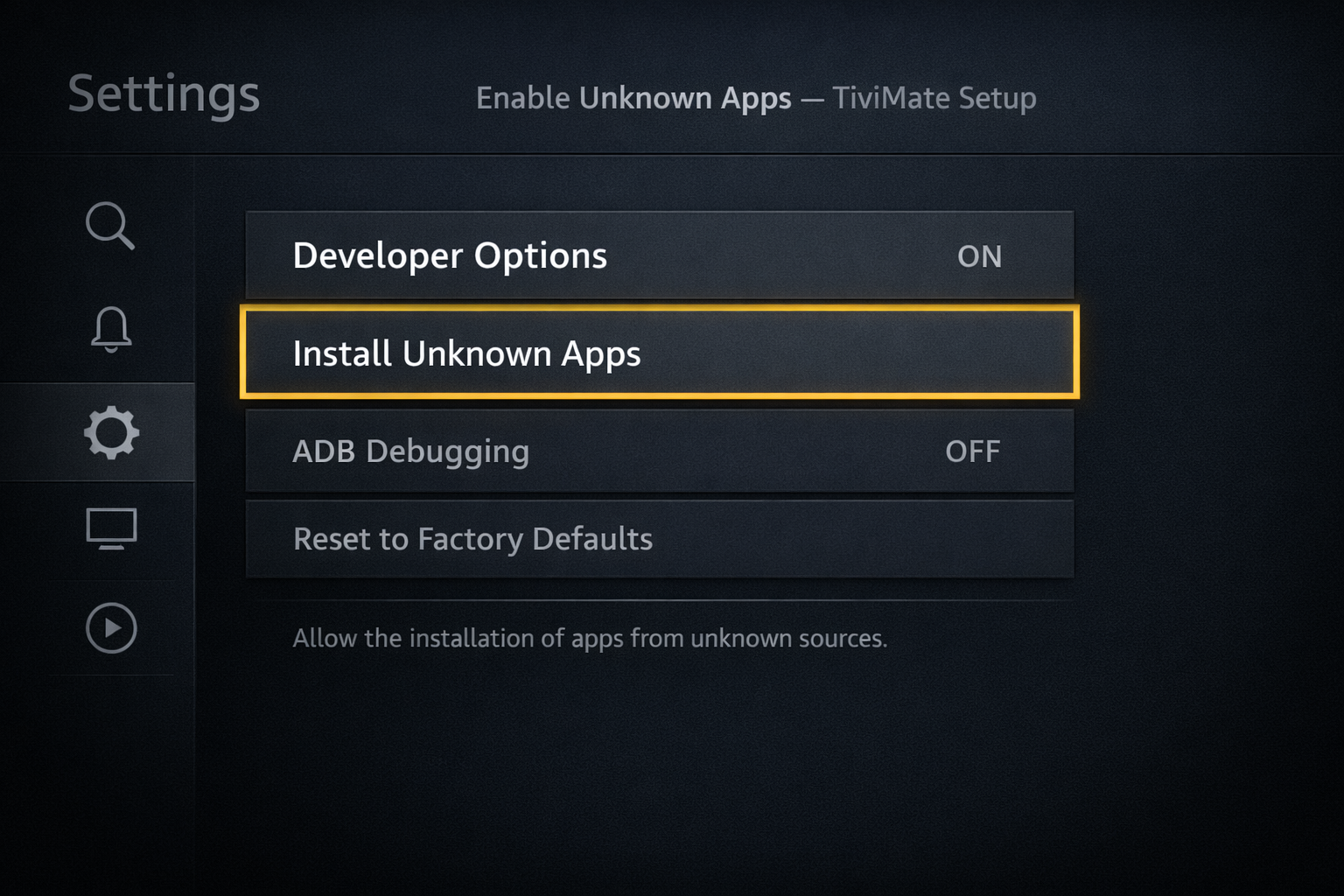
3. Unknown Sources enabled on your Firestick. Go to Settings → My Fire TV → Developer Options → Install Unknown Apps → Downloader → ON. This takes 30 seconds and you only do it once.
Once these three things are ready, you're set to follow the step-by-step install below.
How to Install and Set Up TiviMate on Firestick: Step-by-Step
This tivimate firestick setup guide is designed for any Fire TV device in 2026. Follow these steps exactly and you'll have TiviMate running with live TV in under 10 minutes.
-
Enable Developer Options on your Firestick.
From your Firestick home screen go to Settings → My Fire TV → Developer Options. If you don't see Developer Options, tap About and click your Fire TV name 7 times quickly — this unlocks the developer menu.
Once inside, make sure ADB Debugging is ON and Apps from Unknown Sources is ON. Without this step the TiviMate APK install will be blocked.
-
Allow Downloader to install unknown apps.
Go to Settings → My Fire TV → Developer Options → Install Unknown Apps. Find Downloader in the list and toggle it ON.
This specifically authorizes Downloader to install APK files. If Downloader isn't in the list yet, install it first from the App Store — search "Downloader" by AFTVnews, it's free.
-
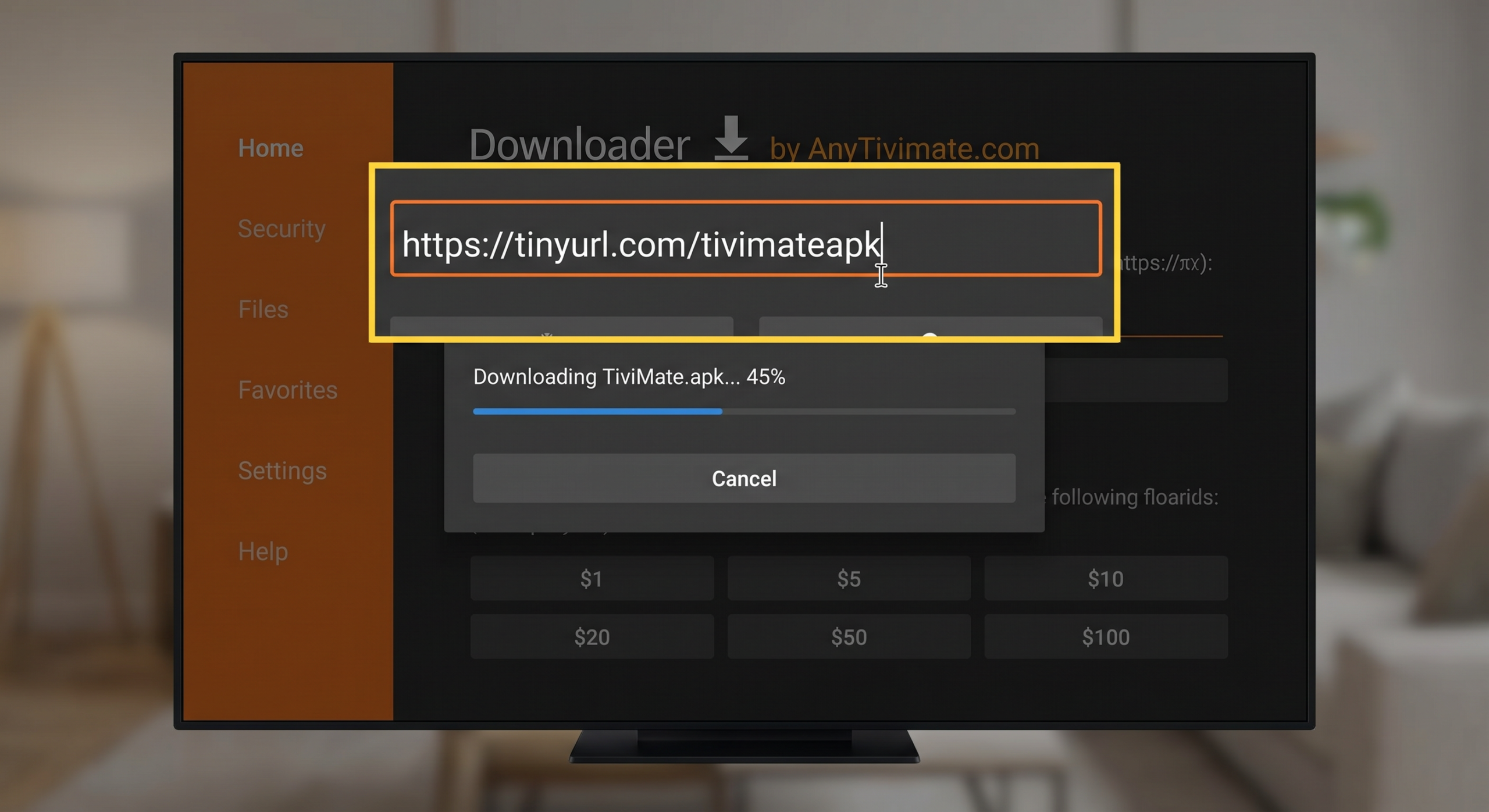
Open Downloader and enter the TiviMate APK URL.
Launch Downloader from your apps. Click the URL bar and type: https://tivimate.com/apk
The APK file is around 15MB and downloads in seconds. You'll see a green progress bar while it downloads.
-
Install the TiviMate APK.
Once the download completes, select Install at the bottom right. You'll see "App installed" after 15–20 seconds.
Choose Open to go directly into TiviMate. You can delete the APK file after installation — Downloader will offer to do this automatically.
-
Add your IPTV playlist in TiviMate.
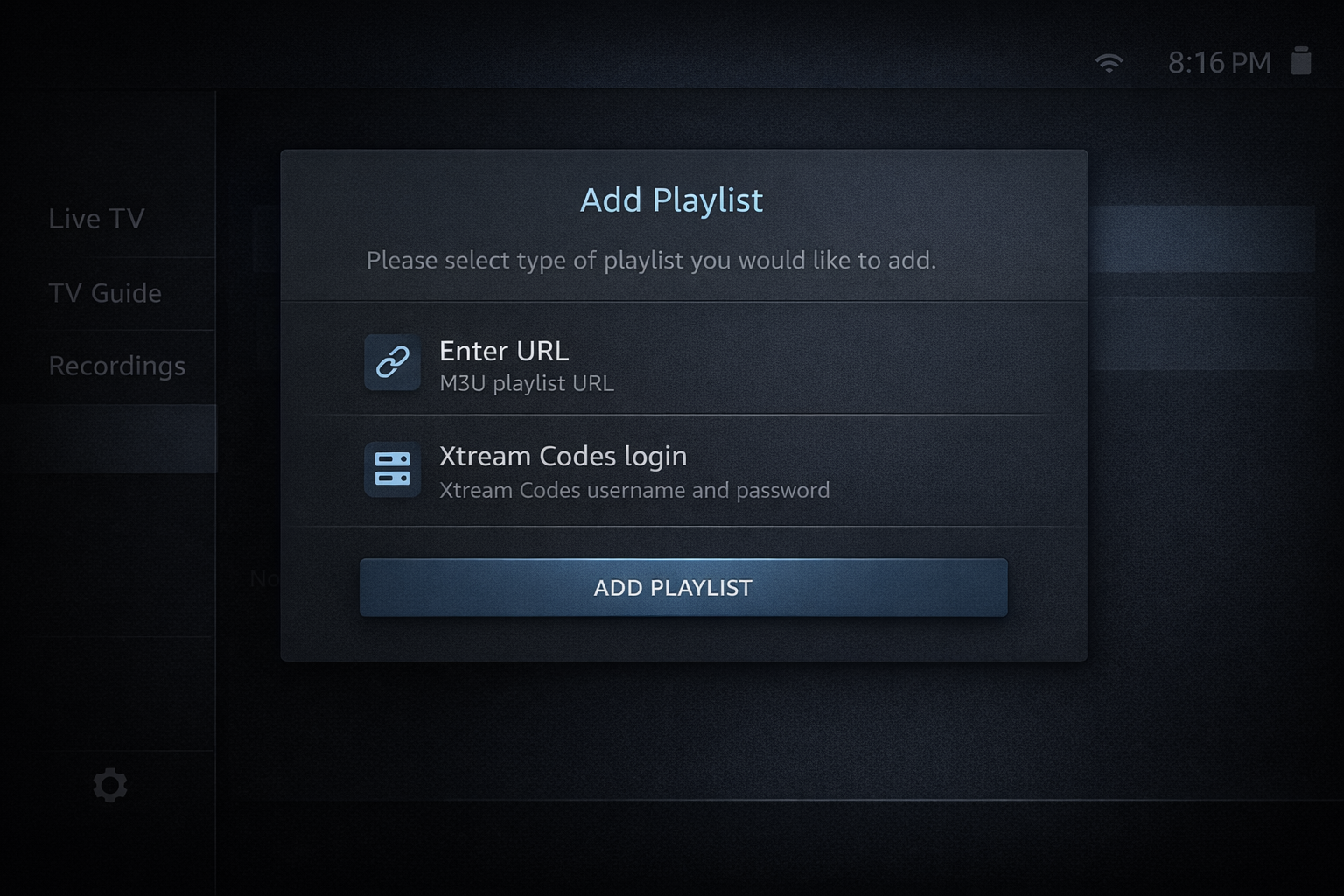
TiviMate opens on a welcome screen the first time. Tap Add Playlist and choose M3U URL or Xtream Codes depending on what your provider gave you.
Enter your credentials carefully — one typo will cause a login error. Copy-paste the URL from your provider email rather than typing it manually.
Tap Add and TiviMate will load your channel list. This takes 30 seconds to 3 minutes. Do not close the app while it loads. If you get an error, check our fix IPTV login error on Firestick guide.
-
Set up your EPG (program guide).
Go to Settings → Playlists → your playlist → EPG Source and enter the EPG URL your provider gave you.
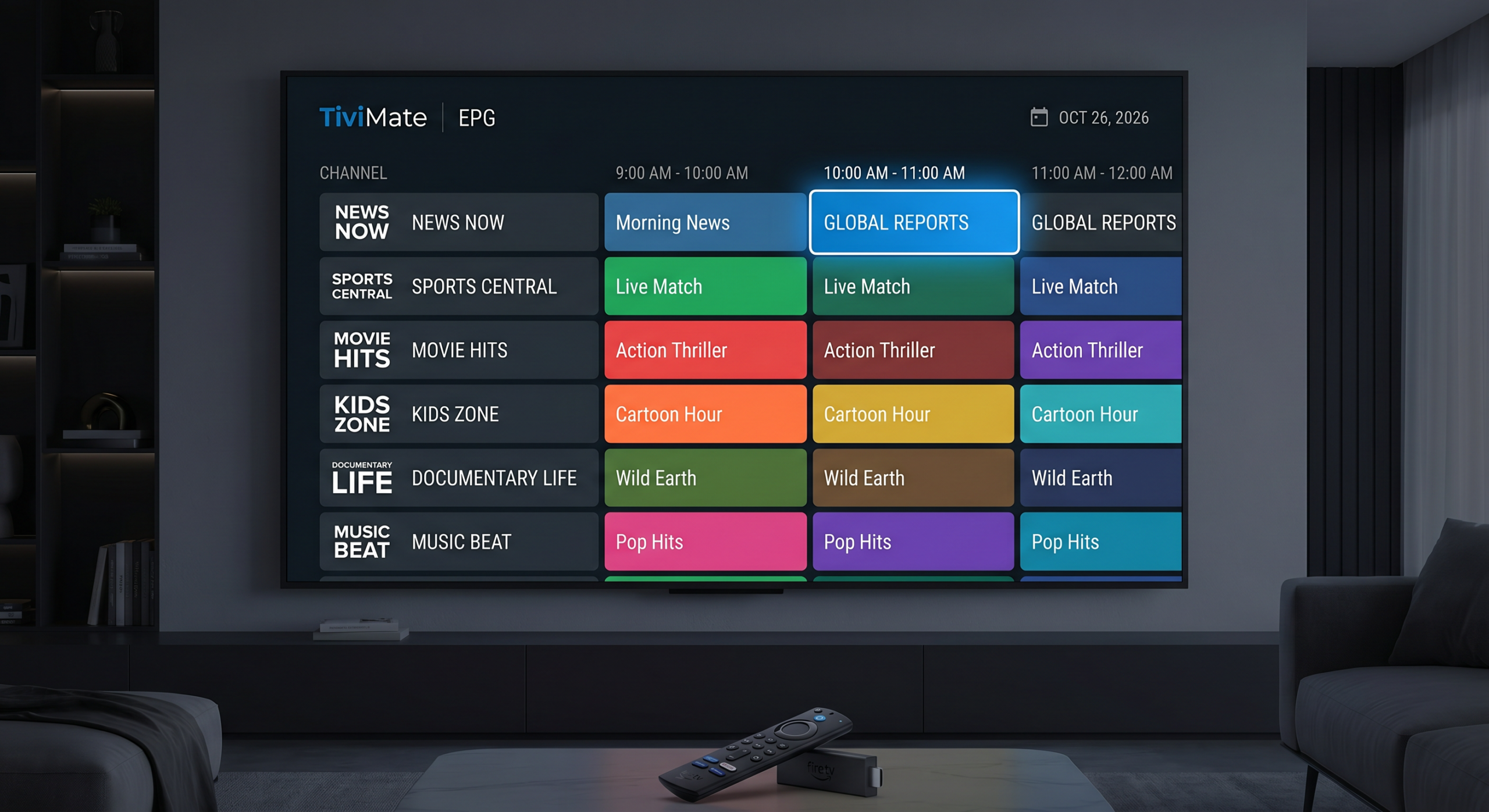
Set the EPG refresh to every 24 hours. A working EPG turns TiviMate from a plain channel list into a full TV guide with show names, times, and descriptions.
-
Organize your channels into favorites.
Navigate to any channel, press and hold the OK button, and select Add to Favorites. Build a Favorites group with your 10–20 most-watched channels.
You can also hide entire channel groups you don't need — press and hold OK on a group name and select Hide group.
-
Test your streams and adjust video settings.
Open a live channel and check it plays smoothly. If you see buffering, go to Settings → Player → Player Type and switch between ExoPlayer and ExoPlayer 2.
For 4K streams, make sure Hardware Acceleration is ON. For persistent buffering, see our IPTV not working on Firestick fix guide.
That's the full tivimate firestick setup complete. You now have live TV, an EPG guide, and organized favorites running on your Fire TV device.
Best TiviMate Settings for Firestick in 2026
Player settings for smoother streams: Go to Settings → Player. Set Player Type to ExoPlayer — best compatibility with most IPTV providers.
Enable Hardware Acceleration to offload video decoding to your Firestick's GPU, reducing lag on HD and 4K streams. Set Buffer Size to Medium (5 seconds). Set Video Codec to Auto for 4K content.
EPG settings for accurate program guides: Go to Settings → Playlists → [your playlist] → EPG. Set EPG refresh to Once a day — more frequent refreshes slow the app on startup.
Enable Match channels by name if your EPG isn't matching automatically. Set EPG time offset to match your timezone — US Eastern = UTC-5, Pacific = UTC-8.
Interface settings for fast navigation: Go to Settings → Interface. Set Channel switching delay to 0ms for instant channel changes. Enable Remember last channel so TiviMate always opens on the last thing you watched.
Upgrade to Premium for recordings and catch-up: Install the TiviMate Companion app on your Android phone, purchase Premium (~$4.99/year), log in on your Firestick, and the premium features unlock instantly.
For the best providers that support catch-up in the USA, see our best IPTV services guide.
Getting your tivimate firestick setup right the first time saves hours of troubleshooting later. Take 2 extra minutes to check your internet speed and credentials before starting. For providers tested and verified for TiviMate compatibility, see our best IPTV for Firestick 2026 guide.
Is Using TiviMate and IPTV Legal in the USA?
TiviMate itself is a legal media player app — it simply plays video streams, just like VLC or Kodi. Installing TiviMate on your Firestick is completely legal.
The legality question comes down to which IPTV service you connect to it. There are two types: licensed services (like Sling TV, Philo, or DirecTV Stream) that have legal rights to distribute channels, and unlicensed services that redistribute channels without authorization.
Using TiviMate with a licensed, authorized IPTV provider is 100% legal in the USA. Using it with an unlicensed provider carries legal risk. For the full breakdown of US laws around IPTV, read our is IPTV legal in the USA guide before choosing a provider. We always recommend using authorized services.
TiviMate Firestick Setup — Frequently Asked Questions
Is TiviMate free on Firestick?
Yes, TiviMate has a free version that you can install on Firestick using the Downloader app. The free version supports one M3U playlist, full EPG, channel groups, and favorites. The Premium version (~$4.99/year, purchased via TiviMate Companion on Android) adds multiple playlists, DVR recordings, catch-up TV, and advanced panel customization. Most users start with the free version and upgrade once they're happy with their IPTV provider. You can use TiviMate free indefinitely — the premium upgrade is optional.
Why won't TiviMate install on my Firestick?
The most common reason TiviMate won't install is that Unknown Sources are not enabled for the Downloader app. Go to Settings → My Fire TV → Developer Options → Install Unknown Apps → Downloader → ON and try again. If you see "Parse Error" during installation, the APK file is corrupted — delete it in Downloader and re-download. If you see "Insufficient storage," delete unused apps first (Firestick Lite models have very limited storage). For all other install errors, our how to install IPTV on Firestick guide has a full troubleshooting section.
TiviMate is installed but my channels won't load — what do I do?
If TiviMate opens but your channel list is empty or stuck loading, the issue is almost always with your IPTV credentials. Double-check your M3U URL or Xtream Codes login — even a single wrong character will stop channels from loading. Copy-paste the URL from your provider email rather than typing it manually. If the URL is correct but channels still won't load, your subscription may have expired or your provider's server may be down. Contact your IPTV provider to confirm your account is active. For a step-by-step fix, see our fix IPTV login error on Firestick guide.
How do I add a second IPTV provider to TiviMate?
Adding a second playlist requires TiviMate Premium. Once you have Premium activated, go to Settings → Playlists → Add Playlist and enter your second provider's M3U URL or Xtream Codes credentials. Both providers will appear in the channel list and you can filter by provider or mix channels from both into a single favorites group. This is one of the most useful features for people who use one provider for US sports and another for international channels. Free version users are limited to one active playlist at a time.
What's the difference between TiviMate and IPTV Smarters on Firestick?
Both TiviMate and IPTV Smarters are popular IPTV players, but they serve slightly different users. TiviMate has a cleaner TV-focused interface that's much easier to navigate with a Firestick remote, better EPG support, and more stable performance on Fire TV hardware. IPTV Smarters is available directly from the Amazon App Store (no sideloading needed) and has a more phone-style layout. For pure TV watching comfort on a Firestick, most experienced IPTV users prefer TiviMate. If you're having issues with IPTV Smarters, see our IPTV Smarters not working on Firestick guide.
Start Watching Live TV on Firestick with TiviMate Today
TiviMate is the best IPTV player for Firestick in 2026, and the setup process is straightforward once you follow the steps above.
In under 10 minutes you can have hundreds of live channels, a full EPG guide, and smooth 4K streaming running on your Fire TV. The free version handles everything most users need, and the Premium upgrade is under $5 a year.
To get the most from your TiviMate setup, here are the next steps we recommend:
- Choose the right IPTV provider: See our best IPTV for Firestick USA guide to pick a provider with fast US servers and reliable uptime.
- Compare the top IPTV apps: Our best IPTV apps for Firestick 2026 guide compares TiviMate, IPTV Smarters, Xciptv, and Perfect Player side by side.
- Fix buffering fast: Our IPTV not working on Firestick fix guide has the 10 most common causes and exact solutions.
- Try before you buy: Our IPTV free trial USA guide lists providers that offer real free trials with no credit card required.
Most top IPTV providers offer a free 24–48 hour trial so you can test TiviMate with real channels before committing.
One Response