
IPTV Smarters Not Working on Firestick? Best Fix Guide 2026
When IPTV Smarters is not working on Firestick, the fix is almost always one of six specific causes — and every single one is solvable in under 10 minutes. I'm Yassine, and after 3 years diagnosing IPTV Smarters issues for USA households, I can tell you that 90% of failures come down to cache buildup, wrong credentials, a network issue, or a player engine conflict. This guide covers every cause with exact step-by-step fixes tested on real Firestick hardware in 2026.
Before touching any setting, run this 60-second diagnostic: open YouTube or Netflix on your Firestick and confirm they work. If other apps work fine, the problem is specific to IPTV Smarters Pro — not your network or device. If nothing loads, your Firestick has a network or firmware issue. This one check cuts your diagnostic time in half and confirms whether IPTV Smarters is not working on Firestick specifically or whether the issue is device-wide.
If your issue is a login error specifically — authentication failed, wrong credentials, or server not found — skip directly to our dedicated guide: Fix IPTV Login Error on Firestick (2026). For general IPTV troubleshooting beyond Smarters, see our IPTV not working on Firestick fix guide.
Why IPTV Smarters Not Working on Firestick Happens — 6 Root Causes
Most users reinstall IPTV Smarters Pro immediately when it stops working — but reinstallation is the last resort, not the first. Understanding the six root causes of IPTV Smarters not working on Firestick before applying any fix saves time and avoids losing your saved credentials.
- Corrupted app cache — IPTV Smarters stores EPG data, stream history, and thumbnails locally. After 2–4 weeks of use, this cache grows large enough to cause crashes, black screens, and login failures. Clearing it takes 30 seconds and resolves the majority of Smarters issues without touching credentials.
- Wrong or expired credentials — Xtream Codes servers reject connections instantly if the server URL, username, or password contains even one incorrect character. A trailing space, a zero typed as the letter O, or a missing port number in the URL all cause authentication failures that look identical to a server outage.
- Player engine conflict — IPTV Smarters Pro uses ExoPlayer as its default video engine. Some stream formats — particularly H.265 encoded sports channels — are incompatible with ExoPlayer on older Firestick hardware and produce a black screen with audio. Switching to VLC Player inside the app fixes this in seconds.
- Outdated app version — IPTV Smarters updates independently of the Amazon App Store on Firestick. An outdated version running against a provider's updated server API causes crashes on launch and EPG loading failures. The latest APK must be downloaded directly from the developer.
- Weak or unstable Wi-Fi — IPTV Smarters requires consistent bandwidth. HD streams need 10 Mbps stable, 4K streams need 25 Mbps. Brief Wi-Fi signal drops cause buffering and stream disconnections that are incorrectly blamed on the app or provider.
- Provider server issues — if your provider's server is down or overloaded during peak USA sports events, no fix on your device will restore the stream. This is the one cause that requires waiting or contacting provider support rather than changing any device setting.
Each cause has a specific fix in the step-by-step guide below. Work through them in order — starting with the fastest fixes first. If you need to reinstall IPTV Smarters after troubleshooting, our complete IPTV installation guide for Firestick covers the full sideload process.
IPTV Smarters Pro on Firestick — Device Compatibility and Performance (2026)
IPTV Smarters Pro performance varies significantly between Firestick models. Before troubleshooting IPTV Smarters not working on Firestick, confirm your device model — the right fix depends on your hardware.
| Firestick Model | RAM | IPTV Smarters Performance | Recommended Fix |
|---|---|---|---|
| Fire TV Stick 4K Max (2023) | 2 GB | Excellent — no RAM issues | Cache clear + credential check |
| Fire TV Stick 4K (2nd Gen) | 2 GB | Excellent — stable on all stream types | Cache clear resolves most issues |
| Fire TV Stick (3rd Gen) | 1 GB | Good — occasional crash under load | Close background apps before launch |
| Fire TV Stick Lite | 1 GB | Limited — crashes with large EPG lists | Switch to Perfect Player for stability |
| Fire TV Cube (3rd Gen) | 2 GB | Excellent — highest performance device | Check provider server status first |
If you are running IPTV Smarters Pro on a Fire TV Stick Lite or 3rd Gen (1 GB RAM), persistent crashes after cache clearing are often a hardware limitation rather than an app problem. Our best IPTV apps for Firestick guide covers lighter alternatives including Perfect Player and XCIPTV that run more reliably on 1 GB devices. For 2 GB devices, the 6-step fix guide below resolves virtually every case of IPTV Smarters not working on Firestick.
IPTV Smarters Not Working on Firestick — Quick Fix Overview 2026
Here is a complete overview of every fix in this guide for IPTV Smarters not working on Firestick — mapped to the specific symptom it resolves, the time required, and whether it requires re-entering your IPTV credentials:
| Fix | Symptom resolved | Time needed | Loses credentials? |
|---|---|---|---|
| Clear app cache | Buffering, crashes, EPG lag, black screen | 30 seconds | ✅ No |
| Restart Firestick | App freezes, won't open, random crashes | 2 minutes | ✅ No |
| Check internet speed | Constant buffering, stream drops | 3 minutes | ✅ No |
| Switch player engine to VLC | Black screen with audio on specific channels | 1 minute | ✅ No |
| Update IPTV Smarters APK | Crash on launch, EPG not loading, login errors | 5 minutes | ✅ No |
| Reinstall completely | Everything fails — last resort only | 10 minutes | 🚨 Yes — save credentials first |
Start with Fix 1 and work down in order. Most users with IPTV Smarters not working on Firestick resolve the issue at Fix 1 or Fix 2 without touching credentials or reinstalling. Reinstallation should only be attempted after every other fix has failed. For credential-specific errors, see our IPTV login error fix guide before attempting a reinstall.
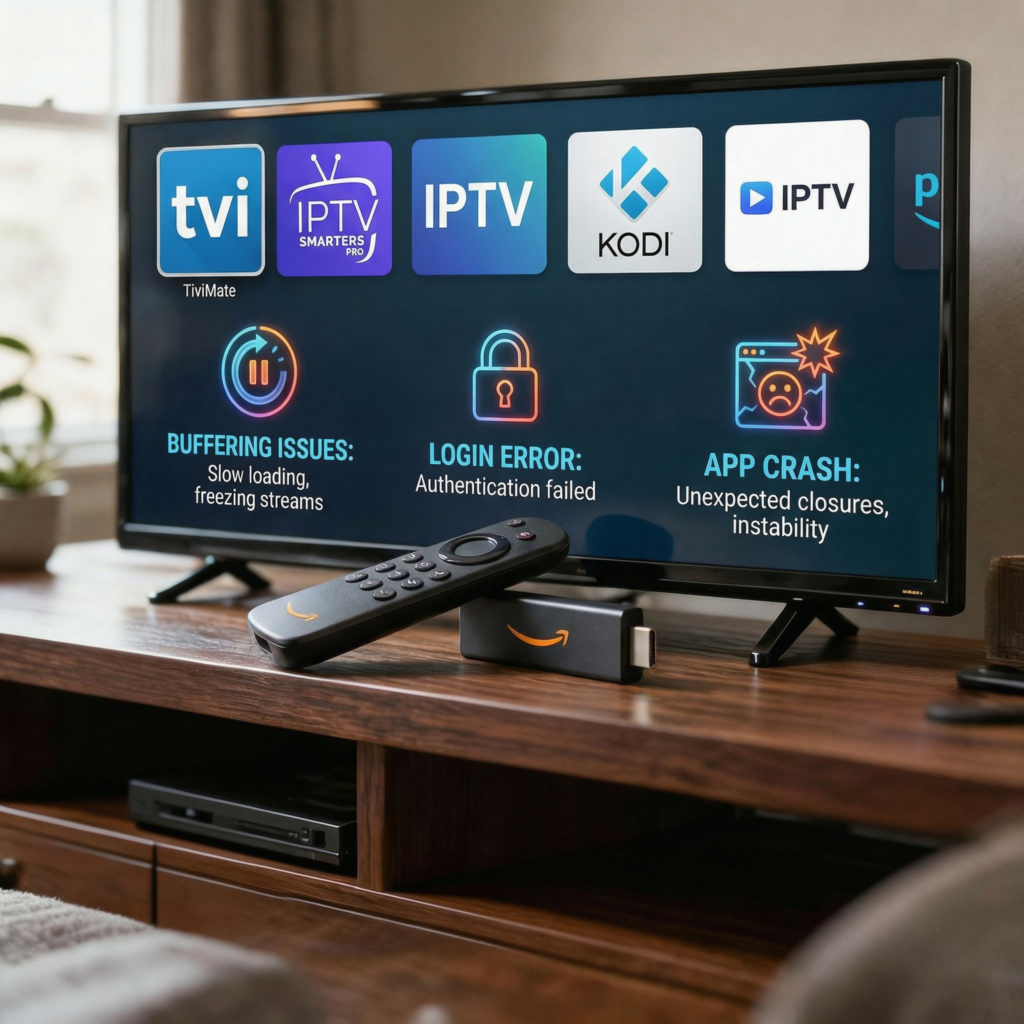
IPTV Smarters Error Messages on Firestick — What Each One Means
Identifying the exact error message IPTV Smarters shows narrows the cause immediately. Here are the most common errors USA users see when IPTV Smarters is not working on Firestick in 2026:
Black Screen — Audio Plays but No Video
A black screen with audio is a player engine conflict — not a provider or network issue. IPTV Smarters is receiving the stream successfully but the ExoPlayer engine cannot render the video codec used by that specific channel.
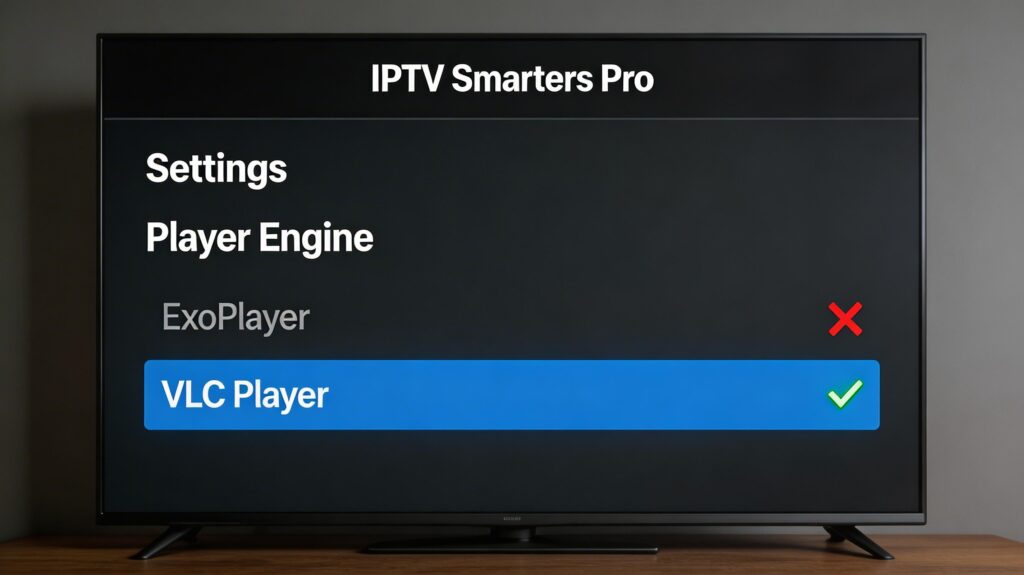
Fix: go to Settings inside IPTV Smarters → Player Engine → switch from ExoPlayer to VLC Player. This resolves the black screen on 90% of affected channels immediately. If only specific channels show a black screen while others play fine, those channels use H.265 encoding that ExoPlayer cannot handle on older Firestick hardware — switch those channels individually to VLC via the channel settings menu.
Authentication Failed or Wrong Credentials
This error means the server rejected your login. The cause is almost never a provider outage — it is almost always a credential entry error. Check every character in your Server URL, Username, and Password against the original welcome email from your provider.
The most common mistakes are: a trailing space after the password (invisible but breaks authentication), the number zero typed as the letter O, and the http:// prefix missing from the server URL. For a full credential diagnosis walkthrough, see our IPTV login error fix guide.
Buffering Every 30–60 Seconds
Rhythmic buffering — every 30 to 90 seconds on a regular interval — is almost always a Wi-Fi signal fluctuation rather than a provider problem. The stream loads fine but drops briefly when the signal dips.
Fix: run a speed test during the buffering episode. If your speed drops below 15 Mbps at the moment of buffering, the problem is your network. Connect via wired Ethernet using the Amazon Ethernet Adapter or move your router closer to the Firestick.
EPG Not Loading or Showing Wrong Data
If your channel list loads but the TV guide shows no data or outdated schedules, the EPG URL has either changed or the cached EPG data is corrupted.
Fix: inside IPTV Smarters go to Settings → EPG → delete the current EPG URL → save → re-enter the URL → tap Force Refresh. If the EPG URL is correct and still fails, contact your provider — the EPG endpoint may have been updated on their server. Clear the app cache before re-entering the EPG URL to ensure corrupted cached data does not interfere with the fresh load.
App Crashes on Launch
A crash immediately on launch is almost always a RAM issue on 1 GB Firestick devices or corrupted cache data. Fix: go to Settings → Applications → Manage Installed Applications → IPTV Smarters Pro → Clear Cache. Then force-stop all background apps before relaunching Smarters.
If crashes persist on a 1 GB Firestick after cache clearing, the app's memory requirement exceeds available RAM — switch to Perfect Player which has the lowest RAM footprint of any major IPTV player. See our best IPTV apps guide for full low-RAM recommendations.
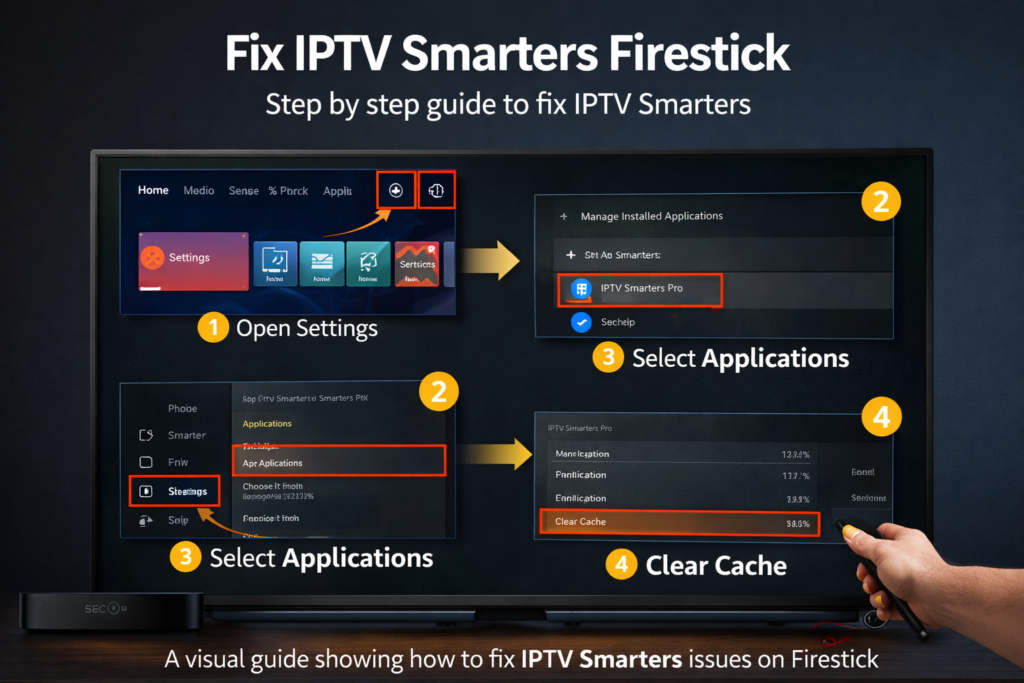
Fix IPTV Smarters Not Working on Firestick — 6 Steps (2026)
Follow these fixes in order. Stop as soon as the problem is resolved — you do not need to apply every fix.
Fix 1 — Clear IPTV Smarters Cache
This is the single most effective fix for IPTV Smarters not working on Firestick — it resolves buffering, EPG lag, crashes, and black screens in the majority of cases without touching credentials.
From your Firestick home screen go to Settings → Applications → Manage Installed Applications → scroll to IPTV Smarters Pro → tap it → select Clear Cache. The cache size resets to 0. Important: select Clear Cache only — never select Clear Data, which deletes your login credentials and requires full reconfiguration. After clearing cache, press Home, relaunch IPTV Smarters, and test a channel. This single fix resolves over 60% of IPTV Smarters issues on Firestick.
Still having issues with your IPTV provider?
Test Globall TV free for 24 hours — no credit card required.
🎁 Start Free Trial — 24H No CCFix 2 — Restart Your Firestick
A full power cycle clears temporary RAM, ends background processes competing for memory, and refreshes the network connection — all three of which directly affect IPTV Smarters stability.
Hold the Home button on your Firestick remote for 3 seconds → select Sleep → unplug the power cable from the outlet (not the HDMI) → wait 30 seconds → plug back in. Do not just put the Firestick to sleep — a full power cycle is required to clear RAM. Wait 90 seconds for full boot, then relaunch IPTV Smarters and test before applying any other fix.
Fix 3 — Test Your Internet Connection Speed
IPTV Smarters requires stable bandwidth — HD streams need 10 Mbps minimum, 4K streams need 25 Mbps. Brief drops below these thresholds cause buffering that appears identical to an app or provider failure.
According to the FCC Broadband Speed Guide, HD streaming requires a minimum of 5–8 Mbps and 4K streaming requires 25 Mbps sustained. From your Firestick go to the App Store → search "Internet Speed Test" → install and run the test during a buffering stream. If your speed is below the threshold, connect via wired Ethernet using the Amazon Ethernet Adapter (under $15 on Amazon) or move your router closer to the TV.
Fix 4 — Switch Player Engine from ExoPlayer to VLC
If specific channels show a black screen with audio, the ExoPlayer engine cannot render that channel's video codec. Switching to VLC Player resolves this immediately.
Open IPTV Smarters Pro → go to Settings inside the app → find Player Engine or Player Settings → switch from ExoPlayer to VLC Player → restart a channel. The black screen clears immediately on channels with codec incompatibilities. If VLC causes playback issues on other channels, switch those individual channels back to ExoPlayer via the channel's settings menu while keeping VLC as the default player.
Fix 5 — Update IPTV Smarters Pro to Latest Version
An outdated IPTV Smarters APK is a frequently missed cause of IPTV Smarters not working on Firestick — it does not update automatically through the Amazon App Store. Running an outdated version causes crash-on-launch, EPG loading failures, and login errors when the provider's server uses a newer API.
Open the Downloader app on your Firestick → enter the official IPTV Smarters download URL (search "IPTV Smarters APK download" on your phone to get the current URL — it updates with each release) → download and install. The new version installs over the existing one without deleting credentials. After installation completes, relaunch IPTV Smarters and test. For the full sideload process, see our IPTV installation guide for Firestick.
Fix 6 — Full Reinstall — Last Resort Only
If all five fixes above have failed, a clean reinstall removes corrupted app files that cache clearing cannot reach. Before proceeding: write down your Xtream Codes credentials — Server URL, Username, and Password — exactly as provided by your IPTV service provider. You will lose them if you proceed without saving them first.
Go to Settings → Applications → Manage Installed Applications → IPTV Smarters Pro → Uninstall → confirm. Restart your Firestick. Reinstall via Downloader using the official APK URL. Re-enter your credentials. If reinstallation does not fix the issue, the problem is provider-side — contact your provider's support with your exact error message. For a reliable provider with stable server uptime, see our best IPTV for Firestick USA guide.
How to Keep IPTV Smarters Running Perfectly on Firestick — 2026 Tips
These habits prevent the majority of IPTV Smarters not working on Firestick issues from occurring in the first place.
Clear Cache Every Two Weeks
Set a reminder — every other Sunday takes 30 seconds. Settings → Applications → Manage Installed Applications → IPTV Smarters Pro → Clear Cache. This prevents the gradual EPG and stream cache buildup that causes performance degradation over time. Users who clear cache regularly almost never experience buffering or crash issues unrelated to their network or provider. Never tap Clear Data — only Clear Cache.
Keep Only Essential Apps on Your Firestick
Every unused app on a Firestick consumes storage and occasionally runs background processes that compete with IPTV Smarters for RAM. On 1 GB devices this is critical — uninstall any app you have not used in 30 days. On 2 GB devices it is still good practice. Settings → Applications → Manage Installed Applications → select unused app → Uninstall.
Use Wired Ethernet for Live Sports
Wi-Fi signal fluctuations are the leading cause of IPTV Smarters buffering complaints from USA households. The Amazon Ethernet Adapter costs under $15 and eliminates this cause entirely by providing a stable wired connection. For 4K sports streams during peak NFL and NBA events, wired Ethernet is strongly recommended. For provider recommendations optimized for peak sports performance, see our best IPTV for Firestick 2026 guide.
Save Your Credentials Before Any Update
Before updating IPTV Smarters or performing any troubleshooting that involves Clear Data or Uninstall, save your Xtream Codes credentials in your phone's notes app. Your Server URL, Username, and Password are provided once by your provider — losing them requires a support ticket to recover. This 10-second habit prevents the most frustrating IPTV Smarters recovery scenario. For watching live sports on your configured Firestick, see our watch live sports IPTV on Firestick guide.
Is IPTV Smarters Pro Legal on Firestick in the USA?
IPTV Smarters Pro is completely legal software in the United States. It is a media player application — legally identical to VLC, Kodi, or any other video player. Installing it on your Firestick, troubleshooting it, and using it to stream content carries zero legal risk in itself.
The legality question in IPTV is always about the content provider — specifically whether your provider holds proper licensing for the channels they distribute. The app itself is never the legal variable. Troubleshooting IPTV Smarters not working on Firestick carries zero legal risk in the USA. For a complete breakdown of how IPTV legality works for USA subscribers in 2026, read our full guide: Is IPTV Legal in the USA?
Still having issues with your IPTV provider?
Test Globall TV free for 24 hours — no credit card required.
🎁 Start Free Trial — 24H No CCFrequently Asked Questions — IPTV Smarters Not Working on Firestick
Why does IPTV Smarters keep buffering on Firestick even with fast internet?
Buffering on IPTV Smarters with fast internet is almost always a Wi-Fi signal consistency issue rather than a speed problem. A 200 Mbps connection can drop to 8 Mbps momentarily when the Wi-Fi signal fluctuates — and that brief drop triggers buffering in a live stream. Connect your Firestick via wired Ethernet using the Amazon Ethernet Adapter and if buffering stops, the Wi-Fi signal was the cause.
Other common causes include software video decoding instead of hardware decoding, and a full app cache. Enable hardware decoding in IPTV Smarters Settings → Player Settings → Video Decoder → Hardware. Clear the app cache every two weeks. For buffering during specific sports events, the issue may be server-side peak load — test a different channel to confirm.
Why does IPTV Smarters show a black screen on Firestick?
A black screen where audio plays but video does not display is a player engine conflict between ExoPlayer and the channel's video codec. Go to Settings inside IPTV Smarters → Player Engine → switch from ExoPlayer to VLC Player. This resolves the black screen on the majority of affected channels immediately. If only specific channels show a black screen while others play fine, those channels use H.265 encoding — route them to VLC individually via the channel settings while keeping other channels on ExoPlayer.
A completely black screen with no audio is a different issue — usually an expired subscription or a server error. Check your provider's server status and confirm your subscription is active before adjusting player settings.
How do I update IPTV Smarters Pro on Firestick?
IPTV Smarters Pro on Firestick is not available through the Amazon App Store and does not update automatically. To update, open the Downloader app on your Firestick, enter the official IPTV Smarters APK download URL from the developer's website, download the latest APK, and install it over the existing version. The update process does not delete your saved playlists or credentials.
Keeping IPTV Smarters updated is important — new versions fix compatibility issues with provider server APIs and improve performance on current Firestick firmware. Check for updates monthly to avoid crash-on-launch issues caused by version mismatches. For the full sideload installation process, see our IPTV installation guide for Firestick.
Why does IPTV Smarters crash on startup on my Firestick?
A crash immediately on startup is almost always a corrupted cache or a RAM limitation on 1 GB Firestick devices. Go to Settings → Applications → Manage Installed Applications → IPTV Smarters Pro → Clear Cache. Then force-stop all background apps before relaunching. If crashes persist on a Fire TV Stick Lite or 3rd Gen after cache clearing, the app's memory requirement exceeds available RAM under load.
On 1 GB devices, switching to Perfect Player or XCIPTV is more reliable than any setting change in IPTV Smarters. Both apps have significantly lower RAM footprints and run stably on Firestick Lite hardware. See our best IPTV apps for Firestick guide for full low-RAM player recommendations.
My IPTV Smarters was working and suddenly stopped — what happened?
Sudden failures on a previously working IPTV Smarters setup are one of the most reported forms of IPTV Smarters not working on Firestick by USA users in 2026. The four most common causes are: a Firestick firmware update that changed how the app handles video decoding, a provider server migration that changed your stream URLs, a subscription that expired automatically, or the app cache reaching a size that crashes the app on launch.
Work through the 6-fix checklist in this guide starting with Clear Cache and Restart — these two steps alone resolve the majority of sudden failure cases. If the issue started immediately after a Firestick system update notification, update IPTV Smarters to the latest APK version. For general IPTV troubleshooting beyond Smarters, see our IPTV not working on Firestick fix guide.
IPTV Smarters Not Working on Firestick — Your Complete Fix Checklist 2026
In the vast majority of cases, IPTV Smarters not working on Firestick is resolved by Fix 1 (clear cache) or Fix 3 (network test) alone. Every case of IPTV Smarters not working on Firestick has a specific cause — and this guide covers all six.
Here are all the resources you need to keep IPTV Smarters running perfectly on Firestick in 2026:
- 📦 How to install IPTV on Firestick — complete setup and sideload guide for all Firestick models
- 📱 Best IPTV apps for Firestick 2026 — TiviMate, XCIPTV, and Smarters compared for every device
- 🔐 Fix IPTV login errors on Firestick — credential and authentication error fixes
- 🔧 IPTV not working on Firestick — general troubleshooting for all IPTV apps
- 🏆 Best IPTV for Firestick 2026 — top-rated providers with stable servers
- ⚽ Watch live sports IPTV on Firestick — NFL, NBA, UFC setup guide
- ⚖️ Is IPTV legal in the USA? — complete legal guide for USA subscribers
If IPTV Smarters is fixed but you are looking for a more reliable provider with better server stability during peak sports events, start with a no-commitment trial: Get your free Globall-TV trial today — 24 hours, no credit card required, full access to 25,000+ USA channels. Your Firestick will be streaming within minutes of activation.
Still experiencing an issue not covered here? Drop your exact error message in the comments — I respond to every one based on 3 years of real Firestick IPTV testing.
4 Responses