
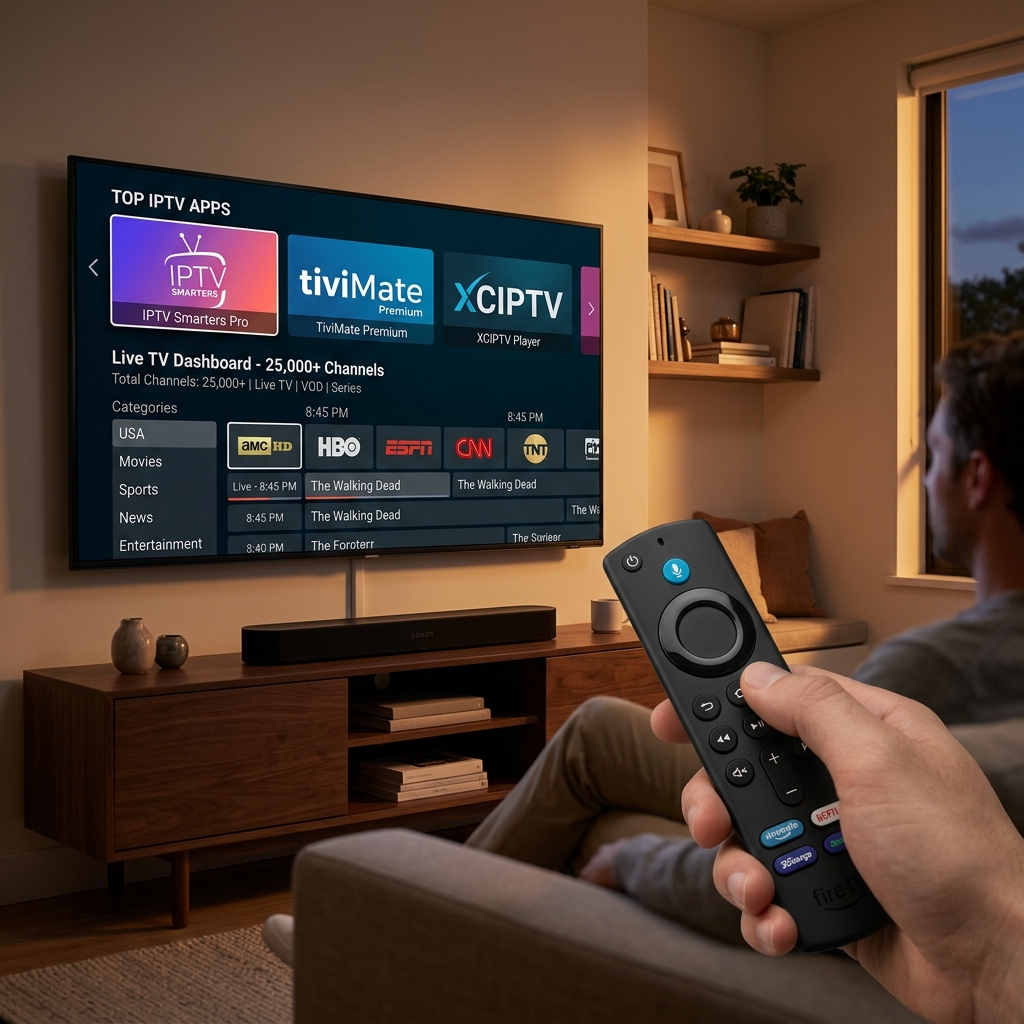
Best IPTV Apps for Firestick 2026: Top 7 Tested and Ranked for USA Users
Finding the best IPTV apps for Firestick in 2026 is harder than it looks — dozens of apps claim to be the top choice, but most buffer constantly, crash on Firestick's limited RAM, or lack the EPG features that make live TV actually usable. I'm Yassine, and after 3 years testing IPTV apps on Amazon Firestick devices for USA households, I know exactly which players deliver smooth 4K streams and which ones fail at the worst moments. This guide ranks the top 7 IPTV apps for Firestick based on real hands-on testing — not marketing claims.
The app you choose matters as much as the IPTV service itself. A premium subscription will still buffer and crash if your player is not optimized for Firestick's hardware, RAM limitations, and the way live sports streams are delivered in real time. The wrong app turns a great IPTV service into a frustrating experience — the right one makes it seamless.
Whether you are setting up IPTV for the first time or switching from an app that is no longer working, this guide covers installation, setup, and performance for every major player available in 2026. If you are new to IPTV streaming entirely, start with our complete beginner's guide to IPTV before diving into app comparisons. Already have an app and experiencing issues? Jump to our IPTV not working on Firestick fix guide for step-by-step troubleshooting.
Why Your IPTV App Choice Directly Affects Stream Quality on Firestick
Most users blame their IPTV provider when streams buffer or crash — but in the majority of cases, the problem is the player app, not the service. The best IPTV apps for Firestick use hardware video decoding, which offloads the processing work from Firestick's CPU to its dedicated video chip. Apps that rely on software decoding force the CPU to handle everything — on a 1 GB RAM Firestick, this causes dropped frames, audio sync issues, and crashes during high-bitrate 4K sports streams.
Firestick has specific hardware constraints that separate good IPTV apps from bad ones. The Fire TV Stick 3rd Gen has 1 GB of RAM and a 1.7 GHz processor — enough for standard HD streaming but tight for running a full-featured IPTV player with EPG, VOD, and live sports simultaneously. The Fire TV Stick 4K Max has 2 GB RAM and handles all apps comfortably. Understanding which apps are optimized for your specific Firestick model is the first step toward a buffer-free setup.
There are three things every great IPTV app for Firestick must do well: load channels fast (under 3 seconds), handle EPG data efficiently without freezing the interface, and recover from stream interruptions automatically without requiring manual intervention. The apps ranked in this guide meet all three criteria — the ones that do not are excluded regardless of their popularity. For a complete overview of IPTV setup on Firestick, see our step-by-step Firestick IPTV installation guide.
Firestick Models and IPTV App Compatibility in 2026
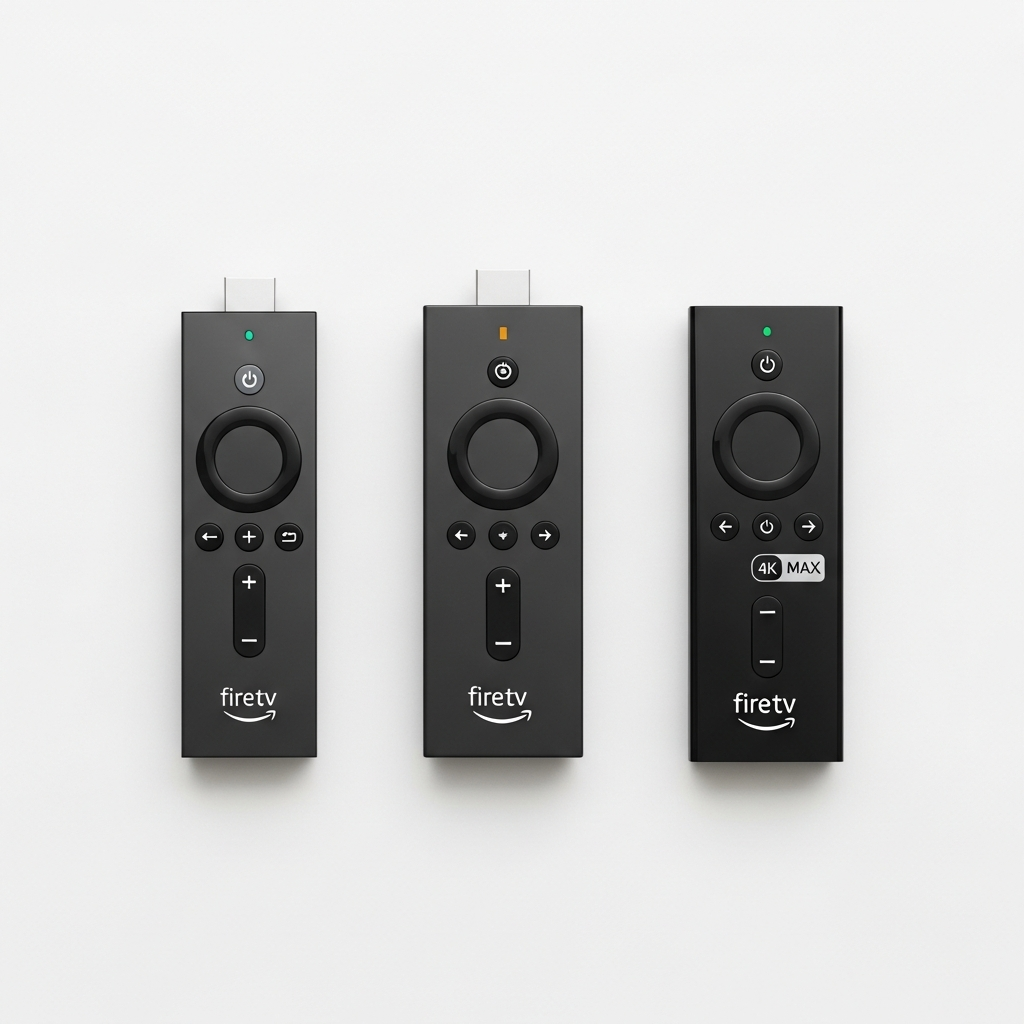
Before choosing the best IPTV app for your Firestick, confirm which model you have and what it supports. App performance varies significantly between Firestick generations — an app that runs flawlessly on a Fire TV Stick 4K Max may stutter or crash on a Fire TV Stick Lite. Here is the full compatibility breakdown:
| Firestick Model | RAM | Max Resolution | Best Apps | Sideload Support |
|---|---|---|---|---|
| Fire TV Stick 4K Max (2023) | 2 GB | 4K HDR | All apps ✅ | ✅ Yes |
| Fire TV Cube (3rd Gen) | 2 GB | 4K HDR | All apps ✅ | ✅ Yes |
| Fire TV Stick 4K (2nd Gen) | 2 GB | 4K HDR | All apps ✅ | ✅ Yes |
| Fire TV Stick (3rd Gen) | 1 GB | 1080p | Smarters, XCIPTV ⚠️ | ✅ Yes |
| Fire TV Stick Lite | 1 GB | 1080p | Smarters, GSE ⚠️ | ✅ Yes |
Sideloading is required for the most powerful IPTV apps on Firestick. TiviMate and Perfect Player are not available on the Amazon App Store — they must be installed via the Downloader app method. Enabling sideloading takes under 2 minutes: go to Settings → My Fire TV → Developer Options → Apps from Unknown Sources → On. This does not affect the security of your App Store apps and can be toggled off after installation. Our full IPTV installation guide covers the complete sideloading process with screenshots.
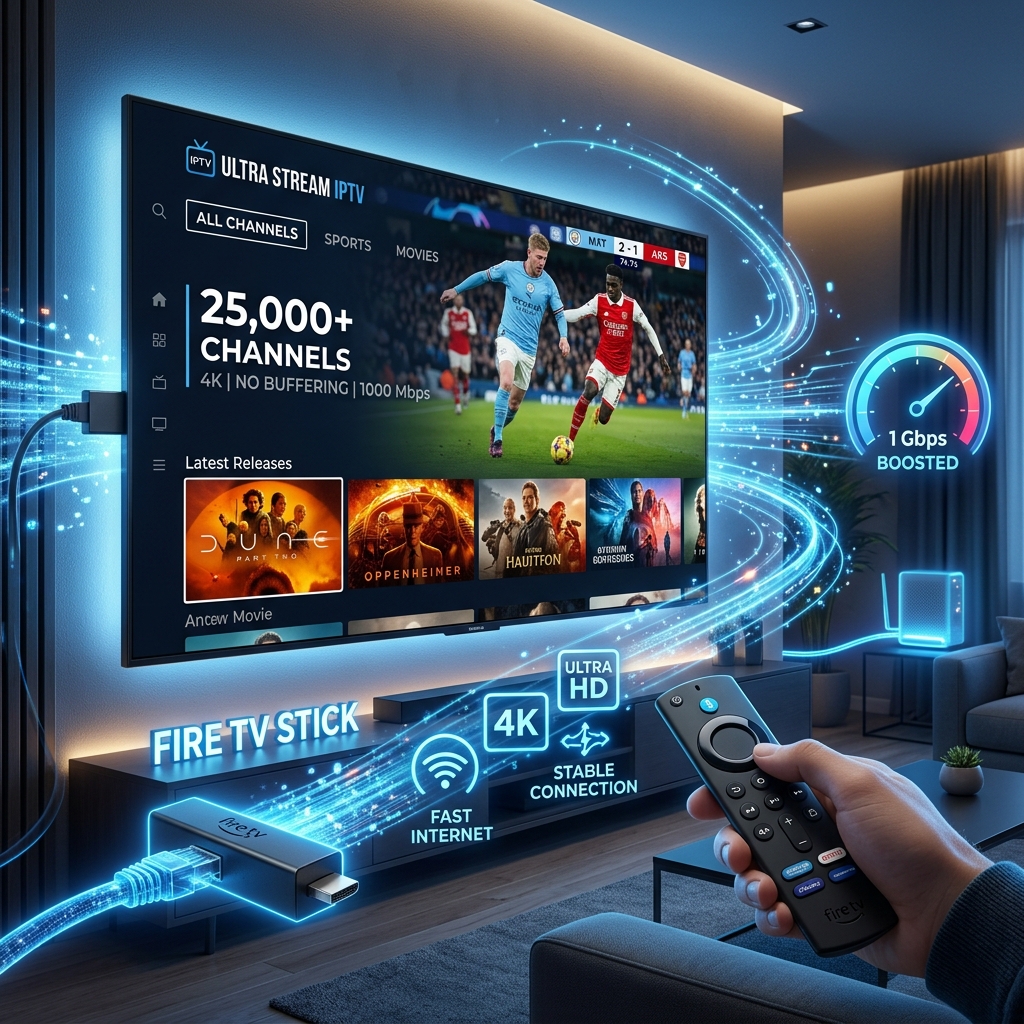
For optimal performance regardless of your Firestick model, connect via wired Ethernet using the Amazon Ethernet Adapter for Fire TV Stick — this eliminates the Wi-Fi latency that causes buffering in all IPTV apps on all Firestick models. Now let's look at the top apps themselves.
Best IPTV Apps for Firestick 2026: Side-by-Side Comparison
Here is the complete comparison of the top 7 IPTV apps for Firestick in 2026, ranked by overall performance across channel loading speed, EPG quality, sports streaming stability, and ease of setup:
| App | App Store | EPG Quality | 4K Support | Hardware Decode | Best For | Price |
|---|---|---|---|---|---|---|
| TiviMate | ❌ Sideload | ⭐⭐⭐⭐⭐ Best | ✅ Yes | ✅ Yes | Power users — sports fans | Free / $5/yr premium |
| IPTV Smarters Pro | ✅ App Store | ⭐⭐⭐⭐ Full EPG | ✅ Yes | ✅ Yes | Beginners — easiest setup | Free |
| XCIPTV | ✅ App Store | ⭐⭐⭐⭐ Full EPG | ✅ Yes | ✅ Yes | Xtream Codes users | Free |
| GSE Smart IPTV | ✅ App Store | ⭐⭐⭐ Basic EPG | ✅ Yes | ⚠️ Limited | M3U playlist users | Free / $2.99 unlock |
| Perfect Player | ❌ Sideload | ⭐⭐⭐⭐ Full EPG | ✅ Yes | ✅ Yes | Low-RAM Firestick devices | Free |
| Televizo | ✅ App Store | ⭐⭐⭐ Basic EPG | ✅ Yes | ✅ Yes | Simple playlist players | Free / premium |
| OTT Navigator | ❌ Sideload | ⭐⭐⭐⭐ Full EPG | ✅ Yes | ✅ Yes | Advanced users — portal support | Free |
The right choice depends on your Firestick model, your IPTV provider's credential format, and how you watch. Sports fans who need a grid EPG to track multiple games simultaneously should go straight to TiviMate. Users who want zero-complexity setup from the Amazon App Store should start with IPTV Smarters Pro. Users on low-RAM Firestick devices (1 GB) will find Perfect Player the most stable option due to its minimal memory footprint. The detailed breakdown for each app follows below.
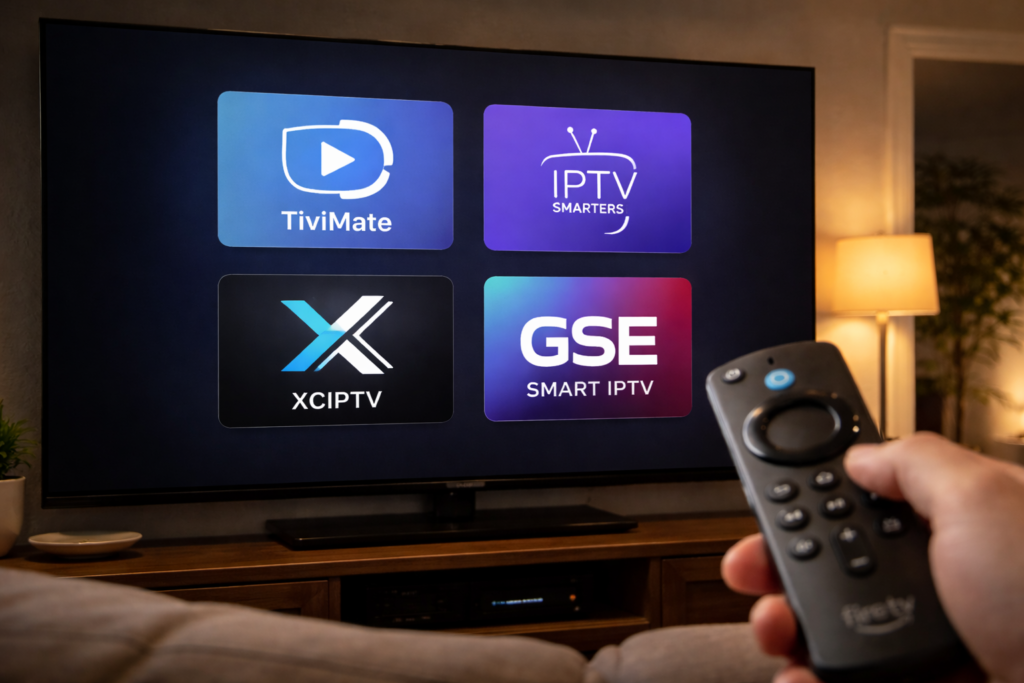
Top 7 Best IPTV Apps for Firestick 2026: Full Reviews
1. TiviMate — Best Overall IPTV App for Firestick
TiviMate is the undisputed best IPTV app for Firestick in 2026 for anyone who watches live TV regularly. Its TV guide grid layout shows every channel's current and upcoming programming simultaneously — like a real cable TV guide — making it the only app that truly replaces the cable experience rather than just streaming the channels. The interface is fast, the EPG loads reliably, and hardware decoding keeps 4K sports streams smooth even on heavily loaded servers.
- ✅ Best EPG grid layout of any IPTV app on Firestick
- ✅ Picture-in-picture support on Fire TV Stick 4K Max
- ✅ Catchup/time-shift support for providers that offer it
- ✅ Custom channel groups — create Sports, News, Entertainment folders
- ✅ Hardware decoding — smooth 4K on supported Firestick models
- ⚠️ Requires sideloading via Downloader app — not in Amazon App Store
- ⚠️ Premium features (multi-playlist, catchup) require $4.99/year subscription
Who should use TiviMate: Anyone on a Fire TV Stick 4K, 4K Max, or Fire TV Cube who watches live sports, news, or follows a regular TV schedule. The EPG alone justifies the sideloading step.
2. IPTV Smarters Pro — Best for Beginners
IPTV Smarters Pro is the best IPTV app for Firestick beginners because it is available directly from the Amazon App Store, supports both Xtream Codes and M3U URL login formats, and has the most beginner-friendly interface of any major player. Setup takes under 5 minutes from first launch to watching live channels. It supports hardware video decoding on all Firestick 4K devices, which is critical for smooth sports streaming.
- ✅ Available in Amazon App Store — no sideloading required
- ✅ Supports Xtream Codes API and M3U URL — works with all providers
- ✅ Full EPG with 7-day guide
- ✅ Hardware decoding for 4K streams on supported devices
- ✅ VOD and Series sections built in
- ⚠️ Interface can feel cluttered with large channel lists
- ⚠️ Slightly higher RAM usage than TiviMate on 1 GB devices
Who should use IPTV Smarters Pro: First-time IPTV users on any Firestick model, or anyone who wants a working setup in under 10 minutes without sideloading. This is our recommended starting point for all new users at Globall-TV — see the full setup in our Firestick IPTV installation guide. If Smarters stops working, our IPTV Smarters not working guide covers every fix.
3. XCIPTV — Best for Xtream Codes Providers
XCIPTV is specifically built for Xtream Codes API providers and delivers noticeably faster channel switching and EPG loading than generic multi-format apps when used with an Xtream Codes subscription. It is available directly from the Amazon App Store, supports 4K with hardware decoding, and has a cleaner, more modern interface than IPTV Smarters. For users on Globall-TV or any Xtream Codes-based provider, XCIPTV often outperforms Smarters on channel load speed.
- ✅ Available in Amazon App Store
- ✅ Optimized for Xtream Codes API — fastest EPG loading in this format
- ✅ Clean modern interface — easiest navigation on Firestick remote
- ✅ Hardware decoding for 4K streams
- ⚠️ Less flexible with M3U playlists than Smarters or GSE
- ⚠️ VOD navigation less polished than TiviMate
Who should use XCIPTV: Users with an Xtream Codes subscription who want faster channel switching and a cleaner interface than IPTV Smarters Pro, without sideloading.
4. GSE Smart IPTV — Best for M3U Playlist Users
GSE Smart IPTV is the best IPTV app for Firestick users who have an M3U playlist URL rather than Xtream Codes credentials. It handles large M3U playlists with thousands of channels more gracefully than most apps, with category filtering and custom playlist organization tools that make navigation manageable. The free version is fully functional — the $2.99 one-time unlock removes ads and adds EPG management features.
- ✅ Available in Amazon App Store
- ✅ Best M3U playlist handling of any App Store IPTV player
- ✅ Custom categories and channel organization
- ✅ Multi-stream and external player support
- ⚠️ EPG loading slower than TiviMate or XCIPTV
- ⚠️ Hardware decoding support limited on some Firestick models
Who should use GSE Smart IPTV: Users who received an M3U URL from their provider and want a stable, well-supported App Store player with strong playlist management.
5. Perfect Player — Best for Low-RAM Firestick Devices
Perfect Player is the lightest IPTV app available for Firestick in terms of RAM usage — it runs smoothly on the 1 GB Fire TV Stick 3rd Gen and Lite models where heavier apps like TiviMate and Smarters can lag. It requires sideloading but compensates with outstanding stability on constrained hardware. The interface is minimal and functional rather than polished, but for users whose priority is reliability over features, it is unmatched on older Firestick hardware.
- ✅ Lowest RAM footprint of any major IPTV player
- ✅ Excellent stability on 1 GB Firestick models
- ✅ Full EPG support
- ✅ Hardware decoding support
- ⚠️ Requires sideloading
- ⚠️ Interface less polished than TiviMate or Smarters
Who should use Perfect Player: Users with a Fire TV Stick Lite or 3rd Gen (1 GB RAM) experiencing crashes or stuttering with heavier apps.
6. Televizo — Best for Simple Playlist Streaming
Televizo is a lightweight IPTV player available from the Amazon App Store that excels at simplicity — it loads playlists fast, plays channels reliably, and stays out of the way. It lacks the advanced EPG features of TiviMate or XCIPTV but is an excellent choice for users who primarily use IPTV for VOD content or have a small channel list they do not need an elaborate guide to navigate. Hardware decoding support makes it more capable than its simple interface suggests.
- ✅ Available in Amazon App Store
- ✅ Very fast playlist loading
- ✅ Hardware decoding support
- ✅ Clean minimalist interface
- ⚠️ Basic EPG — not suitable for sports fans tracking multiple channels
- ⚠️ Limited customization compared to TiviMate
7. OTT Navigator — Best for Advanced Users and Portal Support
OTT Navigator is the most feature-rich IPTV app available for Firestick in 2026 — it supports Xtream Codes, M3U, and portal (Stalker) connections, has the most configurable EPG of any player, and offers advanced features like parental controls, multi-audio track switching, and external player routing. It requires sideloading and has a steeper learning curve than any other app on this list, but for advanced users who want total control over their IPTV experience, nothing else comes close. For detailed troubleshooting across all apps, see our IPTV not working on Firestick guide.
- ✅ Supports Xtream Codes, M3U, and portal/Stalker connections
- ✅ Most configurable EPG available on Firestick
- ✅ Advanced features: parental controls, multi-audio, external player
- ✅ Hardware decoding and 4K support
- ⚠️ Requires sideloading
- ⚠️ Steep learning curve — not recommended for beginners
Now that you know which app matches your needs, let's walk through the complete installation process for the two most popular options — IPTV Smarters Pro (App Store) and TiviMate (sideload).
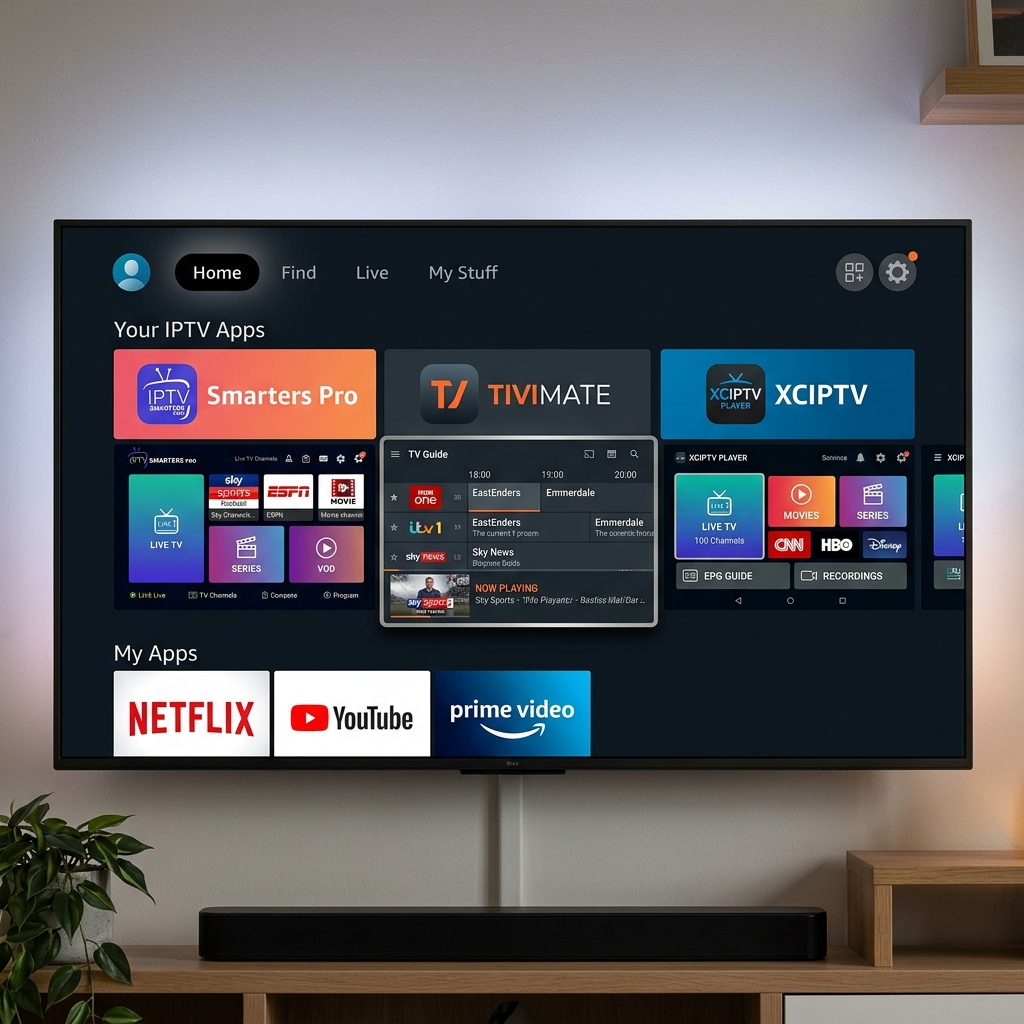
How to Install and Set Up the Best IPTV Apps on Firestick 2026: Step-by-Step
Follow the method that matches your chosen app. Method A covers IPTV Smarters Pro from the Amazon App Store — zero sideloading required. Method B covers TiviMate via the Downloader sideload method.
Method A — IPTV Smarters Pro (Amazon App Store)
- Search for IPTV Smarters Pro on the Firestick home screen
From your Firestick home screen, press the search icon (magnifying glass) at the top. Type "IPTV Smarters Pro" using the on-screen keyboard. In the results, look for the app from Whmcssmarters — this is the official developer. Press Select to open the app page, then press Get or Download. The app is free and installs in under 60 seconds on a standard home connection. Once installed it appears in your Apps and Channels row. If you cannot find it by name, try searching "Smarters" — the full name sometimes fails on Firestick's search. - Open the app and choose your login method
Launch IPTV Smarters Pro from your Apps row. On first launch you will see a login screen with three options: Add User with Xtream Codes API, Load Your Playlist and EPG from URL (M3U), and Load Playlist from Local Storage. Check your provider's welcome email to confirm which format your credentials are in. If you received a server URL plus username and password, you have Xtream Codes — choose the first option. If you received a single long URL ending in .m3u or .m3u8, choose the second option. If you subscribed to Globall-TV, your credentials will be in Xtream Codes format. - Enter your IPTV credentials
For Xtream Codes: type your server URL exactly as provided — including http:// or https:// at the start and any port number at the end (for example http://server.example.com:8080). Then enter your username and password exactly as in your welcome email — check carefully for capital letters, zeros vs the letter O, and any trailing spaces. Give your account a name such as "Globall-TV" and press Add User. For M3U: paste your full M3U URL into the field and press Load. If you mistype any character in Xtream Codes credentials the app will show a login error — our IPTV login error fix guide covers this in detail. - Wait for channels to load and explore the interface
After entering credentials, IPTV Smarters will connect to the server and load your full channel list. This takes between 30 seconds and 3 minutes depending on your subscription's total channel count and your internet speed. Once loaded you will see tabs for Live TV, Movies, Series, and Catchup. Navigate to Live TV and look for the Sports or USA Channels category. Browse to find the channels you watch most frequently — ESPN, NFL Network, local news affiliates — and press the star icon to add them to your Favorites. The Favorites list becomes your quick-access hub for daily viewing. - Configure hardware decoding for smooth 4K playback
By default IPTV Smarters uses Auto video decoding. For Fire TV Stick 4K and 4K Max users, switching to Hardware decoding significantly improves performance on high-bitrate streams. Go to Settings (gear icon top right) → Player Settings → Video Decoder → select Hardware. Save and return to Live TV. Test a 4K channel if your provider has them — the stream should load within 2 seconds and play without dropped frames. If you see any green/pink artifacts on screen after switching to hardware decoding, switch back to Auto — this indicates a codec compatibility issue with that specific stream. For all other issues see our IPTV Smarters troubleshooting guide. - Set up your EPG for a full TV guide experience
If your provider includes an EPG URL in your welcome email, go to Settings → EPG Settings → paste the URL → set refresh every 24 hours → save. Allow 5–10 minutes on first load for the full guide to populate. Once loaded, the EPG shows what is currently airing and what is coming up on every channel in your list. In the Live TV section, press the Guide button to switch from channel list to EPG grid view. A fully loaded EPG turns IPTV Smarters from a simple stream player into a complete cable TV replacement. If your EPG is not loading see our login and EPG error fix guide for solutions.
Method B — TiviMate (Sideload via Downloader)
- Enable Apps from Unknown Sources on your Firestick
Go to Settings → My Fire TV → Developer Options → Apps from Unknown Sources → turn On. A warning message will appear — press Turn On to confirm. This setting only affects manually installed apps and does not compromise your App Store apps in any way. You can turn it off again after TiviMate is installed if you prefer. - Install the Downloader app from the Amazon App Store
Search for "Downloader" on your Firestick home screen. Install the free app from AFTVnews — it is a file download and browser tool specifically designed for sideloading apps on Firestick. Once installed, open Downloader and allow storage permissions if prompted. - Download and install TiviMate
In the Downloader address bar, type the TiviMate APK download URL (available from tivimate.com) and press Go. The APK file will download — press Install when the prompt appears. After installation press Done (not Open). TiviMate will now appear in your Apps and Channels row. The full sideload process with exact URLs is covered step by step in our complete IPTV installation guide for Firestick. - Add your IPTV playlist in TiviMate
Open TiviMate. Press Add Playlist on the welcome screen. Choose Xtream Codes or M3U URL depending on your credentials. Enter your details exactly as provided and press Next. TiviMate will load your channels and EPG simultaneously — this is faster than Smarters for large playlists because TiviMate caches channel data locally. Once loaded, your channels appear in the TV Guide grid view automatically. Navigate using your Firestick remote — left/right changes channels, up/down moves through time in the EPG. Press Select on any programme to start watching.
Pro Tips for Using IPTV Apps on Firestick in 2026
After setting up dozens of Firestick IPTV configurations for USA users, these are the optimizations that consistently make the biggest difference in daily performance — going beyond the basic setup.
Clear App Cache Weekly
Every IPTV app accumulates EPG data, thumbnail cache, and stream history over time. On Firestick's limited storage this builds up quickly and slows channel switching, causes EPG lag, and in some cases crashes the app entirely during heavy use. Go to Settings → Applications → Manage Installed Applications → select your IPTV app → Clear Cache. Do this once per week for a consistently fast experience. Never press Clear Data — that removes your login credentials and requires full reconfiguration from scratch.
Use External Player for Problem Streams
Some IPTV streams use codecs that are not fully supported by every player's built-in decoder. If a specific channel consistently buffers or shows video artifacts while other channels on the same service work fine, the issue is a codec mismatch rather than a network problem. TiviMate, IPTV Smarters, and OTT Navigator all support routing individual channels to an external player — MX Player is the best option. Install MX Player from the App Store, then in your IPTV app settings select it as the external player for that specific channel. For persistent stream issues see our dedicated IPTV not working on Firestick fix guide.
Create Separate Channel Groups for Each Household Member
Premium IPTV subscriptions with 10,000–25,000+ channels are impossible to navigate without organization. TiviMate allows unlimited custom channel groups — create a Sports group with ESPN, NFL Network, NBA TV, and RedZone; a Kids group with cartoon channels; a News group; and an International group for language-specific channels. Assign each household member their own group as a shortcut. This single organizational step reduces daily navigation time by 90% and makes the Firestick IPTV experience feel as natural as a cable TV setup.
Schedule EPG Updates During Off-Peak Hours
EPG updates download schedule data for thousands of channels and temporarily slow app performance during the refresh. Set your EPG update time to 3–4 AM when no one is actively watching. In TiviMate go to Settings → EPG → Update time → set to 03:00. In IPTV Smarters go to EPG Settings → Auto Update → set to 03:00. Your guide will always be current by morning and the update will never interrupt evening viewing. See our best IPTV for Firestick 2026 guide to confirm which providers include EPG URLs with their subscriptions.
Keep Your App Version Updated
IPTV player apps release updates regularly to fix compatibility issues with new Firestick firmware versions, improve EPG loading speed, and patch bugs that cause crashes. Running an outdated app version is one of the most common causes of login failures, black screens, and buffering that have nothing to do with your IPTV provider. For App Store apps, check for updates monthly under Apps → select app → Update if available. For sideloaded apps like TiviMate, check the developer's website for the latest APK version every 4–6 weeks.
Are IPTV Apps Legal to Use on Firestick in the USA?
IPTV player apps like TiviMate, IPTV Smarters Pro, XCIPTV, and GSE Smart IPTV are completely legal software tools — they are video player applications, the same category as VLC or Windows Media Player. Installing and using any of these apps on your Firestick carries no legal risk whatsoever. The legality question in IPTV is always about the content source — specifically, whether the IPTV subscription service you connect to the app is licensed to distribute the channels it provides.
Using a licensed IPTV provider with any of the apps reviewed in this guide is entirely legal in the USA. The player app is simply the interface — it has no content of its own. For a full explanation of how IPTV legality works in the United States, what the FCC says about retransmission rights, and how to identify a legitimate licensed provider, read our complete guide: Is IPTV Legal in the USA?
Frequently Asked Questions: Best IPTV Apps for Firestick 2026
What is the best free IPTV app for Firestick in 2026?
The best free IPTV app for Firestick in 2026 is IPTV Smarters Pro for App Store installation, and TiviMate for users willing to sideload. Both are free to download — IPTV Smarters Pro is fully free with no paid unlock required, while TiviMate has a free base version with a $4.99/year optional premium upgrade for multi-playlist and catchup features. GSE Smart IPTV is another strong free option available in the App Store, particularly for M3U playlist users. All three require a paid IPTV subscription to provide actual content — the apps themselves are free, but they need a provider to connect to. See our IPTV free trial guide for how to test a service before paying.
Can I use TiviMate without sideloading on Firestick?
No — TiviMate is not available in the Amazon App Store and requires sideloading via the Downloader app on all Firestick devices. The sideloading process takes approximately 5 minutes and only needs to be done once. Enable Apps from Unknown Sources in Developer Options, install Downloader from the App Store, then download the TiviMate APK from the developer's official website. The full process with exact steps is covered in our complete IPTV installation guide. If sideloading feels too complex, IPTV Smarters Pro and XCIPTV are excellent App Store alternatives that require no sideloading at all.
Why does my IPTV app keep crashing on Firestick?
IPTV app crashes on Firestick are almost always caused by one of three things: insufficient RAM (especially on 1 GB Firestick Lite and 3rd Gen models running memory-heavy apps like TiviMate), a full app cache that needs to be cleared, or an outdated app version that is incompatible with the current Firestick firmware. The fastest fix is Settings → Applications → Manage Installed Applications → your IPTV app → Clear Cache, followed by restarting the Firestick. If crashes persist on a 1 GB device, switch to Perfect Player which has the lowest RAM footprint of any major IPTV player. For a complete crash troubleshooting workflow, see our IPTV not working on Firestick fix guide.
Does IPTV Smarters Pro work with all IPTV providers?
Yes — IPTV Smarters Pro works with virtually all IPTV providers because it supports both major credential formats: Xtream Codes API (server URL, username, password) and M3U URL playlists. Nearly every IPTV provider delivers credentials in one of these two formats, which means Smarters is universally compatible regardless of which service you subscribe to. The only edge case is portal/Stalker-based providers, which require OTT Navigator instead. If you experience login failures with correct credentials in Smarters, our IPTV login error fix guide covers every known cause and solution, and our IPTV Smarters not working guide addresses app-specific issues.
Which IPTV app is best for watching live sports on Firestick?
TiviMate is the best IPTV app for live sports on Firestick because its EPG grid layout lets you see what is currently live across all your sports channels simultaneously — exactly like a cable TV guide. You can see at a glance that NFL RedZone, an NBA game on TNT, and UFC prelims on ESPN are all live at the same time without opening each channel individually. TiviMate also supports custom favorites groups, so you can create a dedicated Sports group with ESPN, FS1, NFL Network, NBA TV, and regional sports networks pre-organized for game-day access. For the full sports IPTV setup including provider recommendations and network optimization, see our dedicated guide on watching live sports IPTV on Firestick in 2026.
Choose Your IPTV App and Start Streaming on Firestick Today
The best IPTV apps for Firestick in 2026 come down to one question: what do you prioritize? For the best overall experience with the richest EPG, choose TiviMate. For the fastest setup with zero sideloading, choose IPTV Smarters Pro. For Xtream Codes speed and a clean interface, choose XCIPTV. For low-RAM Firestick stability, choose Perfect Player. Every app on this list has been tested on real Firestick hardware — not just reviewed on paper.
Here is everything you need to complete your IPTV setup on Firestick from start to finish:
- 📦 How to install IPTV on Firestick — full installation guide covering App Store and sideload methods
- 🏆 Best IPTV for Firestick 2026 — top provider rankings to pair with your chosen app
- ⚽ Watch live sports IPTV on Firestick — app and provider setup for NFL, NBA, UFC
- 🔧 IPTV not working on Firestick — fix crashes, buffering, and black screen issues fast
- 🔐 Fix IPTV login errors on Firestick — solve credential and EPG sync problems
- ⚖️ Is IPTV legal in the USA? — understand your rights as a viewer before subscribing
The fastest way to confirm your chosen app works perfectly with a premium provider is to test it yourself with no commitment. Start your free Globall-TV trial today — instant activation, no credit card required, and full access to 25,000+ live channels including every major USA sports network. Your app of choice will be streaming live TV within minutes of signing up.
Have a question about a specific IPTV app on Firestick? Drop it in the comments — I answer every one.
6 Responses