
How to Install IPTV on Firestick in 2026 — Complete Step-by-Step Guide
Learning how to install IPTV on Firestick is easier than most people think — the entire process takes under 10 minutes and works on every Amazon Firestick model available in 2026. I'm Yassine, and after 3 years setting up IPTV on Firestick devices for USA households, I can walk you through the exact steps that work every time — from enabling the right settings to entering your credentials and watching your first live channel.
This guide covers two installation methods: the App Store method for apps available directly on Amazon (IPTV Smarters Pro, XCIPTV) and the Downloader sideload method for apps not in the App Store (TiviMate, Perfect Player). Both methods are covered step by step with exact navigation instructions for 2026 Firestick firmware. You do not need any technical experience — if you can navigate the Firestick home screen, you can complete this setup.
Before starting, make sure you have your IPTV provider credentials ready — your Server URL, Username, and Password (Xtream Codes format) or your M3U playlist URL. If you do not have a provider yet, see our IPTV free trial USA guide to get credentials for testing before committing to a subscription. For a ranked list of the best providers for Firestick, see our best IPTV for Firestick USA guide.
Why Firestick Is the Best Device for IPTV in 2026
Before covering how to install IPTV on Firestick, it helps to understand why Firestick is the most popular IPTV device for USA households in 2026 — and what makes it better than Smart TV apps or Android boxes for most users.
- Plug-and-play simplicity — the Firestick plugs directly into any TV's HDMI port. No cables, no complex setup, no compatibility issues. It works on any TV made in the last 15 years that has an HDMI input — including older non-smart TVs.
- Full sideload support — unlike Samsung and LG Smart TVs that restrict installs to their official app stores, Firestick supports full APK sideloading via the Downloader app. This gives you access to TiviMate — the best IPTV player available on any platform.
- Affordable hardware — the Fire TV Stick 4K Max costs under $60 and delivers 2 GB RAM, Wi-Fi 6 support, and full 4K HDR streaming capability. No other IPTV-capable device at this price point matches its performance for live sports streaming.
- Amazon ecosystem integration — Alexa voice control, Amazon Prime Video, and all major streaming apps coexist with your IPTV setup on one device. One remote controls everything.
- Regular firmware updates — Amazon updates Fire OS regularly, keeping the Firestick compatible with current IPTV app versions and security standards throughout 2026.
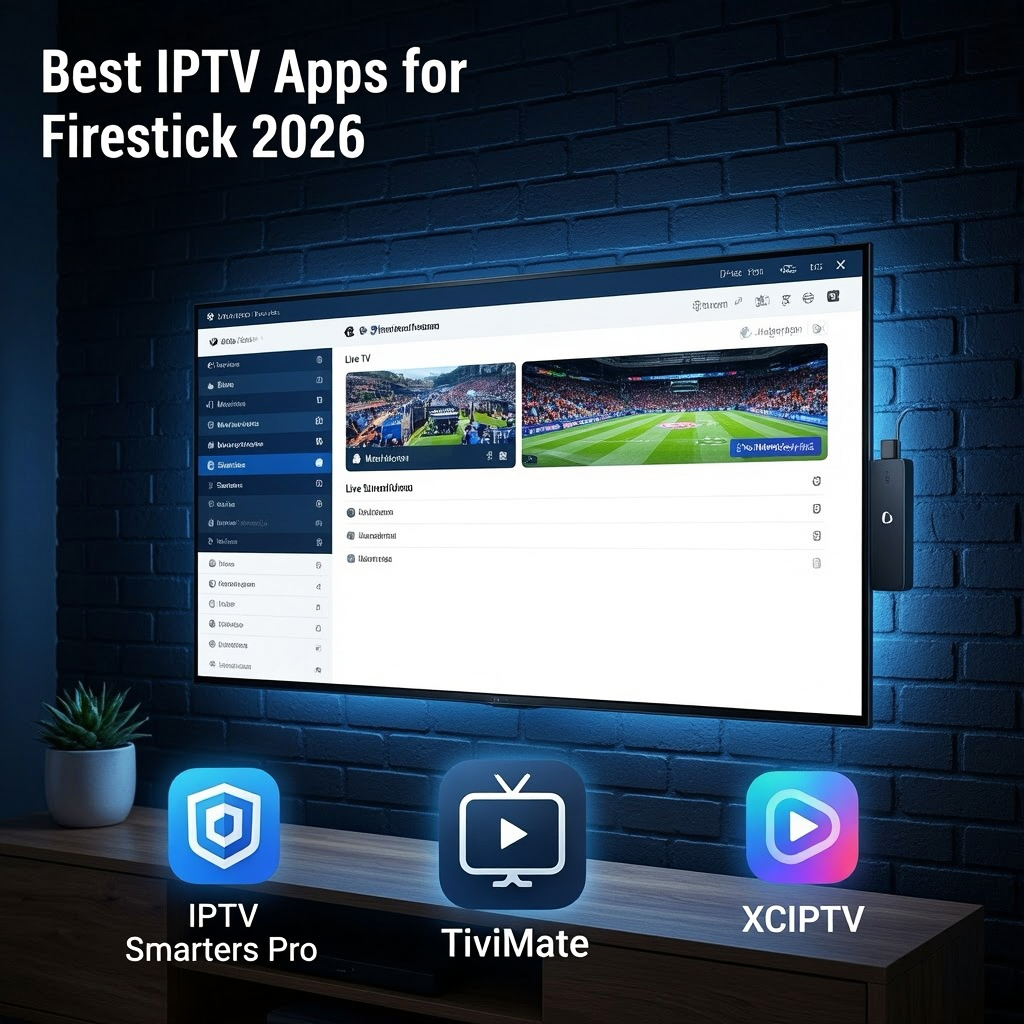
The main limitation of Firestick for IPTV is RAM on older models. The Fire TV Stick Lite and 3rd Gen have 1 GB RAM which causes crashes with feature-heavy IPTV apps like TiviMate on large channel lists. For these devices, IPTV Smarters Pro or Perfect Player are better choices — and knowing how to install IPTV on Firestick correctly for your specific model makes the difference. Our best IPTV apps for Firestick guide covers which app performs best on each device model.
Firestick Models — Which One You Have and What It Supports (2026)
The installation process for IPTV on Firestick is identical across all models — but your device's RAM determines which IPTV app performs best after installation. Confirm your model before choosing an app.
| Firestick Model | RAM | Best IPTV App | 4K Support | Wi-Fi |
|---|---|---|---|---|
| Fire TV Stick 4K Max (2023) | 2 GB | TiviMate — full feature set | ✅ 4K HDR | Wi-Fi 6 |
| Fire TV Stick 4K (2nd Gen) | 2 GB | TiviMate — full feature set | ✅ 4K HDR | Wi-Fi 5 |
| Fire TV Stick (3rd Gen) | 1 GB | IPTV Smarters Pro | ❌ HD only | Wi-Fi 5 |
| Fire TV Stick Lite | 1 GB | Perfect Player — lowest RAM | ❌ HD only | Wi-Fi 5 |
| Fire TV Cube (3rd Gen) | 2 GB | TiviMate — best performance | ✅ 4K HDR | Wi-Fi 6E |
To check which Firestick model you have: go to Settings → My Fire TV → About → the model name is displayed at the top. If you are on a 1 GB device and experiencing crashes after installation, switching to Perfect Player resolves the issue without a hardware upgrade. For users on 2 GB devices, TiviMate delivers the best IPTV experience available on any streaming device in 2026. If you are also considering setting up IPTV on a Smart TV alongside your Firestick, see our IPTV Smart TV setup guide.
Best IPTV Apps to Install on Firestick 2026 — Full Comparison
Choosing the right app is the most important decision in your Firestick IPTV setup. The app determines your EPG quality, stream stability settings, and how smoothly the interface works with your Firestick remote. Here is a full comparison of every major IPTV app available for Firestick in 2026:
| App | Install Method | Cost | EPG Quality | RAM Needed | Best For |
|---|---|---|---|---|---|
| TiviMate | Downloader sideload | Free / $4.99/yr premium | ⭐⭐⭐⭐⭐ Excellent | 2 GB | 4K Max, 4K 2nd Gen — best overall |
| IPTV Smarters Pro | Amazon App Store | Free | ⭐⭐⭐⭐ Good | 1 GB+ | All Firestick models — easiest install |
| XCIPTV | Amazon App Store | Free | ⭐⭐⭐⭐ Good | 1 GB+ | Fast load, clean VOD section |
| Perfect Player | Downloader sideload | Free | ⭐⭐⭐ Average | 512 MB+ | Firestick Lite — lowest RAM footprint |
| OTT Navigator | Downloader sideload | Free | ⭐⭐⭐⭐ Good | 1 GB+ | Advanced users — most customizable |
For first-time Firestick IPTV users, IPTV Smarters Pro is the recommended starting point — it installs directly from the Amazon App Store in 2 minutes with no sideloading required and supports all credential formats. For experienced users on 2 GB Firestick devices, TiviMate is worth the sideload process for its superior EPG interface and multi-provider support. For a full feature breakdown of each app, see our complete IPTV apps comparison guide.
What You Need Before Installing IPTV on Firestick — 2026 Checklist
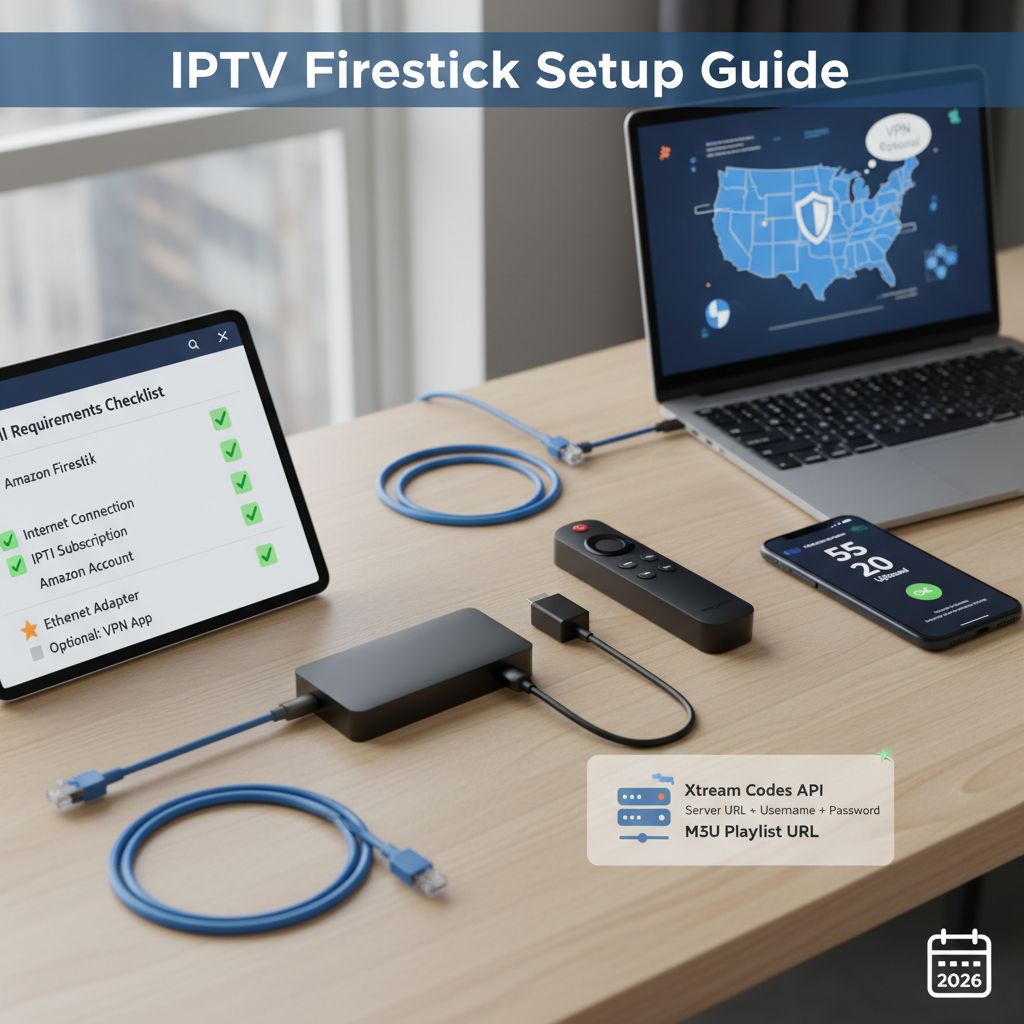
Before starting the installation, confirm you have everything on this checklist. Missing any one of these items causes the most common setup failures that new users experience when learning how to install IPTV on Firestick.
Your IPTV Provider Credentials
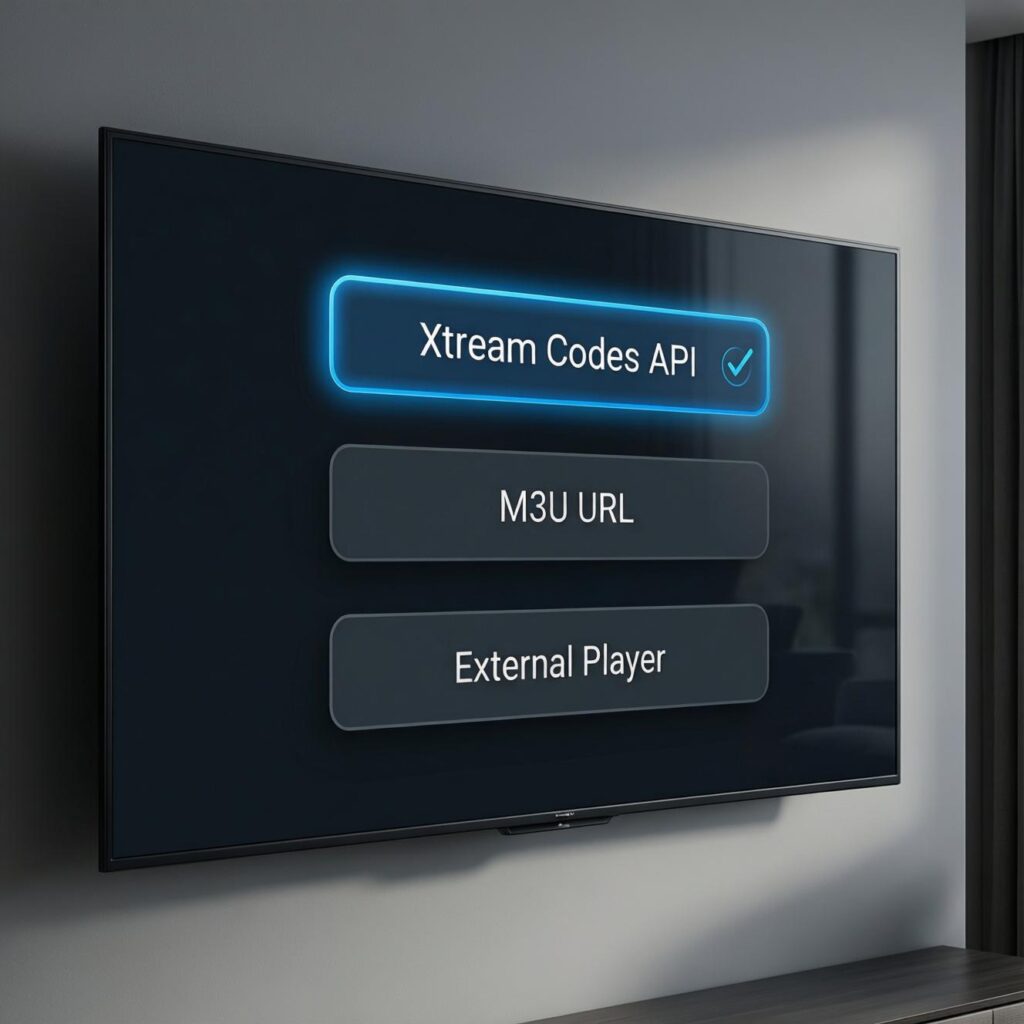
Every IPTV provider sends a welcome email after account activation containing your login credentials. You need one of two formats — Xtream Codes (Server URL + Username + Password) or M3U URL. Xtream Codes is the preferred format — it loads faster and provides better EPG integration than M3U on all IPTV apps. If you have not activated a provider yet, see our IPTV free trial USA guide — most top providers offer a 24-hour free trial with no credit card required.
A Stable Internet Connection
IPTV streaming requires consistent bandwidth — HD channels need 10 Mbps minimum and 4K channels need 25 Mbps. More importantly, the connection must be stable — brief drops cause buffering that is incorrectly blamed on the app or provider. For the most reliable streaming experience, connect your Firestick via wired Ethernet using the Amazon Ethernet Adapter (under $15) rather than Wi-Fi. This eliminates the signal fluctuations that cause the majority of buffering complaints.
Downloader App (for TiviMate and Perfect Player)
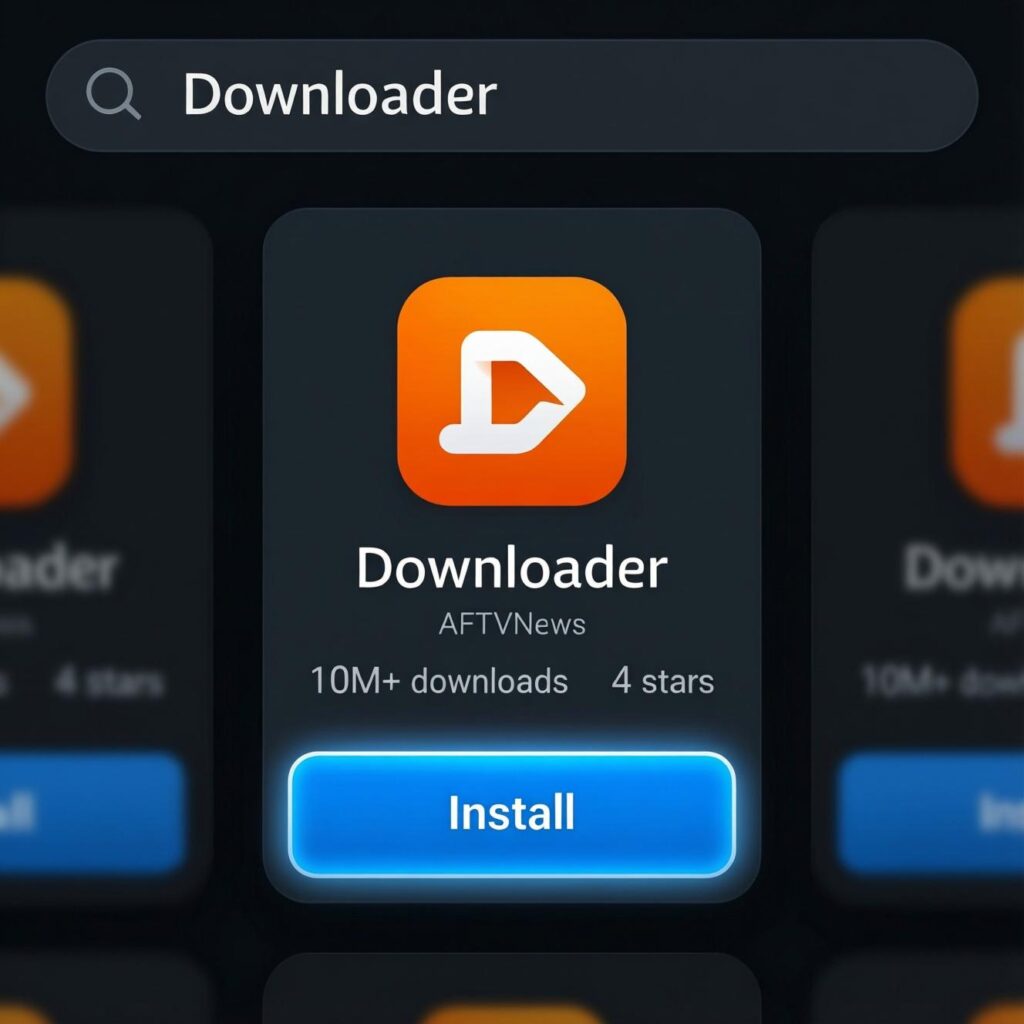
If you plan to install TiviMate or Perfect Player, you need the Downloader app installed first. Downloader is available free in the Amazon App Store — search "Downloader by AFTVnews" and install it before starting the sideload process. You also need to enable Unknown Sources for Downloader in your Firestick security settings — this is covered in the step-by-step guide below.
Your Firestick Remote and Power
Ensure your Firestick is powered via the included adapter (not through the TV's USB port — TV USB ports often do not provide enough power for stable Firestick operation). A low-power connection causes random crashes and performance issues that look identical to app or network problems. The official Amazon power adapter delivers the correct 5V/1A required for consistent Firestick performance.
How to Install IPTV on Firestick — Step-by-Step Guide (2026)
Follow the method that matches your chosen app. Method A covers App Store apps (IPTV Smarters Pro, XCIPTV) — no sideloading required. Method B covers sideloaded apps (TiviMate, Perfect Player) via Downloader.
Method A — Install IPTV Smarters Pro from Amazon App Store (Easiest)
Step 1 — Search for IPTV Smarters Pro
From your Firestick home screen, press the Search icon (magnifying glass) at the top of the screen. Type "IPTV Smarters Pro" using the on-screen keyboard. The app will appear in the search results. Select it and press the Get or Download button. The app downloads and installs automatically — this takes approximately 60 seconds on a typical USA broadband connection. Once installed, press Open to launch it for the first time.
Step 2 — Add your IPTV provider using Xtream Codes
On the IPTV Smarters Pro welcome screen, tap "Add New User." Select "Login with Xtream Codes API." You will see three fields: Server URL, Username, and Password. Enter these exactly as provided in your IPTV provider's welcome email. The Server URL must include the full address with port number — for example: http://yourprovider.com:8080. Check every field carefully for trailing spaces — they are invisible but break authentication. Tap "Add User" to connect. Your channel list begins loading immediately.
Step 3 — Configure EPG and hardware decoding
After your channels load, go to Settings → Player Settings → Video Decoder → select Hardware. This is essential for smooth 4K and high-bitrate sports streams. Then go to Settings → EPG → Force Update to load your full TV guide. Your first EPG load may take 2–5 minutes depending on your provider's channel count. Once complete, navigate to Live TV and select any USA channel to confirm the stream is working correctly. If you encounter a login error during setup, see our IPTV login error fix guide.
Method B — Install TiviMate via Downloader (Best Experience)
Step 1 — Enable Unknown Sources for Downloader
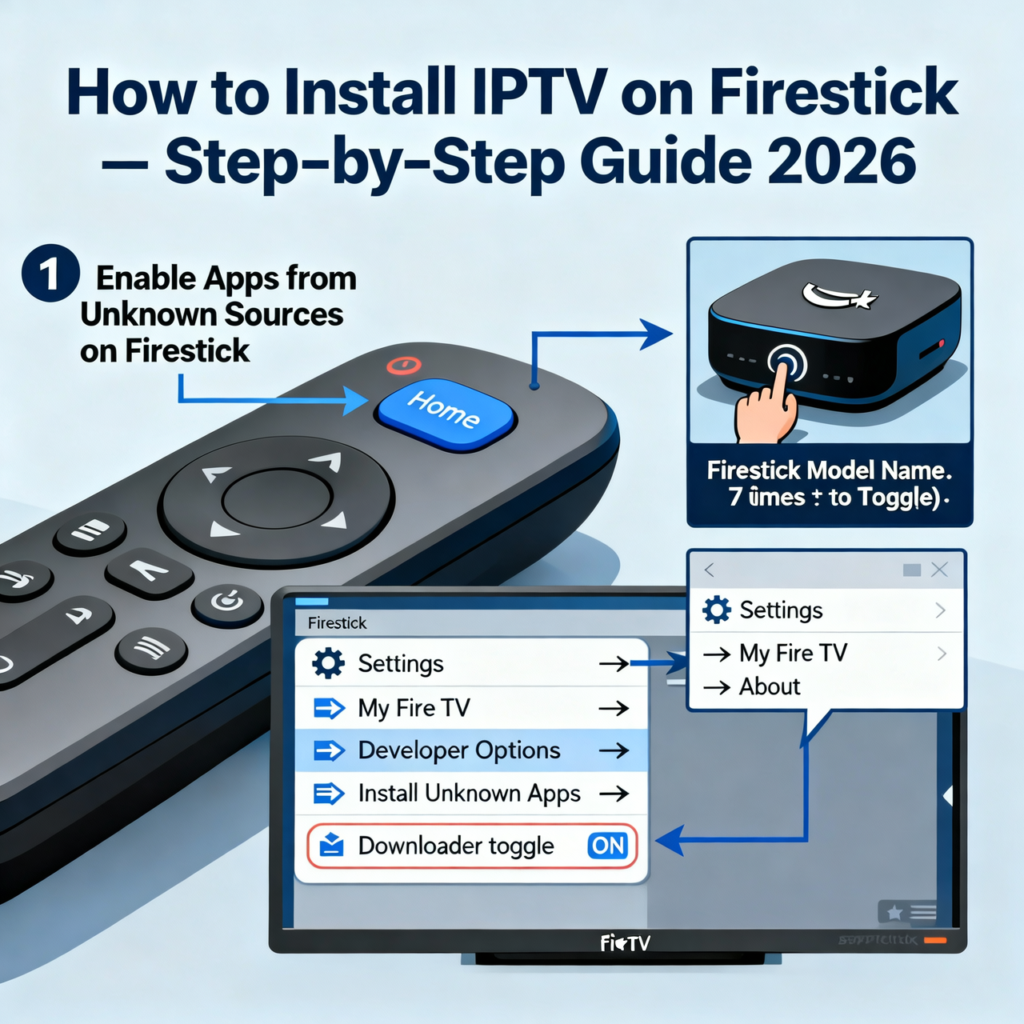
Before sideloading any app on Firestick, you must enable Unknown Sources specifically for the Downloader app. Go to Settings → My Fire TV → Developer Options → Install Unknown Apps → find Downloader in the list → set it to ON. This allows Downloader to install APK files while keeping your Firestick secure. If Developer Options is not visible in your menu, go to Settings → My Fire TV → About → click your Fire TV name 7 times rapidly to unlock Developer Options.
Step 2 — Install Downloader from the App Store
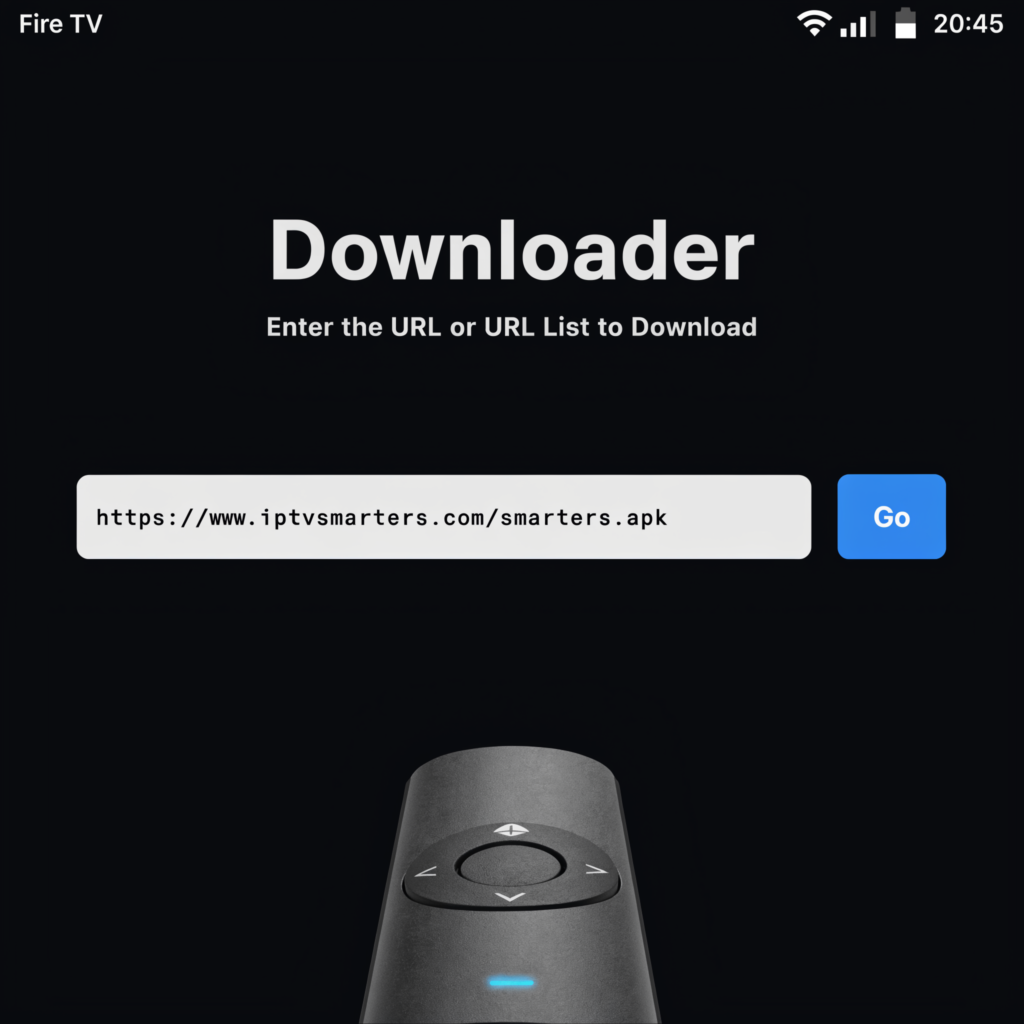
Go to the Amazon App Store → search "Downloader by AFTVnews" → install the free app. Downloader is the standard method for sideloading apps on Firestick — it works by downloading any APK file from a URL you enter. Once Downloader is installed, open it and navigate to the URL bar at the top of the screen. You are now ready to install TiviMate.
Step 3 — Download and install TiviMate APK
In the Downloader URL bar, enter the official TiviMate APK download URL (search "TiviMate APK latest" on your phone to get the current download URL — it updates with each new version). Press Go. Downloader will download the APK file — this takes 30–60 seconds. When the download completes, tap Install. After installation, tap Open to launch TiviMate for the first time.
Step 4 — Add your provider to TiviMate
In TiviMate, tap the gear icon → Playlists → Add Playlist → select Xtream Codes. Enter your Server URL, Username, and Password exactly as provided by your IPTV provider. TiviMate connects to your provider and begins downloading the channel list and EPG. On a first connection with a large channel list (20,000+ channels), this takes 3–8 minutes. Once complete, go to Settings → Playback → Decoder → Hardware to enable hardware decoding. Navigate to Live TV and test a USA channel to confirm everything is working. For troubleshooting any connection issues, see our IPTV not working on Firestick fix guide.
IPTV Firestick Setup Optimization — Tips for 2026
After completing your IPTV installation on Firestick, these settings and habits keep your setup running at peak performance.
Enable Hardware Decoding Immediately
The single most important setting after installation is hardware video decoding. Without it, your Firestick's processor handles all video rendering in software — causing buffering and dropped frames on 4K and high-bitrate sports streams even with a fast internet connection.
Enable it in every IPTV app: Settings → Player → Decoder → Hardware. If you see visual artifacts on specific channels after enabling, those channels have codec incompatibilities — switch those individual channels to software decode while keeping hardware as the default.
Clear App Cache Every Two Weeks
IPTV apps accumulate EPG data, stream cache, and thumbnails over time. After 2–4 weeks of use, this cache buildup causes buffering, crashes, and login failures.
Set a reminder: Settings → Applications → Manage Installed Applications → your IPTV app → Clear Cache. This takes 30 seconds and prevents the majority of performance issues that users incorrectly blame on their provider. Never tap Clear Data — only Clear Cache. Users who learn how to install IPTV on Firestick correctly and follow this maintenance routine almost never experience recurring issues.
Connect via Wired Ethernet for Sports Events
Wi-Fi signal drops are the leading cause of IPTV buffering on Firestick in USA households. The Amazon Ethernet Adapter costs under $15 and eliminates this cause entirely.
For 4K sports streams during peak NFL and NBA events, wired Ethernet is strongly recommended. For provider recommendations that perform best during peak sports events, see our best IPTV for Firestick 2026 guide.
Set Up a Favorites List
Loading 20,000+ channels every time you open your IPTV app adds unnecessary startup time — especially on 1 GB Firestick devices. In TiviMate and IPTV Smarters Pro, mark your 20–50 most-watched channels as favorites and set the app to open Favorites by default on launch.
In TiviMate: Settings → General → Start screen → Favourites. This reduces startup time significantly and makes daily navigation faster on all Firestick models.
Is Installing IPTV on Firestick Legal in the USA?
Installing IPTV apps on your Amazon Firestick is completely legal in the United States. The Downloader app, IPTV Smarters Pro, TiviMate, XCIPTV, and Perfect Player are all legitimate software applications — legally identical to VLC or any other media player. The installation process described in this guide carries zero legal risk.
The legality question in IPTV is always about the content provider — specifically whether your provider holds proper licensing for the channels they distribute. Installing the app and completing the setup is never the legal variable. For a complete breakdown of how IPTV legality works for USA subscribers in 2026, read our full guide: Is IPTV Legal in the USA?
Frequently Asked Questions — How to Install IPTV on Firestick
How long does it take to install IPTV on Firestick?
The App Store method (IPTV Smarters Pro, XCIPTV) takes under 5 minutes from search to first stream — app download is approximately 60 seconds and credential entry takes 2 minutes. The Downloader sideload method (TiviMate, Perfect Player) takes 10–15 minutes total including enabling Unknown Sources, downloading the APK, and waiting for the initial channel list and EPG load.
The first EPG load after connecting your provider is the longest part of the entire setup — it can take 3–8 minutes for providers with large channel lists. Subsequent app launches load EPG data from cache and start in under 30 seconds. Once the initial setup is complete, your IPTV installation on Firestick is permanent — you do not need to repeat the process unless you reinstall the app.
What is the best IPTV app to install on Firestick in 2026?
For Fire TV Stick 4K Max and 4K 2nd Gen (2 GB RAM), TiviMate is the best IPTV app available — it has the most advanced EPG interface, multi-provider support, and best performance on modern Firestick hardware. For Fire TV Stick 3rd Gen and Lite (1 GB RAM), IPTV Smarters Pro is the most reliable choice — it is available directly from the Amazon App Store, requires no sideloading, and runs stably on 1 GB devices.
For the absolute lowest RAM footprint on Firestick Lite, Perfect Player is the most stable option. It has a simpler interface than TiviMate but streams reliably on devices where Smarters and TiviMate crash under load. For a full feature comparison of all five major IPTV apps for Firestick, see our best IPTV apps for Firestick 2026 guide.
Do I need to jailbreak my Firestick to install IPTV?
No — you do not need to jailbreak your Firestick to install IPTV apps. Enabling Unknown Sources in Developer Options is a built-in Amazon feature — it is not jailbreaking and it does not void your warranty or violate Amazon's terms of service. Amazon includes this feature specifically to allow users to install apps from outside the App Store. The process is fully reversible — you can disable Unknown Sources at any time after installation.
IPTV Smarters Pro and XCIPTV do not even require Unknown Sources — they install directly from the Amazon App Store with no settings changes required. Only sideloaded apps like TiviMate and Perfect Player require the Unknown Sources setting to be enabled. According to the FCC Streaming Video Guide, consumers have the right to install and use lawful streaming applications on their devices.
Why is my IPTV not working after installing on Firestick?
The most common causes of IPTV not working immediately after installation are: a credential entry error (trailing space in the password, wrong port number in the server URL, or zero typed as the letter O), an unstable internet connection below the minimum streaming threshold, or the hardware decoder not being enabled in the app settings. Check your credentials first — copy them from your provider's welcome email rather than typing them manually.
If your credentials are confirmed correct and streams still fail, enable hardware decoding in your app's player settings and run an internet speed test on your Firestick to confirm you have at least 10 Mbps stable. For a complete troubleshooting checklist covering every post-installation failure, see our IPTV not working on Firestick fix guide.
Can I install multiple IPTV apps on the same Firestick?
Yes — you can install as many IPTV apps as your Firestick's storage allows. On 2 GB RAM devices, running two apps simultaneously is possible but not recommended — close any app before opening another to avoid RAM competition that causes crashes. On 1 GB devices, install only one IPTV app and uninstall any unused apps to maximize available RAM for the active player.
Most users find one app sufficient for their setup — the provider's channel list and credentials work identically in any app. If you are testing multiple apps to find the best interface for your workflow, install them one at a time, test each thoroughly, and uninstall the ones you are not keeping. For IPTV Smarters-specific troubleshooting after installation, see our IPTV Smarters not working guide.
How to Install IPTV on Firestick — Your Complete 2026 Checklist
You now have everything you need to complete your IPTV installation on Firestick in 2026. Every step of how to install IPTV on Firestick is covered — from enabling Unknown Sources to entering credentials and watching your first live channel.
Here are all the resources you need to get the most from your Firestick IPTV setup in 2026:
- 📱 Best IPTV apps for Firestick 2026 — full TiviMate, XCIPTV, and Smarters comparison
- 🏆 Best IPTV for Firestick USA — top-rated providers tested for USA users
- 🏅 Best IPTV for Firestick 2026 — current provider rankings with free trial links
- 🔧 IPTV Smarters not working — complete fix guide for Smarters Pro issues
- 🔐 Fix IPTV login errors — credential and authentication error fixes
- 🔨 IPTV not working on Firestick — full troubleshooting guide for all issues
- ⚽ Watch live sports IPTV on Firestick — NFL, NBA, UFC setup guide
- 📺 IPTV Smart TV setup — Samsung, LG, and Android TV guide
- 🆓 IPTV free trial USA — test the best providers before subscribing
- ⚖️ Is IPTV legal in the USA? — complete legal guide for USA subscribers
Ready to start streaming? Get your free Globall-TV trial today — 24 hours, no credit card required, full access to 25,000+ live USA channels. Activate your trial, enter your credentials in IPTV Smarters or TiviMate, and be watching live sports on your Firestick within minutes.
Questions about your specific Firestick model or app setup? Drop them in the comments — I answer every one based on 3 years of real Firestick IPTV installation experience.
9 Responses