
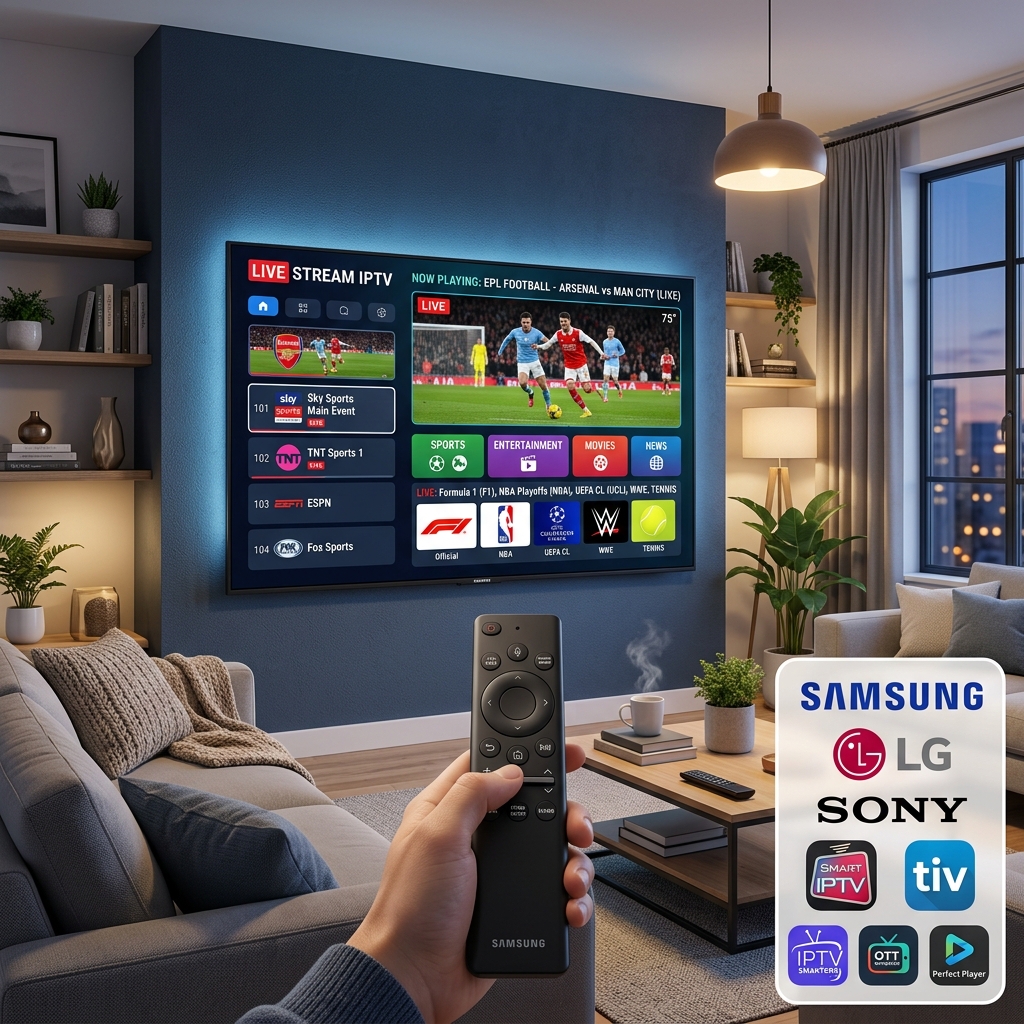
IPTV Smart TV Setup: Complete Step-by-Step Guide for USA Users (2026)
Setting up IPTV on a Smart TV is one of the fastest ways for USA households to replace cable — and I'm Yassine, with 3 years of hands-on IPTV testing across every major Smart TV platform. In this guide I cover every Smart TV brand — Samsung, LG, Android TV, Fire TV Edition, and Roku — with the exact app to use on each, and a step-by-step setup that works in 2026 regardless of which provider you subscribe to.
The biggest difference between IPTV Smart TV setup and Firestick setup is the app ecosystem. Samsung and LG run proprietary operating systems that block direct APK installs, which means your app choice is limited to what is available in their store — or a workaround via a casting method. Android TV devices, on the other hand, support full sideloading, giving you access to TiviMate and every other premium IPTV player. This guide covers both routes clearly so you use the right method for your specific TV.
If you are setting up IPTV on an Amazon Firestick instead of a Smart TV, see our dedicated guide: How to Install IPTV on Firestick (2026). If you have already set up your Smart TV and are looking for the best provider to pair with it, see our best IPTV for Firestick USA guide — all recommended providers work identically on Smart TVs.
Why Set Up IPTV on a Smart TV Instead of a Separate Device
Smart TVs have become powerful enough in 2026 to run IPTV apps natively — no separate Firestick, Android box, or streaming stick required. For many USA households, the Smart TV is already the primary screen in the living room, which makes a direct IPTV Smart TV setup the simplest path to cable replacement without adding another device or remote.
The main advantages of running IPTV directly on a Smart TV in 2026:
- Fewer devices to manage — one remote, one power button, one input. No switching HDMI sources or managing separate device menus.
- Cleaner setup — no dongle behind the TV, no power cable for a separate streaming device, no second remote to lose.
- Direct LAN connection available — most Smart TVs have a built-in Ethernet port. A wired connection eliminates buffering from Wi-Fi signal drops, which is the most common cause of IPTV stream interruptions. On a Firestick, wired Ethernet requires a separate $15 adapter.
- Better performance on newer models — Samsung 2023+ and LG 2022+ Smart TVs have enough RAM and processing power to run IPTV apps without the memory limitations that affect older Firestick Lite and 3rd Gen devices.
- EPG integration — on Android TV devices, IPTV apps like TiviMate can integrate their electronic program guide directly into the TV's native channel guide interface.
The main limitation is app availability. Samsung Tizen OS and LG webOS do not support APK sideloading, which restricts you to apps available in their official stores. This is where the setup process differs most from an Android TV or Firestick. The next section covers exactly which app to use on each Smart TV type.
Before starting your setup, make sure you have your IPTV provider credentials ready — the server URL, username, and password (Xtream Codes format) or your M3U playlist URL. If you do not have a provider yet, see our IPTV free trial USA guide to get credentials for testing without committing to a subscription.
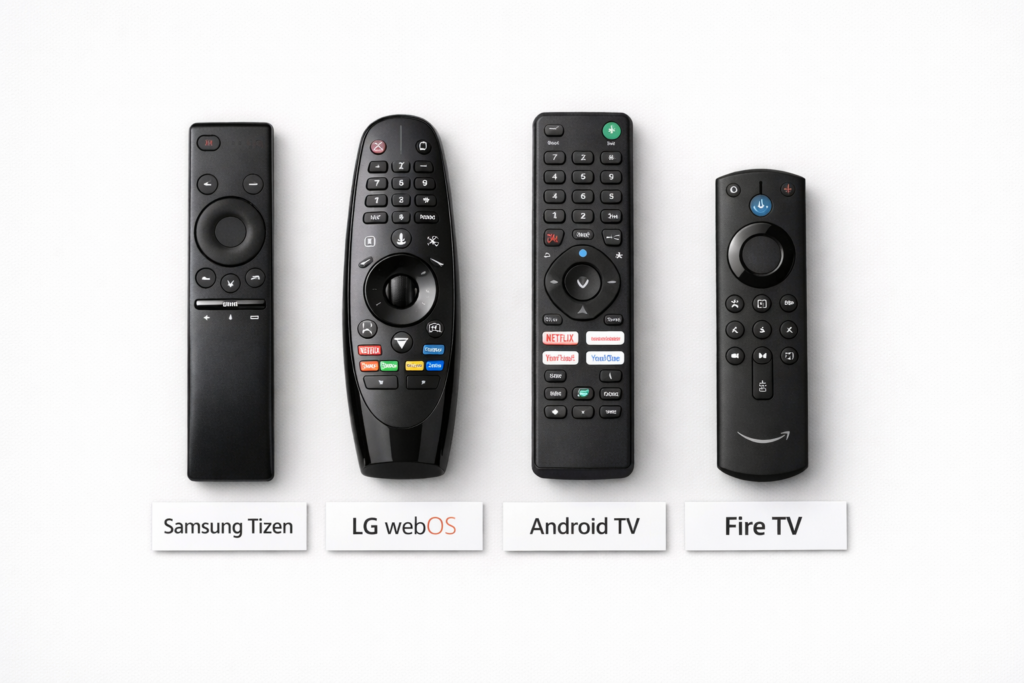
IPTV Smart TV Compatibility — Which App Works on Your TV (2026)
The right IPTV Smart TV setup depends entirely on your TV's operating system. Before downloading anything, confirm which platform your TV runs — it determines both the app you need and the setup method.
| Smart TV Platform | TV Brands | Best IPTV App | Sideload Supported? |
|---|---|---|---|
| Samsung Tizen OS | Samsung (2017–2026) | IPTV Smarters Pro, Smart IPTV (SIPTV) | ❌ No — App Store only |
| LG webOS | LG (2014–2026) | IPTV Smarters Pro, SS IPTV | ❌ No — App Store only |
| Android TV / Google TV | Sony, Philips, TCL, Hisense, Nvidia Shield | TiviMate, IPTV Smarters Pro, XCIPTV | ✅ Yes — full sideload |
| Fire TV Edition (built-in) | Toshiba, Insignia, Amazon | IPTV Smarters Pro, XCIPTV, TiviMate (sideload) | ✅ Yes — same as Firestick |
| Roku OS | Roku TVs, Hisense Roku, Sharp Roku | IPTV Smarters (Roku channel), Channelize TV | ❌ No — Channel Store only |
| Vidaa OS | Hisense (some models) | Smart IPTV, SS IPTV | ⚠️ Limited |
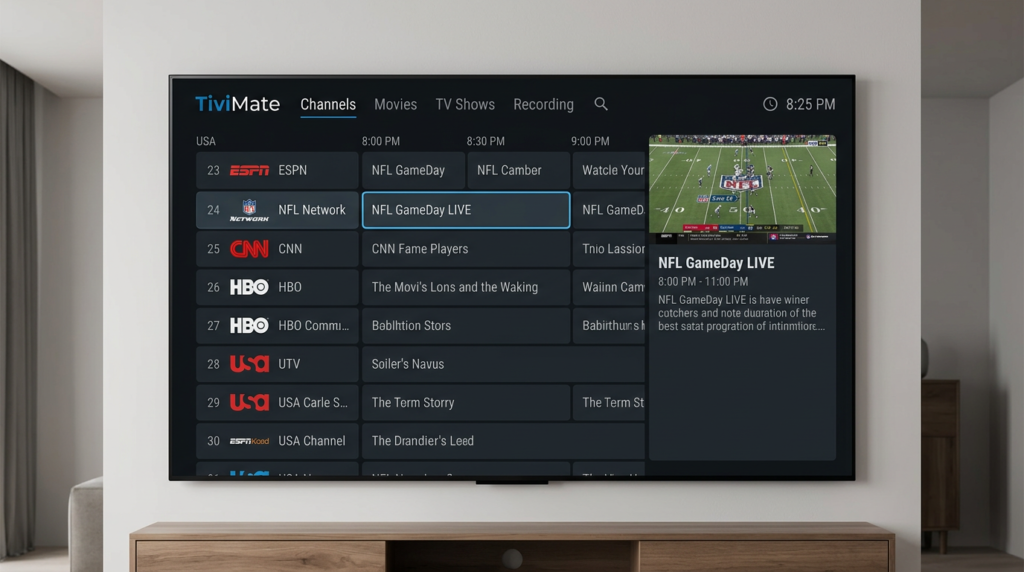
If your TV runs Android TV or Google TV — common on Sony Bravia, Philips OLED, and mid-range Hisense models — you have the best app selection. TiviMate is the premium option for Android TV: it offers the cleanest EPG interface, multi-provider support, and the best performance on high-RAM Android TV devices. Our best IPTV apps guide covers TiviMate, XCIPTV, and IPTV Smarters in full detail — all three work on Android TV with identical functionality to Firestick.
If your TV runs Samsung Tizen or LG webOS and you are completing your IPTV Smart TV setup, IPTV Smarters Pro is available in both the Samsung App Store and LG Content Store and is the recommended starting point. Smart IPTV (SIPTV) is a popular alternative on Samsung with a one-time activation fee of approximately $5.49.
Best IPTV Apps for Smart TV 2026 — Full Comparison
Choosing the right app for your IPTV Smart TV setup affects EPG quality, stream stability, and how smoothly the interface works on your specific TV remote. Here is a full comparison of the major IPTV apps available for Smart TVs in 2026:
| App | Platforms | Cost | EPG Quality | Sideload Needed? | Best For |
|---|---|---|---|---|---|
| TiviMate | Android TV, Fire TV | Free / $4.99/yr premium | ⭐⭐⭐⭐⭐ Excellent | ✅ Yes (Android TV) | Power users — best EPG on any platform |
| IPTV Smarters Pro | Samsung, LG, Android TV, Fire TV, Roku | Free | ⭐⭐⭐⭐ Good | ❌ App Store available | Universal — works on every Smart TV platform |
| XCIPTV | Android TV, Fire TV | Free | ⭐⭐⭐⭐ Good | ✅ Yes (Android TV) | Android TV — fast load, good VOD section |
| Smart IPTV (SIPTV) | Samsung, LG, Vidaa | $5.49 one-time | ⭐⭐⭐ Average | ❌ App Store available | Samsung users wanting M3U list support |
| SS IPTV | Samsung, LG | Free | ⭐⭐⭐ Average | ❌ App Store available | Samsung / LG — free alternative to SIPTV |
| Perfect Player | Android TV | Free | ⭐⭐⭐ Average | ✅ Yes | Low-RAM Android TV devices — lightest footprint |
For Android TV users, TiviMate is the clear recommendation — its EPG interface is the best on any platform.
It handles large channel lists (20,000+ channels) without performance issues on modern hardware. For Samsung and LG users, IPTV Smarters Pro is the most reliable free option available directly from the app store with no sideloading required.
For a full breakdown of each app's features, player settings, and hardware compatibility, see our best IPTV apps for Firestick 2026 guide — the app comparison applies equally to Smart TVs running the same OS.
IPTV Smart TV Setup by Platform — What You Need to Know Before Starting
Before running the step-by-step setup in Section 6, understand the specific setup requirements for your Smart TV platform. Each platform has at least one important difference that affects how you install and configure your IPTV app.
Samsung Tizen OS — IPTV Smarters Pro or Smart IPTV
Samsung's Tizen OS does not support APK sideloading on production TVs. Every app must be installed through the Samsung App Store (called the Samsung Smart Hub).
IPTV Smarters Pro is available in the Samsung Smart Hub and supports Xtream Codes, M3U URL, and M3U file upload — covering all three credential formats used by IPTV providers. Smart IPTV (SIPTV) is the alternative if your provider sends M3U format only — it has a simple interface optimized for Samsung remotes with a $5.49 one-time activation fee paid on the SIPTV website using your TV's MAC address.
One important Samsung note: some Samsung models from 2017–2019 have limited RAM (1 GB) which causes IPTV Smarters to lag when loading large EPG datasets. If you experience this, switch to SS IPTV which has a lighter memory footprint on older Samsung hardware.
LG webOS — IPTV Smarters Pro or SS IPTV
LG webOS similarly restricts installs to the LG Content Store. IPTV Smarters Pro is available in the LG Content Store and works well on all LG OLED and NanoCell models from 2020 onward.
For older LG TVs (2017–2019 models with webOS 3.x), SS IPTV is more stable. LG's Magic Remote with pointer navigation makes browsing large IPTV channel lists significantly easier than Samsung's directional remote — this is worth noting if you are choosing between a Samsung and LG TV for an IPTV-focused setup.
Android TV and Google TV — Full Sideload Support
Android TV and Google TV devices support full APK sideloading via the Downloader app (available free on the Google Play Store).
This means you can install TiviMate, XCIPTV, or any other Android APK directly — giving you the same app selection available on Firestick. TiviMate is not available on the Play Store but can be sideloaded via Downloader using the official TiviMate download URL from the developer's website.
For the exact sideload process, our IPTV installation guide covers the Downloader method in detail — the process is identical on Android TV and Firestick.
Roku OS — Limited Options
Roku's closed platform offers limited IPTV app options. IPTV Smarters has a Roku-specific channel available in the Roku Channel Store, and Channelize TV is a second option.
Roku IPTV apps are less feature-rich than Android TV equivalents — EPG support is basic and multi-provider management is not available. If you own a Roku TV and want a better IPTV experience, connecting a Firestick to one of the TV's HDMI inputs and switching to that input for IPTV is a more reliable long-term solution.
For Fire TV Edition TVs (built-in Fire OS), the setup process is identical to a standard Firestick.
Fire TV Edition (Built-In)
TVs with built-in Fire TV OS (Toshiba Fire TV Edition, Insignia Fire TV Edition, and Amazon's own TVs) run the identical OS as the standalone Firestick. Every app, every setting, every step in our Firestick IPTV installation guide applies directly.
TiviMate can be sideloaded via Downloader, and IPTV Smarters Pro and XCIPTV are available directly from the Amazon App Store — no workarounds needed.
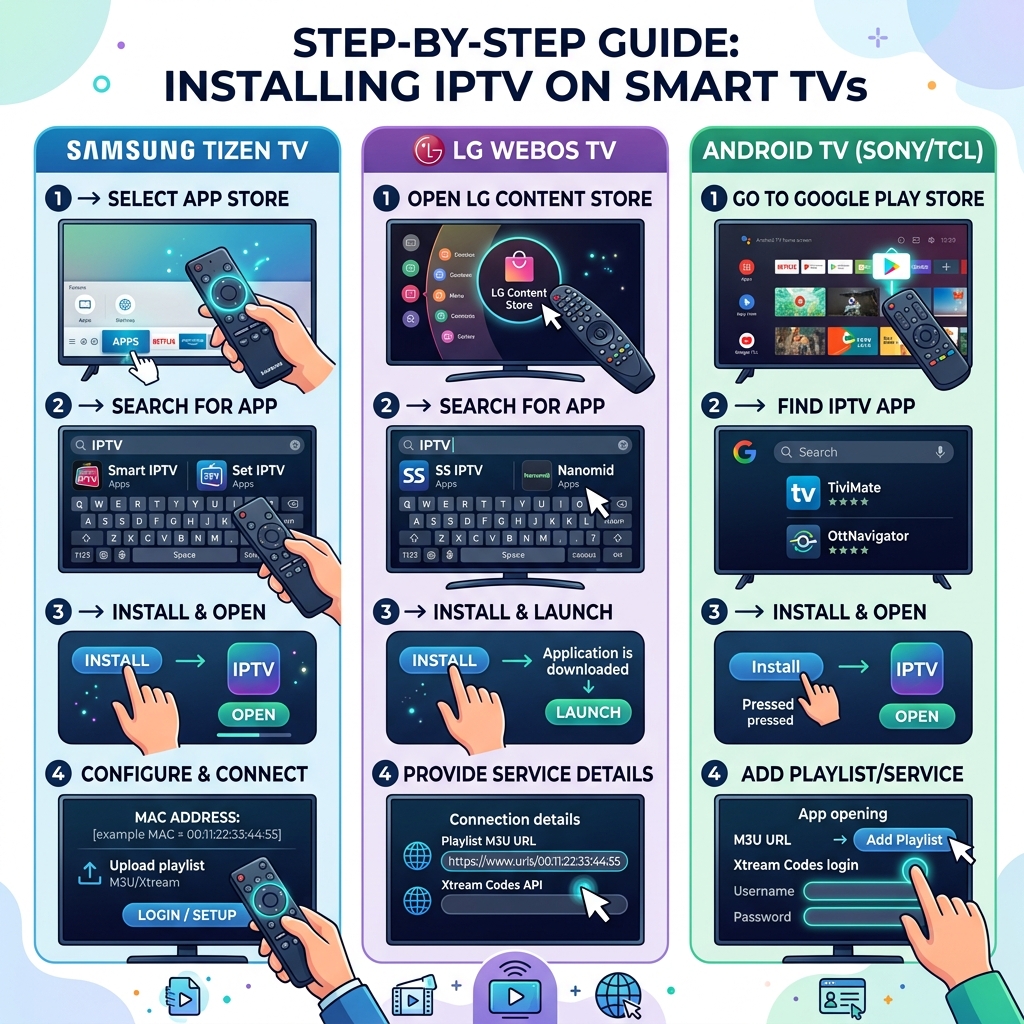
IPTV Smart TV Setup — Step-by-Step Guide for Every Platform (2026)
Follow the steps below for your specific Smart TV platform. Have your IPTV provider credentials ready before starting — you will need either your Xtream Codes server URL, username, and password, or your M3U playlist URL. If you have both formats available, use Xtream Codes — it gives faster EPG loading and better connection stability on all Smart TV apps.
Setup on Samsung Smart TV (IPTV Smarters Pro)
Step 1 — Install IPTV Smarters Pro from Samsung Smart Hub
Press the Home button on your Samsung remote to open Smart Hub. Navigate to the Apps section (magnifying glass icon in the top right). Search for "IPTV Smarters Pro" — it will appear in search results. Press the install button and wait for the download to complete. Once installed, press Open to launch the app for the first time. You will see the IPTV Smarters Pro welcome screen asking you to add a service.
Step 2 — Add your IPTV provider using Xtream Codes
On the IPTV Smarters Pro home screen, tap "Add New User" → select "Login with Xtream Codes API." You will see three fields: Server URL, Username, and Password. Enter these exactly as provided in your IPTV provider's welcome email. According to the FCC Streaming Video Guide, Smart TV streaming apps are legal consumer software — no different from any other video application on your device.
The Server URL must include the full address including the port number — for example: http://yourprovider.com:8080. Check for trailing spaces in all three fields — they are invisible but break authentication. Tap "Add User" to connect. The app will load your channel list and EPG automatically. This may take 2–5 minutes on first load depending on your provider's channel count.
Step 3 — Configure EPG and test a channel
Once channels load, navigate to the Live TV section and select any HD USA channel to confirm the stream is working. If EPG guide data is not showing, go to Settings → EPG → Force Update to trigger a manual EPG refresh.
For Samsung TVs without 4K capability, go to Settings → Player → Video Quality → set to HD (1080p maximum) to avoid buffering on streams the TV cannot decode in hardware. Your IPTV Smart TV setup on Samsung is complete — all channels and EPG should be functional.
Setup on LG Smart TV (IPTV Smarters Pro)
Step 1 — Install from LG Content Store
Press the Home button on your LG Magic Remote to open the Home Dashboard. Navigate to the LG Content Store using the Apps shortcut at the top of the screen. Use the search bar to find "IPTV Smarters Pro." Install the app and open it from your LG Home screen. The LG version of IPTV Smarters Pro has the same interface as the Samsung version — the credential entry process below is identical.
Step 2 — Enter credentials and connect
Follow the same Xtream Codes setup as described in the Samsung Step 2 above. The fields and process are identical. LG's Magic Remote pointer makes credential entry easier than Samsung's directional remote — use the pointer to click directly on each field.
After connecting, your channels will load. LG webOS allocates slightly more memory to third-party apps than Samsung Tizen on equivalent hardware — IPTV Smarters typically loads EPG data faster on LG than Samsung on the same network.
Step 3 — Optimize playback settings
Go to IPTV Smarters Settings → Player Settings → Video Decoder → set to Hardware. LG OLED and NanoCell TVs from 2020 onward support hardware decoding for H.264 and H.265 streams — enabling hardware decoding eliminates buffering on 4K and high-bitrate sports streams.
Test a 4K sports channel to confirm smooth playback. If any channel shows a black screen after enabling hardware decode, toggle that specific channel's player to Software via the channel's individual settings.
Setup on Android TV / Google TV (TiviMate)
Step 1 — Install Downloader from Google Play Store
On your Android TV or Google TV, open the Google Play Store and search for "Downloader by AFTVnews." Install the free app. Downloader allows you to install any APK file by entering a URL — it is the standard method for sideloading apps on Android TV, identical to the Firestick process.
Once installed, go to your TV's Settings → Device Preferences → Security & Restrictions → enable "Unknown Sources" for Downloader specifically. This allows APK installs from Downloader while keeping your system secure.
Step 2 — Download and install TiviMate
Open Downloader and in the URL bar enter the TiviMate APK download address from the official TiviMate website (search "TiviMate APK download" on your phone to get the current URL — it changes with each version). Downloader will download the APK file and prompt you to install it. Tap Install.
After installation completes, tap Open. TiviMate will launch and prompt you to add a playlist. For a full walkthrough of the Downloader sideload method with screenshots, see our IPTV installation guide — the process is identical on Android TV.
Step 3 — Add your IPTV provider to TiviMate
In TiviMate, tap the gear icon → Playlists → Add Playlist → select "Xtream Codes." Enter your Server URL, Username, and Password. TiviMate will connect to your provider and begin downloading the channel list and EPG. On a first connection with a large channel list (20,000+ channels), this can take 3–8 minutes.
Once complete, navigate to Live TV → select a USA channel to test. TiviMate's EPG guide will populate automatically with your provider's schedule data. Go to Settings → Playback → Decoder → Hardware to enable hardware decoding for 4K performance.
IPTV Smart TV Setup Optimization — Tips for 2026
Once your IPTV Smart TV setup is complete and your app is connected, these settings improve performance and reliability on all Smart TV platforms.
Use a Wired Ethernet Connection
Most Smart TVs have a built-in Ethernet port — this is a significant advantage over Firestick which requires a separate adapter. Connect your Smart TV directly to your router with an Ethernet cable and disable Wi-Fi in the TV's network settings.
A wired connection eliminates the Wi-Fi signal drops that cause the majority of IPTV buffering complaints. For 4K sports streams, a wired connection is strongly recommended — sustained 25 Mbps is required and Wi-Fi signal variation during peak hours regularly causes drops below this threshold.
Set a Favorites List for Your Most-Watched Channels
Loading a 20,000+ channel list every time you open your IPTV app adds unnecessary startup time. In IPTV Smarters Pro and TiviMate, mark your 20–50 most-watched channels as favorites. Set your app to open the Favorites list by default on launch.
This reduces startup load time significantly on Samsung and LG TVs with slower processors, and makes navigation faster on all platforms. In TiviMate: Settings → General → Start screen → select Favourites.
Schedule Weekly EPG Refresh
EPG guide data becomes stale after 48–72 hours on most providers, showing outdated schedules or missing program information. In TiviMate: Settings → EPG → Auto update EPG → set to Daily at a time when the TV is in standby (3 AM is ideal). In IPTV Smarters: Settings → EPG → enable Auto Refresh.
This keeps your TV guide accurate without manual intervention. For a reliable provider with consistently accurate EPG data, see our best IPTV for USA guide.
Enable Hardware Decoding for 4K Streams
Software video decoding forces your Smart TV's processor to handle all video rendering — on 4K and high-bitrate sports streams this causes buffering and dropped frames even with a fast internet connection. Hardware decoding offloads video rendering to the TV's dedicated media chip and eliminates this problem entirely.
Enable it in every IPTV app you use: Settings → Player → Decoder → Hardware. If you see visual artifacts on specific channels after enabling, toggle those channels individually to software decode while keeping hardware decode as the default.
Troubleshooting Slow EPG Loading on Samsung and LG
Samsung and LG TVs with 1 GB RAM struggle with EPG datasets from providers with 20,000+ channels. To fix this: in IPTV Smarters, go to Settings → EPG → EPG Type → change from full EPG to 3-day EPG. This dramatically reduces the dataset size the app loads on startup and prevents the RAM overflow that causes EPG loading to freeze on older Samsung and LG models.
If issues persist, our IPTV not working fix guide covers additional troubleshooting steps applicable to Smart TV platforms.
Is IPTV Smart TV Setup Legal in the USA?
Setting up IPTV apps on a Smart TV is completely legal in the United States. IPTV Smarters Pro, TiviMate, SS IPTV, Smart IPTV — all of these are legitimate video player applications with no different legal standing than VLC Media Player or any other video software.
The legality question in IPTV is always about the content provider, not the app, the setup process, or the device. Installing and configuring an IPTV player on your Smart TV carries zero legal risk. For a complete breakdown of how IPTV legality works for USA subscribers in 2026, read our full guide: Is IPTV Legal in the USA?
Frequently Asked Questions — IPTV Smart TV Setup
Can I install IPTV on a Samsung Smart TV without a Firestick?
Yes — IPTV Smarters Pro is available directly in the Samsung Smart Hub App Store and installs in under 2 minutes with no Firestick or additional device required. Smart IPTV (SIPTV) is a second option for Samsung TVs that requires a $5.49 one-time activation fee but supports M3U playlists directly.
The one limitation on Samsung Tizen OS is that you cannot sideload APK files, so apps like TiviMate that are not in the Samsung App Store are not directly installable. If TiviMate is important to your setup, connecting a Firestick to your Samsung TV's HDMI input and running TiviMate via Downloader on the Firestick is the most reliable solution.
What is the best IPTV app for a Smart TV in 2026?
For Android TV and Google TV devices (Sony, Philips, TCL, Hisense), TiviMate is the best IPTV app available — it has the most advanced EPG interface, multi-provider support, and best performance on modern hardware. For Samsung and LG TVs where sideloading is not possible, IPTV Smarters Pro is the most reliable free app available in both the Samsung App Store and LG Content Store.
The right choice depends on your platform. Our best IPTV apps guide covers every major player with full feature comparisons — all reviewed apps work on Smart TV platforms running the same OS as the Firestick (Android TV, Fire OS).
Why is my IPTV buffering on my Smart TV even though the internet is fast?
Buffering after an IPTV Smart TV setup with fast internet is almost always a Wi-Fi signal consistency issue, not a speed issue. Even a 200 Mbps Wi-Fi connection can drop to 8 Mbps momentarily when the signal fluctuates — and that brief drop is enough to interrupt a live IPTV stream. Connect your Smart TV via Ethernet cable (most Smart TVs have a built-in LAN port) and disable Wi-Fi in the TV's network settings.
If you are already on Ethernet and still experiencing buffering, enable hardware video decoding in your IPTV app settings and reduce the EPG dataset size to 3 days. Persistent buffering during specific sports events is usually server-side load — test a different channel to confirm. For a complete buffering diagnosis, see our IPTV not working fix guide.
Can I use TiviMate on a Samsung or LG Smart TV?
TiviMate is an Android-only application and is not available for Samsung Tizen OS or LG webOS. The Samsung App Store and LG Content Store do not support APK sideloading, which is the method required to install TiviMate. On these platforms, IPTV Smarters Pro is the closest functional equivalent — it supports Xtream Codes, M3U, and EPG refresh, though its EPG interface is less polished than TiviMate's.
If TiviMate specifically is a requirement for your setup, connect a Firestick or Android TV stick to your Samsung or LG TV's HDMI port — TiviMate runs natively on both platforms and gives you the full TiviMate experience on any TV with an available HDMI input.
Do I need a VPN for IPTV on my Smart TV?
A VPN is not required for IPTV Smart TV setup in the USA, and in many cases it causes more problems than it solves. Some IPTV servers use geo-detection that blocks connections from VPN IP addresses, causing channels to fail even when your subscription is active. For basic setup and testing, always start without a VPN.
If your IPTV provider specifically recommends a VPN for privacy or for accessing geo-restricted content, install the VPN app on your router rather than on the Smart TV itself — this keeps the VPN transparent to the IPTV app and avoids compatibility conflicts. For all IPTV troubleshooting steps including VPN and DNS issues, see our IPTV not working fix guide.
IPTV Smart TV Setup — Your Complete 2026 Checklist
A complete IPTV Smart TV setup in 2026 takes under 10 minutes on any platform once you have your provider credentials ready. Samsung and LG users install IPTV Smarters Pro directly from their app store — no workarounds needed. Android TV users get the full TiviMate experience via sideload. Fire TV Edition TV users follow the identical process to a standard Firestick.
Here are all the resources you need to complete and optimize your Smart TV IPTV setup in 2026:
- 📦 How to install IPTV on Firestick — sideload method applies directly to Android TV and Fire TV Edition
- 📱 Best IPTV apps for Firestick 2026 — full TiviMate, XCIPTV, and Smarters comparison for Android TV
- 🏆 Best IPTV for USA — top-rated providers with stable servers for Smart TV and Firestick
- 🔧 IPTV not working fix — troubleshooting guide for buffering, black screen, and EPG failures on Smart TV
- 🔐 Fix IPTV login errors — credential and authentication fixes for IPTV Smarters and TiviMate
- 🆓 IPTV free trial USA — test a provider on your Smart TV before committing to a subscription
- ⚖️ Is IPTV legal in the USA? — complete legal guide for USA Smart TV users
If your Smart TV app is set up but you are looking for a provider with better server stability and more USA channels, start with a no-commitment trial: Get your free Globall-TV trial today — 24 hours, no credit card required, full access to 25,000+ USA channels including every major sports network. Your Smart TV will be streaming live within minutes of activation.
Questions about your specific Smart TV model? Drop your make, model year, and OS in the comments — I answer every one.
One Response