
If you need to fix IPTV login error on Firestick fast, you are in the right place. This is one of the most frustrating problems Firestick users face in 2026 — especially when you just want to watch live TV or sports. The good news: in 95% of cases, the fix takes under 5 minutes. This guide covers every reason your IPTV app refuses your credentials and gives you exact step-by-step solutions to fix IPTV login error on Firestick quickly.
Whether you are seeing "Invalid Details," "Authorization Failed," "Wrong Username or Password," or the app just spins and freezes at login — we have got you covered. These fixes work for IPTV Smarters Pro, TiviMate, XCIPTV, GSE Smart IPTV, and all other major IPTV apps on Firestick.
What Is Your IPTV Login Error Message?
- "Invalid Details" → Start with Fix #1 and Fix #2
- "Authorization Failed" → Start with Fix #3
- App freezes or won't open login page → Start with Fix #4
- Login works but no channels load → Start with Fix #5
- Everything looks correct but still fails → Start with Fix #6 and Fix #7
Why Does IPTV Login Error Happen on Firestick?
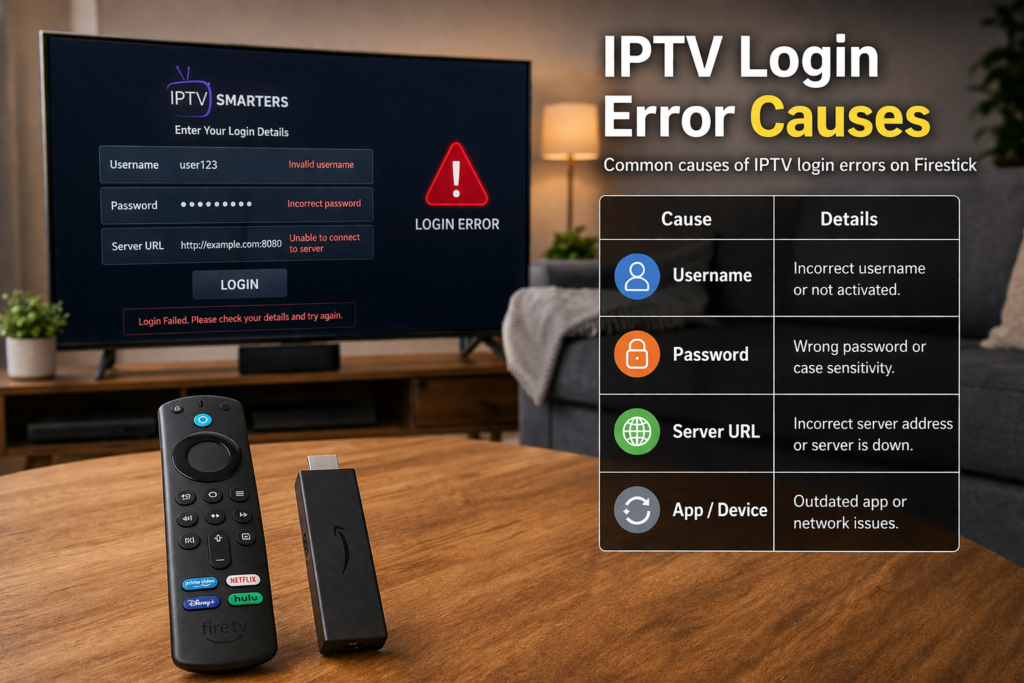
Before jumping into fixes, it helps to know exactly what is causing your IPTV login error on Firestick to appear. Login errors fall into four main categories: credential problems, account problems, device problems, and network problems. Identifying which category applies to you will save you time and get you streaming faster.
- Wrong credentials: Incorrect username, password, or server URL — including invisible spaces or wrong port numbers
- Expired or suspended subscription: Your IPTV plan ran out or was flagged for too many simultaneous connections
- Corrupted app cache: FireOS builds up corrupted temporary files that block authentication completely
- Network or DNS issues: Your ISP is blocking or slowing down the IPTV server IP address
- Outdated or broken app: An old app version that is incompatible with your provider's current server configuration
- Provider server downtime: Your provider's servers are temporarily offline or under maintenance
Most IPTV login errors on Firestick are caused by the first two reasons — wrong credentials and subscription status. Work through the fixes below in order and you will identify the exact cause within minutes. If you have not set up IPTV on your Firestick yet, start with our full IPTV installation guide for Firestick first before attempting any login fixes.
Quick Checklist Before You Start Fixing
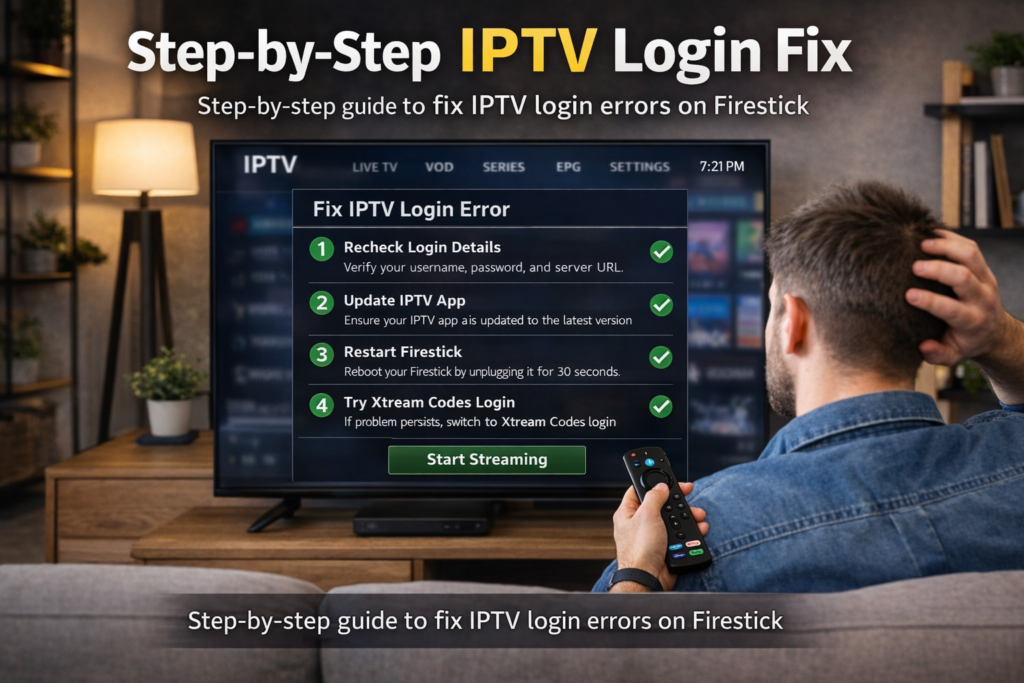
Before diving into the 7 fixes below, run through this 60-second checklist. Most users who complete this checklist find the exact cause of their IPTV login error on Firestick before even reaching Fix #1 — saving you significant time and frustration.
- ✅ Is your Firestick connected to the internet? Open the Silk Browser and load any website to confirm your WiFi is working before touching your IPTV app.
- ✅ Is your IPTV subscription still active? Check your email for a renewal notice or expiry warning from your provider — expired subscriptions cause instant login rejection.
- ✅ Are you using the correct app? Confirm you are logging into the right IPTV app with the credentials your provider sent — Smarters Pro, TiviMate, and XCIPTV each require credentials entered separately.
- ✅ Is another device already logged in? Most IPTV plans allow only 1 or 2 connections at once. If a phone or Smart TV is already streaming under your account, your Firestick login will be blocked automatically.
- ✅ Did your provider send you new credentials recently? Check your email inbox and spam folder — providers sometimes reset passwords without warning and send new details quietly.
If all five points above check out and you still cannot fix IPTV login error on Firestick, move to Fix #1 below. Work through each fix in order — the solutions are arranged from fastest to most technical so you can get back to streaming as quickly as possible.
Fix #1 — Double-Check Your Login Credentials
A typo in your username, password, or server URL is the number one reason users need to fix IPTV login error on Firestick. The Firestick remote keyboard is small and awkward, and a single extra space or wrong character breaks authentication completely. This catches even experienced users — always eliminate this cause first before trying anything else.
- Open your IPTV app on Firestick and go to the login or add playlist screen where you enter your credentials.
- Delete everything in the Username, Password, and Server URL fields completely — do not try to edit over existing text, as hidden characters may remain.
- Download the Amazon Fire TV Remote app on your smartphone and use it to type your credentials instead of the physical remote. This lets you copy and paste directly from your provider's welcome email, eliminating all typing errors instantly.
- Check your Server URL format carefully. It must include the full address with the port number — for example:
http://yourserver.com:8080. Missing the port number is one of the most common mistakes. Do not add "www." unless your provider specifically tells you to. - Check for case sensitivity. Usernames and passwords are case-sensitive — "User123" and "user123" are treated as completely different credentials by the IPTV server.
- Watch for hidden spaces. The Firestick keyboard sometimes adds an automatic space after "@" or "." characters. Scroll to the end of each field and delete any trailing spaces before you submit the form.
- Try logging in again with corrected credentials and wait up to 20 seconds for the server to respond before assuming it failed — some servers are slow to authenticate on the first attempt.
Most users successfully fix IPTV login error on Firestick after correcting their credentials. If you still see an error after following every step here, your subscription status may be the issue — move on to Fix #2.
Fix #2 — Verify Your Subscription Status With Your Provider
If your credentials are definitely correct but you are still getting rejected, your IPTV subscription may have expired, been suspended, or flagged for too many simultaneous connections. An expired subscription is the second most common reason users need to fix IPTV login error on Firestick — especially after free trial periods end or when multiple family members are logged in at the same time.
- Check your email inbox for any expiry or suspension notices from your IPTV provider. Search for the provider's name or the words "subscription expired" or "account suspended."
- Log in to your provider's customer portal if they have one, and check your subscription end date and current account status directly.
- Check simultaneous connection limits. Most IPTV plans allow only 1 or 2 active connections at a time. If another device — a phone, Smart TV, or second Firestick — is already logged in under your account, your Firestick login will be automatically rejected by the server. Log out from all other devices and try again.
- Contact your provider directly via their support channel — Telegram, WhatsApp, or email are most common for IPTV providers. Ask them to confirm your account is active and to reset your credentials if necessary.
- If your subscription has expired, you will need to renew your plan. Check our IPTV free trial USA guide for providers offering extended trials before you commit to a paid plan.
- Ask your provider to resend fresh credentials even if yours look correct. Providers sometimes reset their systems and issue new passwords without notifying users directly — new credentials fix the issue immediately.
Got confirmation that your account is active and credentials are correct but still cannot fix IPTV login error on Firestick? The problem is on the device side. Fix #3 will clear the most common device-level cause.
Fix #3 — Clear the IPTV App Cache on Firestick
Your Firestick builds up a cache of temporary files for every app you use. When that cache gets corrupted — which happens regularly on FireOS — your IPTV app can freeze at the login screen, fail to connect to the server, or throw authentication errors even when your credentials are perfectly correct. Clearing the cache is one of the fastest ways to fix IPTV login error on Firestick without losing any of your saved login information.
- Press the Home button on your Firestick remote to go back to the home screen.
- Go to Settings — the gear icon in the top navigation bar of your Firestick home screen.
- Select Applications, then choose Manage Installed Applications from the list that appears.
- Scroll through the app list and find your IPTV app — for example IPTV Smarters Pro, TiviMate, or XCIPTV — and click on it to open its settings.
- Select "Clear Cache" from the options. Wait a few seconds for the process to finish. You will see the cache size drop to 0 KB when it is done successfully.
- Do NOT click "Clear Data" at this point — that wipes your saved login credentials and playlist URLs entirely, meaning you will have to re-enter everything from scratch.
- Press the Back button and then select "Force Stop" to fully close the app and end any stuck background processes.
- Reopen your IPTV app and attempt to log in again. The authentication process should now complete cleanly without the previous error appearing.
Clearing the cache resolves IPTV login errors on Firestick for a large percentage of users. If the error continues after clearing the cache, the next step is a full restart of both your device and your network.
Fix #4 — Restart Your Firestick and Router
A proper restart clears all temporary memory errors, resets your network connection from scratch, and forces your Firestick to establish a clean fresh connection to the IPTV server. This is one of the most overlooked ways to fix IPTV login error on Firestick — completely different from just pressing the power button. You need a full power cycle of both your Firestick and your router to get the full benefit.
- Unplug your Firestick from the HDMI port and from the power outlet completely. Do not just put it to sleep — physically disconnect it from power.
- Unplug your router and modem from the power outlet at the same time. Leave both devices fully unplugged before proceeding.
- Wait a full 60 seconds. This gives the capacitors inside both devices enough time to fully discharge and resets all active network sessions that were open.
- Plug your router and modem back in first and wait until all indicator lights are solid and stable — this usually takes 30 to 60 seconds depending on your router model.
- Plug your Firestick back in and wait for it to fully boot up — this takes approximately 45 seconds on most Firestick models.
- Run a quick internet speed test using the Firestick built-in check: Settings → Network → click your WiFi network name → "Test Network." You need at least 10 Mbps for stable IPTV login and streaming.
- Open your IPTV app and attempt to log in again with your credentials now that both devices are fully fresh.
If your internet speed test comes back below 10 Mbps or your connection is unstable, that is directly causing your login timeout errors. Fix #5 addresses the DNS layer which can also cause slow or blocked connections to IPTV servers.
Fix #5 — Change Your DNS Settings on Firestick
Your default DNS server — assigned automatically by your internet provider — can sometimes block or slow down connections to IPTV servers, especially during peak hours in the evening. Switching to a faster and more open DNS like Google (8.8.8.8) or Cloudflare (1.1.1.1) can resolve login timeouts and authentication failures that have nothing to do with your credentials or subscription status.
- Go to Settings on your Firestick home screen and select Network from the menu.
- Click on your current WiFi network name and select "Forget this Network" to disconnect completely.
- Reconnect to your WiFi by selecting it from the network list and entering your WiFi password again.
- During reconnection, look for an option to configure DNS manually — on some Firestick models this appears under Advanced Settings after entering your password.
- Set your Primary DNS to 8.8.8.8 (Google DNS) and Secondary DNS to 8.8.4.4. Alternatively use 1.1.1.1 (Cloudflare) as Primary and 1.0.0.1 as Secondary — both are faster and more open than most ISP default DNS servers.
- Save the settings and wait for the WiFi connection to fully re-establish before opening any apps.
- Open your IPTV app and try logging in again. The new DNS route frequently bypasses the blockage that was causing your login error without any other changes needed.
- If your Firestick model does not offer manual DNS configuration, change the DNS settings directly on your home router instead — the same DNS change will automatically apply to all devices on your network including your Firestick.
DNS changes are one of the most underrated and overlooked fixes for IPTV login errors. If you use IPTV Smarters Pro on Firestick, changing DNS also significantly improves overall app stability and channel loading speed beyond just fixing the login.
Fix #6 — Uninstall and Reinstall Your IPTV App on Firestick
If none of the fixes above have worked, the IPTV app itself is likely corrupted or running an outdated version that is incompatible with your provider's current server configuration. A clean reinstall takes less than 5 minutes and resolves persistent login errors that cache clearing alone cannot fix.
- Before uninstalling, write down or screenshot your full IPTV credentials: username, password, and complete server URL including the port number. You will need these after reinstalling.
- Go to Settings → Applications → Manage Installed Applications on your Firestick, find your IPTV app, and select "Uninstall." Confirm when prompted to remove the app completely.
- Restart your Firestick after uninstalling — go to Settings → My Fire TV → Restart. This ensures the uninstall is fully clean before installing a fresh copy.
- Reinstall your IPTV app. If it is available in the Amazon Appstore search for it there directly. If you were sideloading it, follow our full guide on how to install IPTV on Firestick to reinstall correctly using Downloader.
- Open the freshly installed app and re-enter your credentials from scratch. Do not restore any backup — start completely fresh to avoid carrying over corrupted data.
- Try a different IPTV app entirely if the error continues after reinstalling. If your provider supports Xtream Codes or M3U, you can use TiviMate or XCIPTV as an alternative. If login succeeds in a different app, the issue was specific to your original app's installation on that device.
Fix #7 — Use a VPN to Bypass ISP Blocks on Firestick
If every other fix has failed, your internet service provider may be actively blocking traffic to your IPTV provider's servers. This happens in certain US regions, particularly during peak evening hours. If your IPTV works on mobile data but fails on your home WiFi, or if login always times out between 7 PM and 11 PM but works fine in the morning, your ISP is the confirmed cause. A VPN routes your traffic through a different server and bypasses these blocks completely.
- Download a VPN app on your Firestick. ExpressVPN and NordVPN both have official Fire TV apps available directly in the Amazon Appstore — search for them by name.
- Connect to a US-based server within the VPN app to keep your IPTV content fully accessible while bypassing any routing blocks your ISP has in place.
- Open your IPTV app with the VPN active and attempt to log in. If login succeeds immediately with the VPN on but failed consistently without it, your ISP is confirmed as the cause of your login errors.
- Most premium VPNs offer a 30-day money-back guarantee — use this to confirm whether a VPN solves your specific login error before committing to a paid plan long term.
- For a permanent solution, enable the VPN directly at your router level so all devices including your Firestick are protected automatically without needing to manage the VPN app separately on each device.
Still unsure which IPTV service is worth using even after fixing the login? Check our full comparison of the best IPTV services for Firestick USA to find a provider with reliable servers and proper technical support.
Is IPTV Legal in the USA?
Using IPTV on your Firestick is completely legal in the United States when you subscribe to a licensed provider that holds proper broadcasting rights. Many legitimate services operate as fully legal IPTV platforms every day across the country. The legal question only becomes complicated with unlicensed providers that stream copyrighted content without proper authorization from rights holders. For official Firestick device support and setup information, visit the official Amazon Fire TV page. For a full legal breakdown specific to US users, read our detailed guide: Is IPTV Legal in the USA? Everything You Need to Know.
IPTV Login Error on Firestick — Quick Answers
Here are the most common IPTV login error on Firestick questions answered in one line each. For full step-by-step solutions, see the detailed FAQ section below.
- Invalid Details error? → Hidden space in your password or wrong port number in your server URL — delete all fields and retype carefully.
- Authorization Failed? → Your subscription expired or too many devices are logged in simultaneously — contact your provider immediately.
- Login works on phone but not Firestick? → Corrupted app cache on your Firestick — go to Settings → Applications → Clear Cache then Force Stop.
- App freezes at login screen? → Firestick storage is full or app is outdated — free up storage and reinstall the app fresh.
- Login stopped working suddenly? → Your provider changed your credentials or your ISP is blocking the server — contact provider and test with a VPN.
- Login times out every evening? → Your ISP is throttling IPTV traffic during peak hours — use a VPN or change your DNS to 8.8.8.8.
- Login works but no channels load? → Your playlist URL has expired or your provider's server is down — contact your provider for a fresh M3U link.
Need more detail on any of these? The full step-by-step answers are in the FAQ section directly below. If none of these quick fixes apply to your situation, check our IPTV not working on Firestick complete fix guide for deeper troubleshooting.
Frequently Asked Questions — IPTV Login Error on Firestick
Why does my IPTV say "Invalid Details" even though my credentials are correct?
The most common cause is a hidden space or subtle typo in your login fields — the Firestick keyboard often adds invisible spaces after "@" or "." characters automatically. Delete all credential fields completely, use the Amazon Fire TV Remote smartphone app to paste your credentials directly from your provider's email, and confirm your server URL includes the correct port number such as :8080 or :25461. If everything looks perfect and you still get this error, contact your provider to confirm your account is active and ask them to resend fresh credentials.
How do I fix "Authorization Failed" on IPTV Smarters Pro on Firestick?
"Authorization Failed" means the IPTV server received your login request but actively rejected your account credentials. This is almost always caused by an expired subscription, a recently changed password on the provider's side, or too many simultaneous connections already active on your account. Contact your provider to confirm your account status, ask them to reset your password, and make sure no other devices — phones, Smart TVs, or second Firesticks — are logged in under the same account at the same time.
Why does my IPTV login work on my phone but not on my Firestick?
When login works on one device but fails on another, the issue is device-specific rather than a credentials or subscription problem. On your Firestick this almost always means a corrupted app cache or an outdated app version. Go to Settings → Applications → Manage Installed Applications → your IPTV app → Clear Cache, then Force Stop the app and try logging in again. If clearing cache does not fix it, do a full uninstall and reinstall of the app — your credentials and subscription are confirmed working since they function correctly on your phone.
Can a slow internet connection cause IPTV login errors on Firestick?
Yes — if your internet speed drops below 5 to 10 Mbps or your WiFi connection is unstable, the authentication handshake between your Firestick and the IPTV server can time out and display as a login error rather than a connection error. Restart your router completely, run a speed test from your Firestick via Settings → Network → Test Network, and if possible connect your Firestick via Ethernet instead of WiFi using an Ethernet adapter for a fully stable connection during troubleshooting.
My IPTV login was working yesterday but suddenly stopped — what happened?
Sudden login failures that were not happening before are almost always caused by one of three things: your subscription expired overnight, your provider performed a server update and silently changed your credentials, or your ISP began blocking the IPTV server's IP address. Check your email immediately for provider notifications, contact your provider's support to verify nothing changed on their end, and try connecting with a VPN active to instantly rule out an ISP block as the cause. Most sudden login failures are resolved within minutes once the exact cause is identified.
Fix IPTV Login Error on Firestick — Get Back to Streaming
To successfully fix IPTV login error on Firestick, work through these 7 proven causes in order: wrong credentials, expired subscription, corrupted app cache, failed device restart, incorrect DNS settings, broken app installation, or ISP interference. Every one of these causes has a clear solution in this guide. Follow each fix step by step and you will be back streaming live TV within minutes.
The fastest way to fix IPTV login error on Firestick is always Fix #1 first — most users resolve their issue simply by correcting a hidden space or wrong port number in their credentials. If Fix #1 does not work, continue in order until you identify the exact cause.
Here are more guides to keep your Firestick IPTV setup running perfectly in 2026:
- 📺 How to Install IPTV on Firestick — Full Step-by-Step Guide 2026
- 🔧 IPTV Smarters Not Working on Firestick — All Fixes 2026
- ⚖️ Is IPTV Legal in the USA? What You Need to Know
- 🏆 Best IPTV Services for Firestick USA — 2026 Comparison
- 🆓 Best IPTV Free Trial USA — Test Before You Pay
- 📱 Best IPTV Apps for Firestick 2026 — Full List
Still having login issues after all 7 fixes? If you have tried every solution in this guide and your IPTV still refuses to log in, the problem is your provider — not your Firestick. Unreliable providers with unstable servers cause persistent login failures that no device fix can solve. Check our top-rated providers with free trials and test a reliable service today — many offer 24-hour trial access with no credit card required.
3 Responses