
TiviMate Buffering Firestick Fix: 7 Fast Solutions (2026)
TiviMate buffering on Firestick is one of the most common IPTV problems in 2026 — and one of the most fixable. In 90% of cases, TiviMate buffering Firestick issues come from just 3 sources: overloaded RAM, slow DNS, or your IPTV provider's server. All of them can be solved in under 10 minutes.
In this guide you will find 7 proven solutions for TiviMate buffering Firestick problems, ranked from the quickest to the most advanced. These fixes work on all Firestick models including the Firestick 4K, 4K Max, and the standard HD model.
Already setting up TiviMate for the first time? Start with our complete TiviMate Firestick setup guide before applying these fixes.
Why Is TiviMate Buffering Firestick Streams in 2026?
Before jumping into fixes, it helps to know what actually causes TiviMate to buffer. There are 3 main sources of the problem:
- Firestick RAM overload: All Firestick models have limited RAM (1–2GB). When apps like Netflix, Disney+, or YouTube run in the background, they steal memory from TiviMate and cause freezing mid-stream.
- Internet connection issues: Live IPTV streams need a stable connection of at least 25 Mbps for HD and 50 Mbps for 4K. Any speed drops or Wi-Fi interference will cause immediate buffering.
- IPTV server overload: During peak hours — evenings, weekends, and major sports events — some IPTV servers get overwhelmed with requests. This type of buffering cannot be fixed by any Firestick setting alone.
The 7 fixes below address each of these causes in order of how often they solve the problem. Start with Fix 1 and work your way down until buffering stops.
Fix 1: Clear RAM to Stop TiviMate Buffering Firestick Issues
This is the first fix to try every time TiviMate buffers. Firestick's limited RAM fills up quickly and background apps are almost always the cause.
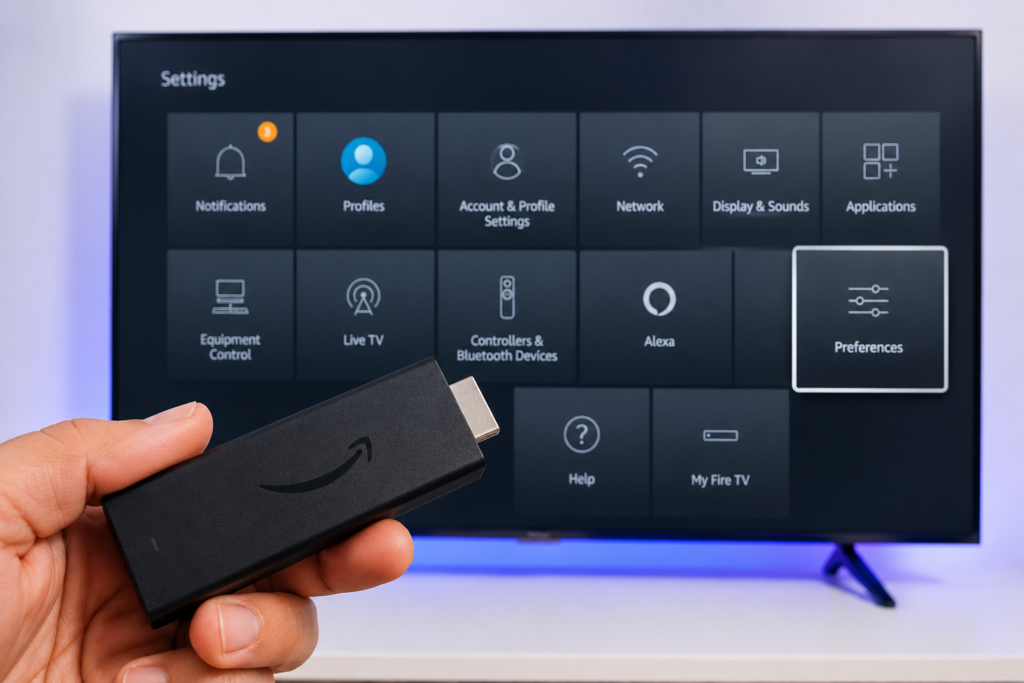
- From your Firestick home screen, go to Settings (gear icon in the top right).
- Select Applications → then Manage Installed Applications.
- Find each of these apps and click Clear Cache on each one: Netflix, Disney+, YouTube, Prime Video, and any other streaming apps you have installed.
- Do NOT clear TiviMate's own cache — that would delete your playlists and EPG settings.
- After clearing cache on all background apps, go back to TiviMate and test your stream. Most users see an immediate improvement after this step.
- For best results, make this a weekly habit — especially before watching live sports or events.
If clearing RAM did not solve the buffering completely, move to Fix 2 to check your internet connection speed.
Fix 2: Test and Improve Your Internet Speed
TiviMate needs a stable, fast connection to stream without interruption. A slow or unstable Wi-Fi connection is the second most common cause of buffering on Firestick.
- Open the Downloader app on your Firestick and go to fast.com or speedtest.net to test your current speed.
- You need at least 25 Mbps for HD streams and 50 Mbps for 4K streams. If your speed is lower, buffering is expected.
- If your speed is low, move your Firestick closer to your router, or better — connect it via Ethernet using an OTG adapter (available on Amazon for under $10). A wired connection eliminates all Wi-Fi interference instantly.
- If your speed is good but buffering still happens, the problem is likely your DNS settings, not the speed itself. Continue to Fix 3.
- Also check if other devices in your home are downloading or streaming at the same time — this reduces available bandwidth for your Firestick.
A slow connection is the second most common cause of TiviMate buffering Firestick users report in 2026.
Fix 3: Change Your DNS to Google or Cloudflare
Your router's default DNS server is often slow and causes IPTV streams to take longer to load each channel. Switching to a faster DNS can reduce buffering and speed up channel switching in TiviMate significantly.
- On your Firestick, go to Settings → Network → select your Wi-Fi network → click Forget.
- Reconnect to your Wi-Fi network. When entering the password, look for Advanced Options at the bottom of the screen.
- Change IP Settings from DHCP to Static.
- Keep all existing IP and gateway values the same — only change the
DNS fields:
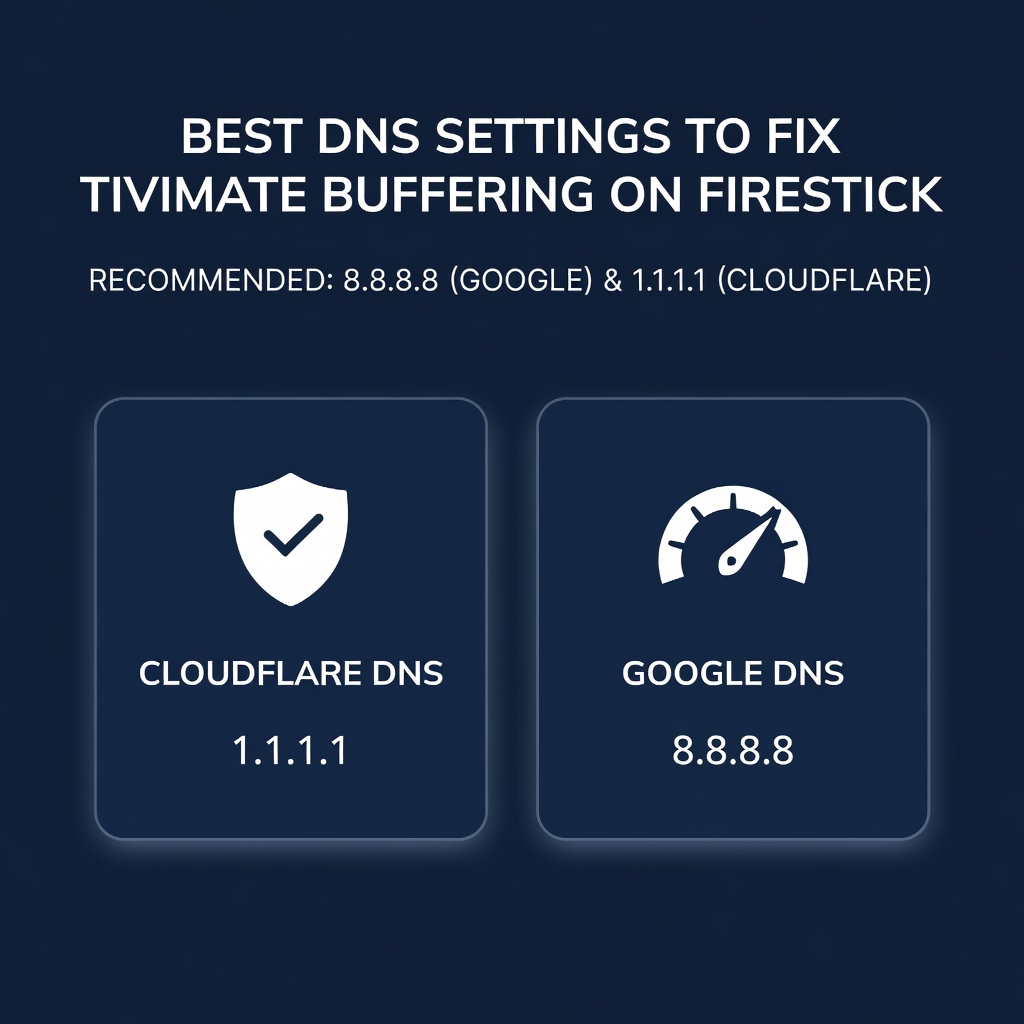
- DNS 1: 8.8.8.8 (Google)
- DNS 2: 1.1.1.1 (Cloudflare)
- Save the settings and reconnect. Open TiviMate and test your streams — channel loading speed should improve noticeably within the first minute.
Fix 4: Adjust TiviMate Player Settings to Stop Buffering on Firestick
TiviMate has built-in settings that directly affect buffering behavior. These settings are often left at default values that are not optimized for Firestick's hardware.
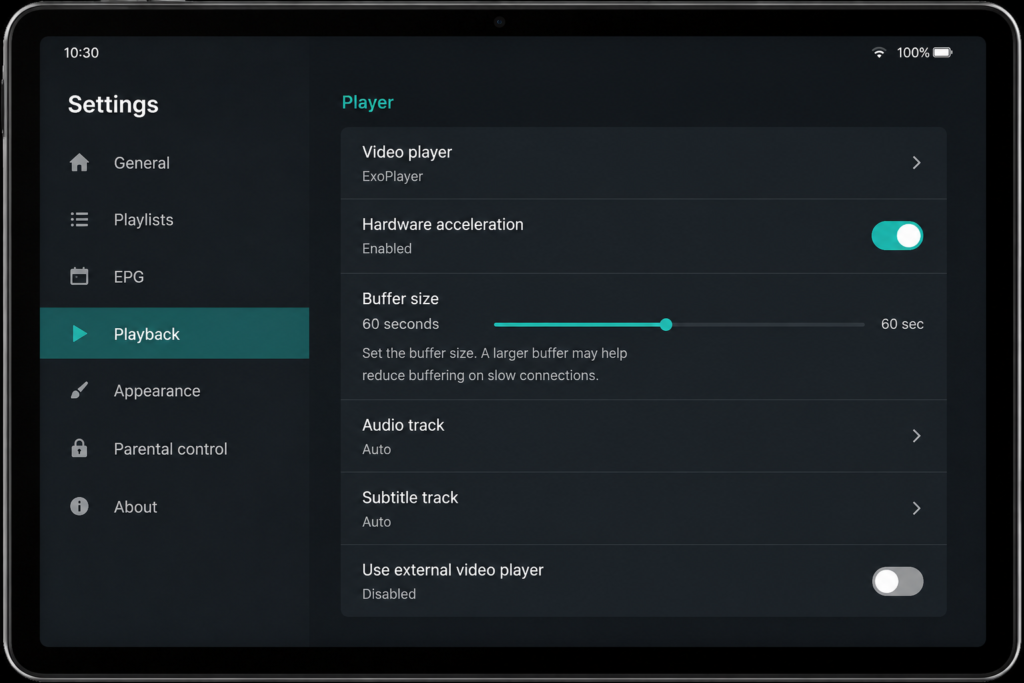
- Open TiviMate → go to Settings → Playback.
- Change the Player from "Auto" to "ExoPlayer". ExoPlayer is optimized for Android devices including Firestick and handles IPTV streams more efficiently than the default player.
- Increase the Buffer Size to 60 seconds. A larger buffer means TiviMate loads more of the stream in advance, so small network drops do not cause immediate freezing.
- Enable Hardware Acceleration if your Firestick model supports it (Firestick 4K and 4K Max only). This offloads video decoding to the GPU and frees up CPU resources.
- If you are watching 4K channels, make sure the stream quality matches your actual internet speed. Lowering a 4K stream to 1080p often eliminates buffering completely on slower connections.
Correct player settings eliminate the majority of TiviMate buffering Firestick problems caused by hardware limits.
You can download the latest version of TiviMate directly from the official TiviMate website if you need to reinstall it fresh.
Fix 5: Contact Your IPTV Provider to Solve TiviMate Buffering on Firestick
Sometimes the problem is not your Firestick or your internet — it is the IPTV server itself. Overloaded servers cause TiviMate buffering on Firestick even when everything else is correctly configured.
- Contact your IPTV provider and ask them if there are active server issues.
- Ask for a server line test URL — paste it into TiviMate and check if the stream plays without buffering.
- If the provider offers multiple server lines, switch to an alternative line in TiviMate → Settings → Playlist → Edit → update the server URL.
- Ask the provider to upgrade your account to a premium server with fewer users per stream.
- If buffering persists across multiple server lines, it is time to switch providers.
A reliable IPTV provider eliminates 90% of TiviMate buffering Firestick issues that cannot be fixed on the device itself. Check out our IPTV free trial guide to test a premium service before committing.
Fix 6: Free Up Firestick Storage to Reduce TiviMate Buffering
Low internal storage forces your Firestick to throttle apps. If TiviMate buffering on Firestick started after installing multiple apps, storage is likely the cause.
- Go to Firestick Settings → My Fire TV → About → Storage to check available space. You need at least 500 MB free.
- Go to Settings → Applications → Manage Installed Applications → find apps you rarely use → select them → choose Clear Cache, then Force Stop.
- Uninstall apps you no longer need entirely.
- Go to TiviMate → Settings → General → Clear Cache to remove accumulated TiviMate data.
- Restart the Firestick after clearing storage to allow memory to reset properly.
Keeping at least 1 GB of free storage prevents TiviMate buffering Firestick problems caused by the device running out of working memory during playback.
Fix 7: Use a VPN to Stop TiviMate Buffering on Firestick Caused by ISP Throttling
Internet providers in the USA often throttle IPTV traffic, especially during peak hours (7 PM – 11 PM). This throttling directly causes TiviMate buffering on Firestick even when your speed test shows good results.
- Install a VPN app on your Firestick — ExpressVPN and NordVPN are the most reliable for IPTV streaming.
- Connect to a VPN server in the USA or a country near your IPTV server location.
- Open TiviMate and test the same channel that was buffering before.
- If buffering stops with the VPN on, your ISP was throttling your IPTV traffic.
- Keep the VPN active during all IPTV sessions to maintain stable, unthrottled speeds.
A VPN also protects your privacy while streaming. Read our full guide on best IPTV for Firestick to find providers that work best with a VPN.
Is IPTV Legal in the USA?
TiviMate itself is a completely legal IPTV player app available on the Amazon App Store. The legality of IPTV depends entirely on the service or playlist you connect to it. Licensed services like Sling TV, Philo, and YouTube TV are fully legal. Third-party IPTV providers operate in a legal grey area in the USA. For a full breakdown, read our guide on whether IPTV is legal in the USA.
Frequently Asked Questions
Why does TiviMate buffer only during live sports?
Live sports events cause massive spikes in viewers on IPTV servers at the same time. This overwhelms many providers' infrastructure and causes buffering specifically during those hours. The fix is to contact your provider and ask to be moved to a dedicated sports server, or to test a different IPTV service that has stronger server capacity for live events.
Does TiviMate Premium fix buffering compared to the free version?
TiviMate Premium adds features like multi-screen view, catch-up TV, and EPG management — but it does not improve stream buffering. Buffering is caused by your internet connection, Firestick RAM, or IPTV server quality, none of which are affected by upgrading TiviMate itself.
What is the best buffer size setting for TiviMate on Firestick?
For most Firestick users, a buffer size of 60 seconds works best. This gives TiviMate enough pre-loaded data to handle small network drops without freezing. If you have a very fast connection (100+ Mbps), you can increase this to 90 seconds for even smoother playback on live sports.
Why does TiviMate buffer on Wi-Fi but not on Ethernet?
Wi-Fi signals are affected by walls, distance from the router, and interference from other devices. Even a fast Wi-Fi connection can have microsecond dropouts that cause IPTV buffering. Ethernet via an OTG adapter provides a stable, uninterrupted connection that eliminates this entirely. It is the single most effective hardware upgrade for Firestick streaming.
Can too many TiviMate playlists cause buffering?
Having multiple large M3U playlists loaded in TiviMate (especially those with 10,000+ channels) can slow down the app and increase memory usage. Remove any playlists you do not actively use. Keep only your active provider's playlist loaded to keep TiviMate running as efficiently as possible.
Stop TiviMate Buffering on Firestick for Good
TiviMate buffering Firestick problems are almost always fixable in under 10 minutes. The 7 fixes above cover every major cause — RAM, internet speed, DNS, player settings, server quality, storage, and ISP throttling.
Start with Fix 1 (RAM clear) and Fix 2 (speed test) before anything else — they solve 70% of TiviMate buffering Firestick cases immediately.
If you are still experiencing issues after all 7 fixes, the problem is almost certainly your IPTV provider. A low-quality provider causes TiviMate buffering on Firestick that no amount of device tweaking can fix.
Try a premium provider with a free trial — no credit card required:
- 📺 Get an IPTV Free Trial USA →
- 🔥 Best IPTV for Firestick USA →
- 📱 Best IPTV Apps for Firestick 2026 →
- ⚖️ Is IPTV Legal in the USA? →
Legal note: Always use IPTV services that have rights to broadcast the content they stream. Using unlicensed IPTV services may violate copyright laws in the USA. Visit our Is IPTV Legal USA guide to understand your rights as a viewer.