
Fix IPTV Login Error on Firestick (2026) — 7 Fast & Proven Solutions
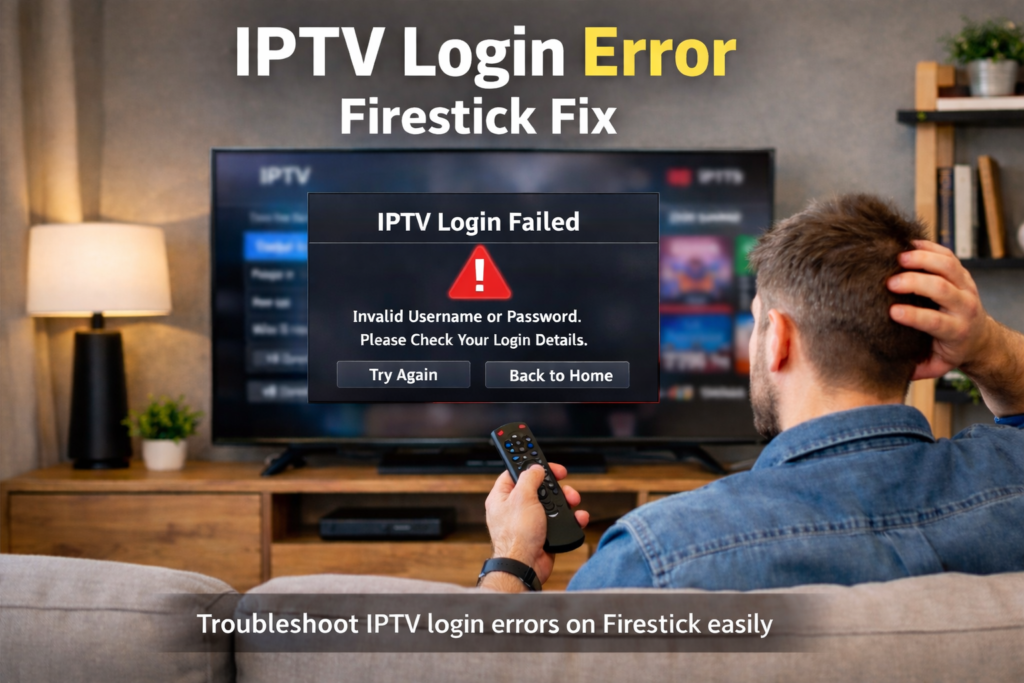
If you need to fix IPTV login error on Firestick fast, you are in the right place. This is one of the most frustrating problems Firestick users face in 2026 — especially when you just want to watch live TV or sports. The good news: in 95% of cases, the fix takes under 5 minutes. This guide covers every reason your IPTV app refuses your credentials and gives you exact step-by-step solutions to fix IPTV login error on Firestick quickly. Whether you are seeing “Invalid Details,” “Authorization Failed,” “Wrong Username or Password,” or the app just spins and freezes at login — we have got you covered. These fixes work for IPTV Smarters Pro, TiviMate, XCIPTV, GSE Smart IPTV, and all other major IPTV apps on Firestick. What Is Your IPTV Login Error Message? “Invalid Details” → Start with Fix #1 and Fix #2 “Authorization Failed” → Start with Fix #3 App freezes or won’t open login page → Start with Fix #4 Login works but no channels load → Start with Fix #5 Everything looks correct but still fails → Start with Fix #6 and Fix #7 Why Does IPTV Login Error Happen on Firestick? Before jumping into fixes, it helps to know exactly what is causing your IPTV login error on Firestick to appear. Login errors fall into four main categories: credential problems, account problems, device problems, and network problems. Identifying which category applies to you will save you time and get you streaming faster. Wrong credentials: Incorrect username, password, or server URL — including invisible spaces or wrong port numbers Expired or suspended subscription: Your IPTV plan ran out or was flagged for too many simultaneous connections Corrupted app cache: FireOS builds up corrupted temporary files that block authentication completely Network or DNS issues: Your ISP is blocking or slowing down the IPTV server IP address Outdated or broken app: An old app version that is incompatible with your provider’s current server configuration Provider server downtime: Your provider’s servers are temporarily offline or under maintenance Most IPTV login errors on Firestick are caused by the first two reasons — wrong credentials and subscription status. Work through the fixes below in order and you will identify the exact cause within minutes. If you have not set up IPTV on your Firestick yet, start with our full IPTV installation guide for Firestick first before attempting any login fixes. Quick Checklist Before You Start Fixing Before diving into the 7 fixes below, run through this 60-second checklist. Most users who complete this checklist find the exact cause of their IPTV login error on Firestick before even reaching Fix #1 — saving you significant time and frustration. ✅ Is your Firestick connected to the internet? Open the Silk Browser and load any website to confirm your WiFi is working before touching your IPTV app. ✅ Is your IPTV subscription still active? Check your email for a renewal notice or expiry warning from your provider — expired subscriptions cause instant login rejection. ✅ Are you using the correct app? Confirm you are logging into the right IPTV app with the credentials your provider sent — Smarters Pro, TiviMate, and XCIPTV each require credentials entered separately. ✅ Is another device already logged in? Most IPTV plans allow only 1 or 2 connections at once. If a phone or Smart TV is already streaming under your account, your Firestick login will be blocked automatically. ✅ Did your provider send you new credentials recently? Check your email inbox and spam folder — providers sometimes reset passwords without warning and send new details quietly. If all five points above check out and you still cannot fix IPTV login error on Firestick, move to Fix #1 below. Work through each fix in order — the solutions are arranged from fastest to most technical so you can get back to streaming as quickly as possible. Fix #1 — Double-Check Your Login Credentials A typo in your username, password, or server URL is the number one reason users need to fix IPTV login error on Firestick. The Firestick remote keyboard is small and awkward, and a single extra space or wrong character breaks authentication completely. This catches even experienced users — always eliminate this cause first before trying anything else. Open your IPTV app on Firestick and go to the login or add playlist screen where you enter your credentials. Delete everything in the Username, Password, and Server URL fields completely — do not try to edit over existing text, as hidden characters may remain. Download the Amazon Fire TV Remote app on your smartphone and use it to type your credentials instead of the physical remote. This lets you copy and paste directly from your provider’s welcome email, eliminating all typing errors instantly. Check your Server URL format carefully. It must include the full address with the port number — for example: http://yourserver.com:8080. Missing the port number is one of the most common mistakes. Do not add “www.” unless your provider specifically tells you to. Check for case sensitivity. Usernames and passwords are case-sensitive — “User123” and “user123” are treated as completely different credentials by the IPTV server. Watch for hidden spaces. The Firestick keyboard sometimes adds an automatic space after “@” or “.” characters. Scroll to the end of each field and delete any trailing spaces before you submit the form. Try logging in again with corrected credentials and wait up to 20 seconds for the server to respond before assuming it failed — some servers are slow to authenticate on the first attempt. Most users successfully fix IPTV login error on Firestick after correcting their credentials. If you still see an error after following every step here, your subscription status may be the issue — move on to Fix #2. Fix #2 — Verify Your Subscription Status With Your Provider If your credentials are definitely correct but you are still getting rejected, your IPTV subscription may have expired, been suspended, or flagged for too many
IPTV Smarters Not Working on Firestick — Complete Fix Guide 2026
IPTV Smarters Not Working on Firestick? Best Fix Guide 2026 When IPTV Smarters is not working on Firestick, the fix is almost always one of six specific causes — and every single one is solvable in under 10 minutes. I’m Yassine, and after 3 years diagnosing IPTV Smarters issues for USA households, I can tell you that 90% of failures come down to cache buildup, wrong credentials, a network issue, or a player engine conflict. This guide covers every cause with exact step-by-step fixes tested on real Firestick hardware in 2026. Before touching any setting, run this 60-second diagnostic: open YouTube or Netflix on your Firestick and confirm they work. If other apps work fine, the problem is specific to IPTV Smarters Pro — not your network or device. If nothing loads, your Firestick has a network or firmware issue. This one check cuts your diagnostic time in half and confirms whether IPTV Smarters is not working on Firestick specifically or whether the issue is device-wide. If your issue is a login error specifically — authentication failed, wrong credentials, or server not found — skip directly to our dedicated guide: Fix IPTV Login Error on Firestick (2026). For general IPTV troubleshooting beyond Smarters, see our IPTV not working on Firestick fix guide. Why IPTV Smarters Not Working on Firestick Happens — 6 Root Causes Most users reinstall IPTV Smarters Pro immediately when it stops working — but reinstallation is the last resort, not the first. Understanding the six root causes of IPTV Smarters not working on Firestick before applying any fix saves time and avoids losing your saved credentials. Corrupted app cache — IPTV Smarters stores EPG data, stream history, and thumbnails locally. After 2–4 weeks of use, this cache grows large enough to cause crashes, black screens, and login failures. Clearing it takes 30 seconds and resolves the majority of Smarters issues without touching credentials. Wrong or expired credentials — Xtream Codes servers reject connections instantly if the server URL, username, or password contains even one incorrect character. A trailing space, a zero typed as the letter O, or a missing port number in the URL all cause authentication failures that look identical to a server outage. Player engine conflict — IPTV Smarters Pro uses ExoPlayer as its default video engine. Some stream formats — particularly H.265 encoded sports channels — are incompatible with ExoPlayer on older Firestick hardware and produce a black screen with audio. Switching to VLC Player inside the app fixes this in seconds. Outdated app version — IPTV Smarters updates independently of the Amazon App Store on Firestick. An outdated version running against a provider’s updated server API causes crashes on launch and EPG loading failures. The latest APK must be downloaded directly from the developer. Weak or unstable Wi-Fi — IPTV Smarters requires consistent bandwidth. HD streams need 10 Mbps stable, 4K streams need 25 Mbps. Brief Wi-Fi signal drops cause buffering and stream disconnections that are incorrectly blamed on the app or provider. Provider server issues — if your provider’s server is down or overloaded during peak USA sports events, no fix on your device will restore the stream. This is the one cause that requires waiting or contacting provider support rather than changing any device setting. Each cause has a specific fix in the step-by-step guide below. Work through them in order — starting with the fastest fixes first. If you need to reinstall IPTV Smarters after troubleshooting, our complete IPTV installation guide for Firestick covers the full sideload process. IPTV Smarters Pro on Firestick — Device Compatibility and Performance (2026) IPTV Smarters Pro performance varies significantly between Firestick models. Before troubleshooting IPTV Smarters not working on Firestick, confirm your device model — the right fix depends on your hardware. Firestick Model RAM IPTV Smarters Performance Recommended Fix Fire TV Stick 4K Max (2023) 2 GB Excellent — no RAM issues Cache clear + credential check Fire TV Stick 4K (2nd Gen) 2 GB Excellent — stable on all stream types Cache clear resolves most issues Fire TV Stick (3rd Gen) 1 GB Good — occasional crash under load Close background apps before launch Fire TV Stick Lite 1 GB Limited — crashes with large EPG lists Switch to Perfect Player for stability Fire TV Cube (3rd Gen) 2 GB Excellent — highest performance device Check provider server status first If you are running IPTV Smarters Pro on a Fire TV Stick Lite or 3rd Gen (1 GB RAM), persistent crashes after cache clearing are often a hardware limitation rather than an app problem. Our best IPTV apps for Firestick guide covers lighter alternatives including Perfect Player and XCIPTV that run more reliably on 1 GB devices. For 2 GB devices, the 6-step fix guide below resolves virtually every case of IPTV Smarters not working on Firestick. IPTV Smarters Not Working on Firestick — Quick Fix Overview 2026 Here is a complete overview of every fix in this guide for IPTV Smarters not working on Firestick — mapped to the specific symptom it resolves, the time required, and whether it requires re-entering your IPTV credentials: Fix Symptom resolved Time needed Loses credentials? Clear app cache Buffering, crashes, EPG lag, black screen 30 seconds ✅ No Restart Firestick App freezes, won’t open, random crashes 2 minutes ✅ No Check internet speed Constant buffering, stream drops 3 minutes ✅ No Switch player engine to VLC Black screen with audio on specific channels 1 minute ✅ No Update IPTV Smarters APK Crash on launch, EPG not loading, login errors 5 minutes ✅ No Reinstall completely Everything fails — last resort only 10 minutes 🚨 Yes — save credentials first Start with Fix 1 and work down in order. Most users with IPTV Smarters not working on Firestick resolve the issue at Fix 1 or Fix 2 without touching credentials or reinstalling. Reinstallation should only be attempted after every other fix has failed. For credential-specific errors, see our IPTV login error fix guide before attempting
Watch Live Sports IPTV on Firestick (2026)
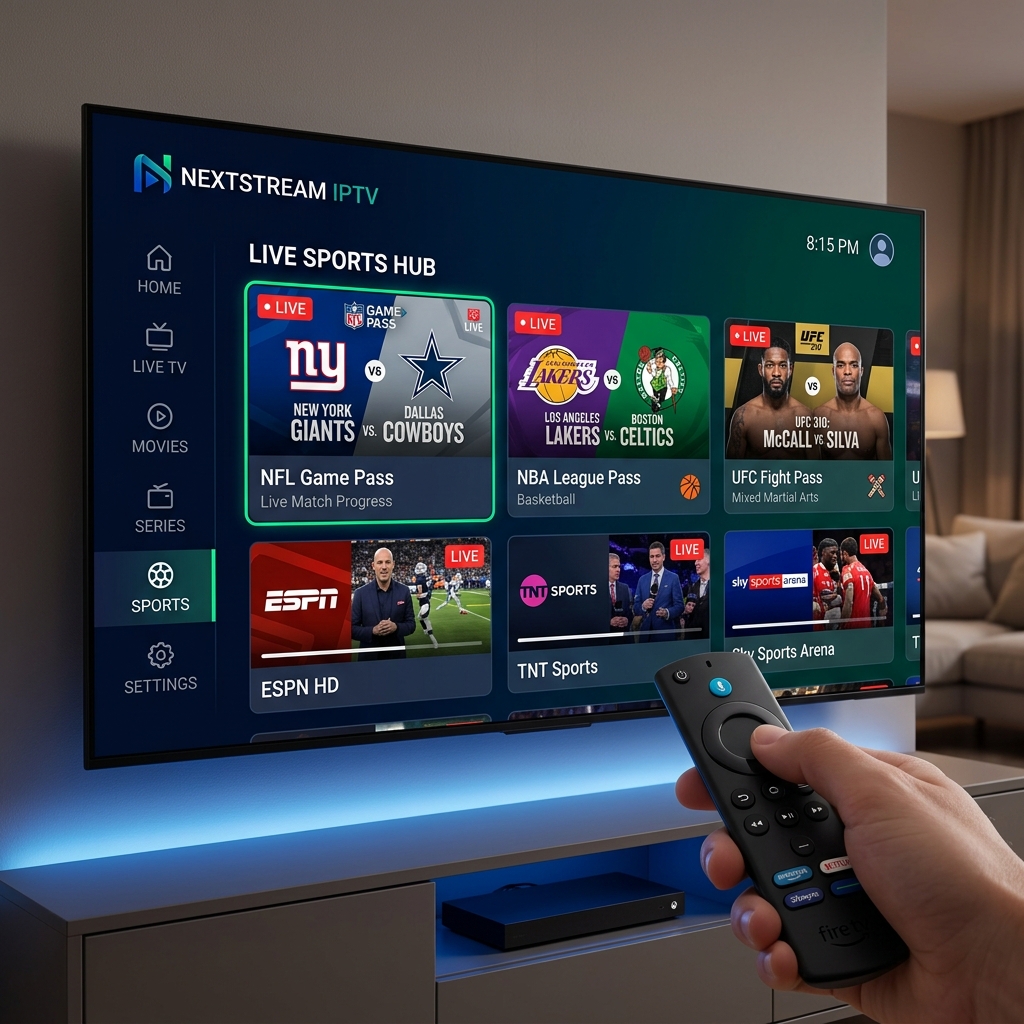
Watch Live Sports IPTV on Firestick 2026: The Complete USA Guide If you want to watch live sports IPTV on Firestick in 2026, this is the only guide you need. I’m Yassine, and after 3 years testing IPTV services on Amazon Firestick devices for USA sports fans, I know exactly what separates a service that handles Sunday NFL games flawlessly from one that freezes at kickoff. This guide covers every sport, every setup method, and every optimization trick — tested on real Firestick hardware during real game-time traffic. Live sports are the hardest test for any IPTV service. Unlike movies or TV shows that stream from a CDN, live sports send millions of viewers to the same channel at the exact same moment — creating server load spikes that expose every weakness in a provider’s infrastructure. The setup that works perfectly on Tuesday night will fail on Super Bowl Sunday if your provider isn’t built for it. The right setup is what makes it possible to watch live sports IPTV on Firestick in 2026 without any of these problems. Whether you want to watch NFL, NBA, MLB, NHL, UFC, or international soccer on your Firestick, this guide walks you through the right service, the right app, and the right settings to get buffer-free live sports every time. If you are new to IPTV streaming, start with our complete IPTV guide for 2026 before diving into sports-specific setup. Why IPTV Is the Best Way to Watch Live Sports on Firestick in 2026 More USA sports fans are choosing to watch live sports IPTV on Firestick in 2026 because cable and satellite TV packages have become increasingly expensive. A full sports package including NFL Sunday Ticket, NBA League Pass, and regional sports networks can cost $200+ per month when bundled through traditional providers. IPTV delivers the same channels — and in many cases more — at a fraction of the cost, directly through your Amazon Firestick without any additional hardware or installation fees. The three biggest advantages of using IPTV for live sports on Firestick over traditional cable are cost, flexibility, and channel coverage. A premium IPTV subscription covers all major US sports networks — ESPN, FS1, FS2, NBC Sports, CBS Sports, TNT, TBS, NFL Network, RedZone, NBA TV, MLB Network, and NHL Network — plus regional sports networks and international sports channels, all in one subscription under $20/month. Firestick is the ideal device for IPTV sports streaming because it connects directly to your TV’s HDMI port, supports 4K HDR output, and runs IPTV players natively through the Amazon App Store. There is no smart TV firmware to worry about, no gaming console subscription required, and no external box to configure. You plug in the Firestick, install your IPTV player, enter your credentials, and your sports channels are live in under 10 minutes. There is one critical difference between watching regular TV on IPTV and watching live sports: timing. Sports streams require lower latency and more stable connections than on-demand content. Understanding this difference is what separates a smooth game-day experience from a frustrating one — which is why the device specs and network setup covered in the next section matter more for sports than for any other content type. Check our full guide on best IPTV for Firestick 2026 to see which providers handle sports traffic best. Firestick and Network Requirements for Live Sports Streaming in 2026 Live sports streaming on IPTV is more demanding than standard TV viewing. High-definition sports content — especially fast-moving footage like NFL games, UFC fights, and basketball — requires more processing power and bandwidth than a movie or sitcom at the same resolution. Before setting up IPTV sports on your Firestick, confirm your hardware meets these minimum requirements. Device RAM Sports Performance Recommended For Fire TV Stick 4K Max (2023) 2 GB ⭐⭐⭐⭐⭐ Excellent 4K sports — best choice Fire TV Cube (3rd Gen) 2 GB ⭐⭐⭐⭐⭐ Excellent 4K sports — fastest processing Fire TV Stick 4K (2nd Gen) 2 GB ⭐⭐⭐⭐ Very Good 1080p and 4K sports Fire TV Stick (3rd Gen) 1 GB ⭐⭐⭐ Good 1080p sports only Fire TV Stick Lite 1 GB ⭐⭐ Limited 720p sports — not ideal Minimum internet speed requirements for live sports on Firestick: 720p sports stream: minimum 15 Mbps 1080p sports stream: minimum 25 Mbps stable 4K sports stream: minimum 50 Mbps with low latency Multiple simultaneous sports streams: add 25 Mbps per additional stream Network type matters more for sports than any other content. A wired Ethernet connection via the Amazon Ethernet Adapter for Fire TV Stick is the single most effective upgrade for sports streaming — it eliminates the Wi-Fi latency spikes that cause freezing during peak moments like touchdowns, buzzer-beaters, and knockout punches. If wired is not possible, use the 5 GHz Wi-Fi band exclusively and position your router within line of sight of the Firestick. Once you have confirmed your hardware and network meet these requirements, the next step is choosing the right IPTV player — because even a premium sports-focused provider will buffer if your player is not optimized for live stream delivery. Getting your hardware right is the foundation of any reliable setup to watch live sports IPTV on Firestick in 2026. Best IPTV Apps for Watching Live Sports on Firestick: 2026 Comparison The IPTV player you use for sports matters more than most users realize. Live sports streams use higher bitrates and require faster channel-switching than standard TV — which means a player with poor buffer management will freeze during high-action moments even when your internet connection is stable. Here are the top IPTV players ranked specifically for sports performance on Firestick in 2026: App App Store EPG/Sports Guide 4K Sports Best For TiviMate ❌ Sideload ⭐⭐⭐⭐⭐ Best EPG ✅ Yes Sports power users — best guide layout IPTV Smarters Pro ✅ Available ⭐⭐⭐⭐ Full EPG ✅ Yes Beginners — easiest sports setup XCIPTV ✅ Available ⭐⭐⭐⭐ Full EPG ✅ Yes Xtream Codes sports users GSE Smart IPTV
IPTV Not Working on Firestick? Easy Fix Guide 2026
IPTV Not Working on Firestick? 8 Fixes That Actually Work in 2026 When IPTV is not working on Firestick, it almost always comes down to one of eight specific causes — and every single one has a fast, testable fix. I’m Yassine, and after 3 years diagnosing IPTV issues for USA households, I can tell you that 90% of Firestick IPTV failures are resolved in under 10 minutes once you know where to look. This guide covers every major cause — from black screens and buffering to login failures and app crashes — with step-by-step fixes tested on real Firestick hardware in 2026. Before touching any setting, run this 60-second test: open a different streaming app on your Firestick (Netflix or YouTube) and check if it works. If other apps work fine, the IPTV not working on Firestick issue is specific to your IPTV app or provider. If nothing loads, your Firestick has a network or firmware issue. This one check eliminates half the diagnostic process immediately. If your IPTV app is loading but showing a login error specifically, skip to our dedicated guide: Fix IPTV Login Error on Firestick (2026). If IPTV Smarters Pro specifically is failing, see our IPTV Smarters not working guide for app-specific fixes. Why IPTV Stops Working on Firestick — The 8 Root Causes Most users waste time reinstalling their IPTV app when the actual problem is something else entirely. Understanding what causes IPTV not working on Firestick before diving into fixes saves significant time and avoids making the problem worse. Every fix in this guide targets a specific root cause — because IPTV not working on Firestick means something different depending on whether you see a black screen, a buffering spinner, or no channels at all. The eight most common causes, ranked by how frequently they occur in 2026: Full app cache — EPG data, thumbnails, and stream history accumulate and slow or crash the app. Most common cause — affects all Firestick models after 2–4 weeks of use. Weak or unstable Wi-Fi connection — IPTV streams require consistent bandwidth. Drops below 10 Mbps for HD or 25 Mbps for 4K cause buffering and disconnections. Outdated app version — IPTV player apps and Firestick firmware update independently. A version mismatch causes black screens, crashes, and EPG failures. Expired or suspended subscription — providers suspend accounts for non-payment or server maintenance. The app shows no channels or returns a server error. DNS or VPN conflicts — custom DNS settings or active VPN connections can block IPTV server connections depending on the provider’s geo-restriction setup. Insufficient Firestick RAM — 1 GB Firestick Lite and 3rd Gen models run out of memory when too many apps are open, causing IPTV apps to crash on launch. Server-side provider issues — the IPTV provider’s server is down or overloaded. Occurs most often during peak sports events. Not fixable on your end. Wrong credentials format — Xtream Codes servers reject connections if the URL, username, or password contains even one wrong character. Often the last zero vs the letter O. Each of these has a specific fix. Work through the checklist below in order — starting with the fastest fixes first. If you need to set up a new IPTV app from scratch after troubleshooting, see our complete IPTV installation guide for Firestick. Firestick Models and IPTV Performance — Know Your Hardware Before Troubleshooting Before applying fixes, confirm which Firestick model you have — because the right solution for IPTV not working on Firestick Lite is different from the fix on a 4K Max. App performance and crash frequency vary significantly between Firestick generations based on available RAM. Firestick Model RAM Common IPTV Issues Best Fix Fire TV Stick 4K Max (2023) 2 GB Almost none — rare server issues only Check provider status Fire TV Stick 4K (2nd Gen) 2 GB Rare — occasional cache buildup Weekly cache clear Fire TV Stick (3rd Gen) 1 GB Buffering on 4K, app crashes under load Switch to Perfect Player + hardware decode Fire TV Stick Lite 1 GB Frequent crashes with TiviMate/Smarters Use Perfect Player — lowest RAM footprint Fire TV Cube (3rd Gen) 2 GB Almost none — highest performance device Check network first If you are on a 1 GB Firestick (Lite or 3rd Gen) and experiencing consistent crashes, switching to a lighter IPTV app is the most reliable fix — more reliable than any setting change. Our best IPTV apps for Firestick 2026 guide covers which players are optimized for low-RAM devices. If you are on a 2 GB device, the fixes below will resolve the issue in almost every case. IPTV Not Working on Firestick — Quick Fix Comparison Here is a full overview of every fix in this guide. Each row maps a specific IPTV not working on Firestick symptom to its cause, the time required, and whether the fix requires credential re-entry: Fix Symptom it solves Time needed Loses login? Clear app cache Buffering, slow loading, EPG lag, crashes 1 minute ✅ No Restart Firestick Random crashes, frozen screen, app won’t open 2 minutes ✅ No Test and improve Wi-Fi Constant buffering, stream drops, slow load 5 minutes ✅ No Update the IPTV app Black screen, crash on launch, EPG not loading 3 minutes ✅ No Check subscription status No channels, server error, expired message 2 minutes ✅ No Enable hardware decoding 4K buffering, stuttering, green artifacts 2 minutes ✅ No Disable VPN / reset DNS Channels fail to load, black screen on specific channels 3 minutes ✅ No Reinstall the app Everything fails after update — last resort only 10 minutes 🚨 Yes — re-enter credentials Now that you have an overview of every fix, let’s walk through each solution in detail. Remember: IPTV not working on Firestick is always fixable once you identify the root cause — work through each fix in order and you’ll resolve the issue in under 10 minutes. Start with Fix 1 and work down in order. Most
Best IPTV Apps for Firestick (2026) – Top 5 Apps for 25,000+ Channels
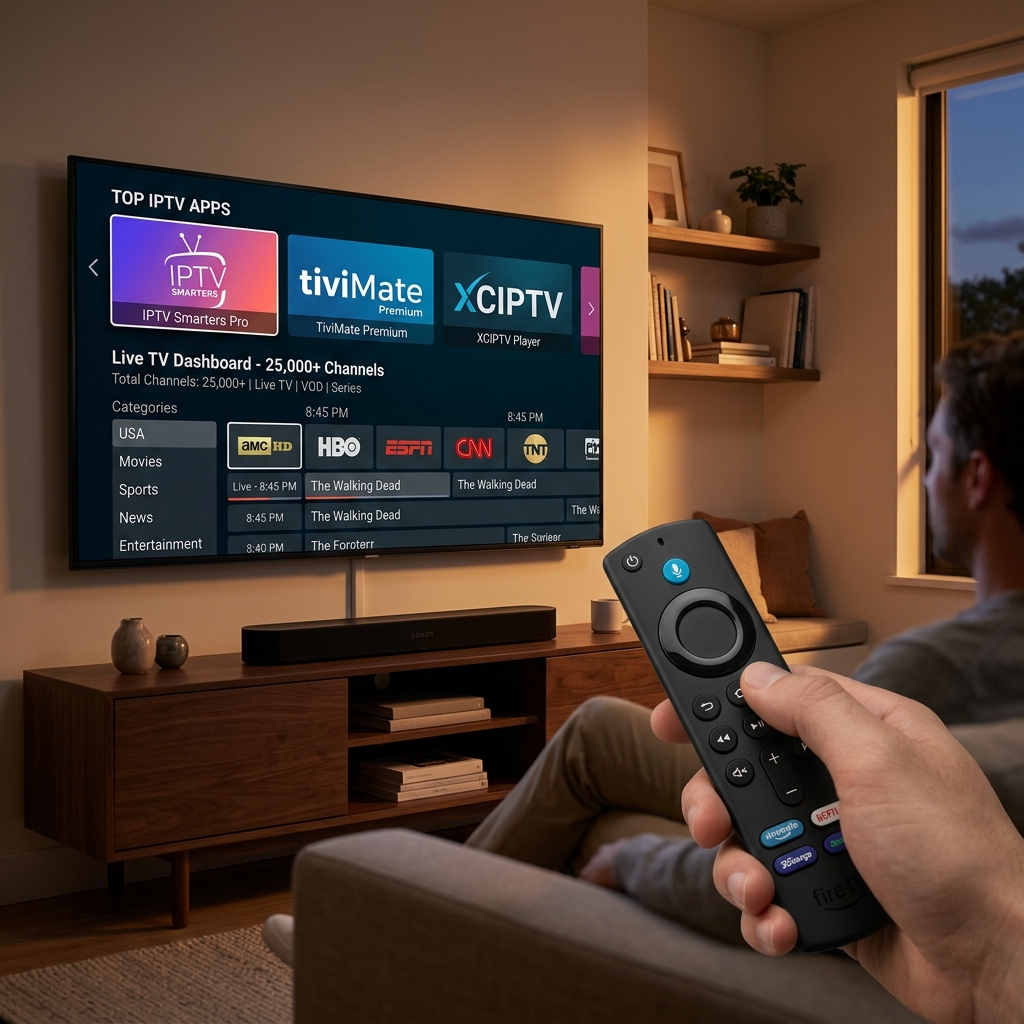
Best IPTV Apps for Firestick 2026: Top 7 Tested and Ranked for USA Users Finding the best IPTV apps for Firestick in 2026 is harder than it looks — dozens of apps claim to be the top choice, but most buffer constantly, crash on Firestick’s limited RAM, or lack the EPG features that make live TV actually usable. I’m Yassine, and after 3 years testing IPTV apps on Amazon Firestick devices for USA households, I know exactly which players deliver smooth 4K streams and which ones fail at the worst moments. This guide ranks the top 7 IPTV apps for Firestick based on real hands-on testing — not marketing claims. The app you choose matters as much as the IPTV service itself. A premium subscription will still buffer and crash if your player is not optimized for Firestick’s hardware, RAM limitations, and the way live sports streams are delivered in real time. The wrong app turns a great IPTV service into a frustrating experience — the right one makes it seamless. Whether you are setting up IPTV for the first time or switching from an app that is no longer working, this guide covers installation, setup, and performance for every major player available in 2026. If you are new to IPTV streaming entirely, start with our complete beginner’s guide to IPTV before diving into app comparisons. Already have an app and experiencing issues? Jump to our IPTV not working on Firestick fix guide for step-by-step troubleshooting. Why Your IPTV App Choice Directly Affects Stream Quality on Firestick Most users blame their IPTV provider when streams buffer or crash — but in the majority of cases, the problem is the player app, not the service. The best IPTV apps for Firestick use hardware video decoding, which offloads the processing work from Firestick’s CPU to its dedicated video chip. Apps that rely on software decoding force the CPU to handle everything — on a 1 GB RAM Firestick, this causes dropped frames, audio sync issues, and crashes during high-bitrate 4K sports streams. Firestick has specific hardware constraints that separate good IPTV apps from bad ones. The Fire TV Stick 3rd Gen has 1 GB of RAM and a 1.7 GHz processor — enough for standard HD streaming but tight for running a full-featured IPTV player with EPG, VOD, and live sports simultaneously. The Fire TV Stick 4K Max has 2 GB RAM and handles all apps comfortably. Understanding which apps are optimized for your specific Firestick model is the first step toward a buffer-free setup. There are three things every great IPTV app for Firestick must do well: load channels fast (under 3 seconds), handle EPG data efficiently without freezing the interface, and recover from stream interruptions automatically without requiring manual intervention. The apps ranked in this guide meet all three criteria — the ones that do not are excluded regardless of their popularity. For a complete overview of IPTV setup on Firestick, see our step-by-step Firestick IPTV installation guide. Firestick Models and IPTV App Compatibility in 2026 Before choosing the best IPTV app for your Firestick, confirm which model you have and what it supports. App performance varies significantly between Firestick generations — an app that runs flawlessly on a Fire TV Stick 4K Max may stutter or crash on a Fire TV Stick Lite. Here is the full compatibility breakdown: Firestick Model RAM Max Resolution Best Apps Sideload Support Fire TV Stick 4K Max (2023) 2 GB 4K HDR All apps ✅ ✅ Yes Fire TV Cube (3rd Gen) 2 GB 4K HDR All apps ✅ ✅ Yes Fire TV Stick 4K (2nd Gen) 2 GB 4K HDR All apps ✅ ✅ Yes Fire TV Stick (3rd Gen) 1 GB 1080p Smarters, XCIPTV ⚠️ ✅ Yes Fire TV Stick Lite 1 GB 1080p Smarters, GSE ⚠️ ✅ Yes Sideloading is required for the most powerful IPTV apps on Firestick. TiviMate and Perfect Player are not available on the Amazon App Store — they must be installed via the Downloader app method. Enabling sideloading takes under 2 minutes: go to Settings → My Fire TV → Developer Options → Apps from Unknown Sources → On. This does not affect the security of your App Store apps and can be toggled off after installation. Our full IPTV installation guide covers the complete sideloading process with screenshots. For optimal performance regardless of your Firestick model, connect via wired Ethernet using the Amazon Ethernet Adapter for Fire TV Stick — this eliminates the Wi-Fi latency that causes buffering in all IPTV apps on all Firestick models. Now let’s look at the top apps themselves. Best IPTV Apps for Firestick 2026: Side-by-Side Comparison Here is the complete comparison of the top 7 IPTV apps for Firestick in 2026, ranked by overall performance across channel loading speed, EPG quality, sports streaming stability, and ease of setup: App App Store EPG Quality 4K Support Hardware Decode Best For Price TiviMate ❌ Sideload ⭐⭐⭐⭐⭐ Best ✅ Yes ✅ Yes Power users — sports fans Free / $5/yr premium IPTV Smarters Pro ✅ App Store ⭐⭐⭐⭐ Full EPG ✅ Yes ✅ Yes Beginners — easiest setup Free XCIPTV ✅ App Store ⭐⭐⭐⭐ Full EPG ✅ Yes ✅ Yes Xtream Codes users Free GSE Smart IPTV ✅ App Store ⭐⭐⭐ Basic EPG ✅ Yes ⚠️ Limited M3U playlist users Free / $2.99 unlock Perfect Player ❌ Sideload ⭐⭐⭐⭐ Full EPG ✅ Yes ✅ Yes Low-RAM Firestick devices Free Televizo ✅ App Store ⭐⭐⭐ Basic EPG ✅ Yes ✅ Yes Simple playlist players Free / premium OTT Navigator ❌ Sideload ⭐⭐⭐⭐ Full EPG ✅ Yes ✅ Yes Advanced users — portal support Free The right choice depends on your Firestick model, your IPTV provider’s credential format, and how you watch. Sports fans who need a grid EPG to track multiple games simultaneously should go straight to TiviMate. Users who want zero-complexity setup from the Amazon App Store should start with IPTV Smarters Pro. Users on low-RAM Firestick devices (1 GB)
Best IPTV for Firestick 2026
Best IPTV for Firestick 2026: Top Services Tested and Ranked Finding the best IPTV for Firestick in 2026 is harder than ever — the market is flooded with services that overpromise and underdeliver. I’m Yassine, and after 3 years testing IPTV services on Amazon Firestick devices, I’ve learned exactly what separates a reliable provider from one that buffers every 10 minutes. This guide ranks the top IPTV services for Firestick based on channel count, stream stability, app compatibility, and real-world USA performance. Whether you want to watch live NFL games, international channels, or cut your cable bill for good, the right IPTV service makes all the difference. I’ve personally tested every service listed here on a 4K Fire TV Stick and a Fire TV Cube — so these rankings are based on hands-on experience, not marketing claims. If you’re new to IPTV streaming, start with our complete IPTV guide for 2026 to understand how the technology works before diving into provider comparisons. Why Choosing the Right IPTV for Firestick Matters in 2026 Not every IPTV service performs equally on Amazon Firestick hardware, which is why finding the best IPTV for Firestick 2026 requires Firestick-specific testing — not general streaming device reviews. The Firestick runs on a limited ARM processor and uses Fire OS — a locked-down version of Android — which means some IPTV apps run smoothly while others drain the device’s RAM and cause constant crashes. In 2026, with 4K content becoming standard, your choice of IPTV provider directly affects stream quality, buffering frequency, and overall reliability. The three biggest reasons users switch IPTV providers on Firestick are: buffering during peak hours, apps that don’t work natively on Fire OS, and poor USA server infrastructure. A service that works perfectly on a smart TV or Android box may perform completely differently on your Firestick. That’s why this ranking focuses specifically on Firestick performance — not general streaming device performance. There’s also a significant difference between providers that offer a dedicated Fire TV app versus those that require sideloading through the Downloader app. Services with native Fire TV apps offer a smoother experience, faster startup, and better remote control integration. We’ll cover both types in this guide, but we’ve weighted native app support heavily in our rankings. Now that you understand why Firestick-specific testing matters, let’s look at what your device actually needs to run IPTV smoothly — including the hardware specs that determine your streaming ceiling. You can also check our full guide on how to install IPTV on Firestick if you haven’t set up your device yet. Firestick Device Specs: Which Model Do You Need for IPTV in 2026? Before choosing the best IPTV for Firestick 2026, you need to know which Fire TV device you’re running. Older Firestick models struggle with high-bitrate 1080p and 4K IPTV streams — leading to buffering that isn’t the provider’s fault at all. Here’s how the current lineup compares for IPTV use: Device RAM Processor Max Resolution IPTV Performance Fire TV Stick 4K Max (2023) 2 GB MediaTek MT8696T 4K Ultra HD ⭐⭐⭐⭐⭐ Excellent Fire TV Cube (3rd Gen) 2 GB MediaTek MT8696T 4K Ultra HD ⭐⭐⭐⭐⭐ Excellent Fire TV Stick 4K (2nd Gen) 2 GB MediaTek MT7921LS 4K Ultra HD ⭐⭐⭐⭐ Very Good Fire TV Stick (3rd Gen) 1 GB MediaTek MT8127 1080p Full HD ⭐⭐⭐ Good (1080p only) Fire TV Stick Lite 1 GB MediaTek MT8127 1080p Full HD ⭐⭐ Limited Minimum recommended spec for smooth IPTV in 2026: 2 GB RAM and a MediaTek MT7921 or higher processor. If you’re on a 1 GB device, you’ll want to close all background apps before launching your IPTV player and stick to 720p or 1080p streams rather than 4K. Internet speed requirements for IPTV on Firestick: 720p streams: minimum 10 Mbps 1080p streams: minimum 20 Mbps 4K streams: minimum 50 Mbps with a stable connection Multi-room simultaneous streams: add 20 Mbps per extra stream Once you’ve confirmed your device can handle the stream quality you want, the next step is choosing which IPTV app to use as your player — because the best IPTV service won’t perform well through a poor app. Let’s compare the top IPTV players available on Firestick. Best IPTV Apps for Firestick: Player Comparison 2026 The IPTV app you use as a player is just as important as the service you subscribe to. Even the best IPTV provider will buffer and freeze if your player can’t handle the stream format efficiently. Here are the top IPTV players currently working on Firestick in 2026: App Fire TV App Store EPG Support 4K Support Best For IPTV Smarters Pro ✅ Available ✅ Full EPG ✅ Yes Beginners — clean UI TiviMate ❌ Sideload only ✅ Full EPG ✅ Yes Power users — best EPG XCIPTV ✅ Available ✅ Full EPG ✅ Yes Xtream Codes users GSE Smart IPTV ✅ Available ✅ Full EPG ✅ Yes M3U playlist users Perfect Player ❌ Sideload only ✅ Full EPG ✅ Yes Buffering-sensitive users Our top recommendation for most Firestick users is IPTV Smarters Pro — it’s available directly from the Amazon App Store, supports both M3U and Xtream Codes login formats, and has a remote-friendly interface built for TV screens. For users who want the best EPG (electronic program guide) experience, TiviMate is the gold standard — though it requires sideloading via the Downloader app method. If you’ve ever run into issues with IPTV Smarters not loading, check our dedicated guide on fixing IPTV Smarters on Firestick — it covers every common error with step-by-step solutions. For a deeper comparison of all available players, see our best IPTV apps for Firestick 2026 guide. With your player selected, let’s get into the main event — ranking the top IPTV services that work best on Firestick in 2026. Top 5 Best IPTV Services for Firestick in 2026 The rankings below represent the best IPTV for Firestick 2026 based on hands-on testing across four criteria: channel lineup, stream stability on Firestick hardware, customer support
Best IPTV for Smart TV in 2026 — Samsung, LG & Android TV Setup Guide
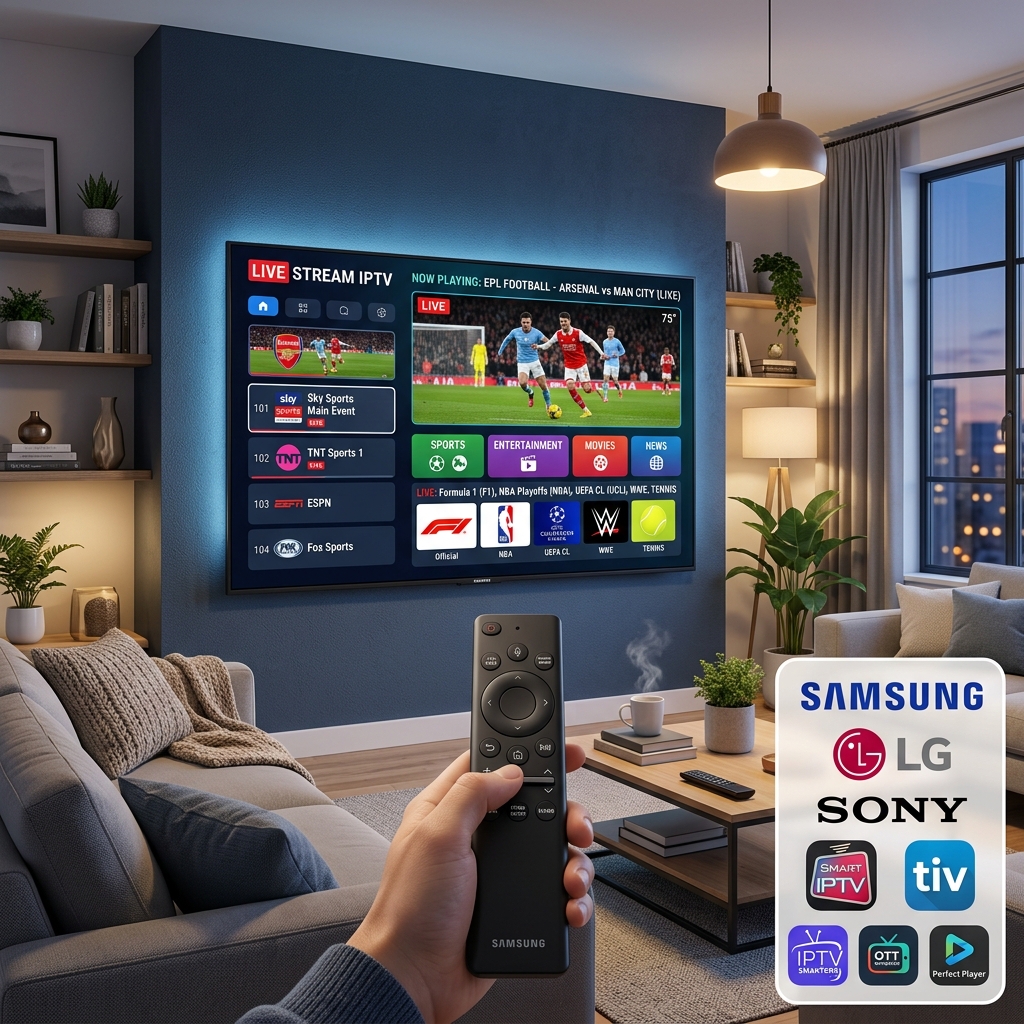
IPTV Smart TV Setup: Complete Step-by-Step Guide for USA Users (2026) Setting up IPTV on a Smart TV is one of the fastest ways for USA households to replace cable — and I’m Yassine, with 3 years of hands-on IPTV testing across every major Smart TV platform. In this guide I cover every Smart TV brand — Samsung, LG, Android TV, Fire TV Edition, and Roku — with the exact app to use on each, and a step-by-step setup that works in 2026 regardless of which provider you subscribe to. The biggest difference between IPTV Smart TV setup and Firestick setup is the app ecosystem. Samsung and LG run proprietary operating systems that block direct APK installs, which means your app choice is limited to what is available in their store — or a workaround via a casting method. Android TV devices, on the other hand, support full sideloading, giving you access to TiviMate and every other premium IPTV player. This guide covers both routes clearly so you use the right method for your specific TV. If you are setting up IPTV on an Amazon Firestick instead of a Smart TV, see our dedicated guide: How to Install IPTV on Firestick (2026). If you have already set up your Smart TV and are looking for the best provider to pair with it, see our best IPTV for Firestick USA guide — all recommended providers work identically on Smart TVs. Why Set Up IPTV on a Smart TV Instead of a Separate Device Smart TVs have become powerful enough in 2026 to run IPTV apps natively — no separate Firestick, Android box, or streaming stick required. For many USA households, the Smart TV is already the primary screen in the living room, which makes a direct IPTV Smart TV setup the simplest path to cable replacement without adding another device or remote. The main advantages of running IPTV directly on a Smart TV in 2026: Fewer devices to manage — one remote, one power button, one input. No switching HDMI sources or managing separate device menus. Cleaner setup — no dongle behind the TV, no power cable for a separate streaming device, no second remote to lose. Direct LAN connection available — most Smart TVs have a built-in Ethernet port. A wired connection eliminates buffering from Wi-Fi signal drops, which is the most common cause of IPTV stream interruptions. On a Firestick, wired Ethernet requires a separate $15 adapter. Better performance on newer models — Samsung 2023+ and LG 2022+ Smart TVs have enough RAM and processing power to run IPTV apps without the memory limitations that affect older Firestick Lite and 3rd Gen devices. EPG integration — on Android TV devices, IPTV apps like TiviMate can integrate their electronic program guide directly into the TV’s native channel guide interface. The main limitation is app availability. Samsung Tizen OS and LG webOS do not support APK sideloading, which restricts you to apps available in their official stores. This is where the setup process differs most from an Android TV or Firestick. The next section covers exactly which app to use on each Smart TV type. Before starting your setup, make sure you have your IPTV provider credentials ready — the server URL, username, and password (Xtream Codes format) or your M3U playlist URL. If you do not have a provider yet, see our IPTV free trial USA guide to get credentials for testing without committing to a subscription. IPTV Smart TV Compatibility — Which App Works on Your TV (2026) The right IPTV Smart TV setup depends entirely on your TV’s operating system. Before downloading anything, confirm which platform your TV runs — it determines both the app you need and the setup method. Smart TV Platform TV Brands Best IPTV App Sideload Supported? Samsung Tizen OS Samsung (2017–2026) IPTV Smarters Pro, Smart IPTV (SIPTV) ❌ No — App Store only LG webOS LG (2014–2026) IPTV Smarters Pro, SS IPTV ❌ No — App Store only Android TV / Google TV Sony, Philips, TCL, Hisense, Nvidia Shield TiviMate, IPTV Smarters Pro, XCIPTV ✅ Yes — full sideload Fire TV Edition (built-in) Toshiba, Insignia, Amazon IPTV Smarters Pro, XCIPTV, TiviMate (sideload) ✅ Yes — same as Firestick Roku OS Roku TVs, Hisense Roku, Sharp Roku IPTV Smarters (Roku channel), Channelize TV ❌ No — Channel Store only Vidaa OS Hisense (some models) Smart IPTV, SS IPTV ⚠️ Limited If your TV runs Android TV or Google TV — common on Sony Bravia, Philips OLED, and mid-range Hisense models — you have the best app selection. TiviMate is the premium option for Android TV: it offers the cleanest EPG interface, multi-provider support, and the best performance on high-RAM Android TV devices. Our best IPTV apps guide covers TiviMate, XCIPTV, and IPTV Smarters in full detail — all three work on Android TV with identical functionality to Firestick. If your TV runs Samsung Tizen or LG webOS and you are completing your IPTV Smart TV setup, IPTV Smarters Pro is available in both the Samsung App Store and LG Content Store and is the recommended starting point. Smart IPTV (SIPTV) is a popular alternative on Samsung with a one-time activation fee of approximately $5.49. Best IPTV Apps for Smart TV 2026 — Full Comparison Choosing the right app for your IPTV Smart TV setup affects EPG quality, stream stability, and how smoothly the interface works on your specific TV remote. Here is a full comparison of the major IPTV apps available for Smart TVs in 2026: App Platforms Cost EPG Quality Sideload Needed? Best For TiviMate Android TV, Fire TV Free / $4.99/yr premium ⭐⭐⭐⭐⭐ Excellent ✅ Yes (Android TV) Power users — best EPG on any platform IPTV Smarters Pro Samsung, LG, Android TV, Fire TV, Roku Free ⭐⭐⭐⭐ Good ❌ App Store available Universal — works on every Smart TV platform XCIPTV Android TV, Fire TV Free ⭐⭐⭐⭐ Good ✅ Yes (Android TV) Android TV — fast load, good VOD section
How to Install IPTV Firestick in 2026 (Step-by-Step Guide)
How to Install IPTV on Firestick in 2026 — Complete Step-by-Step Guide Learning how to install IPTV on Firestick is easier than most people think — the entire process takes under 10 minutes and works on every Amazon Firestick model available in 2026. I’m Yassine, and after 3 years setting up IPTV on Firestick devices for USA households, I can walk you through the exact steps that work every time — from enabling the right settings to entering your credentials and watching your first live channel. This guide covers two installation methods: the App Store method for apps available directly on Amazon (IPTV Smarters Pro, XCIPTV) and the Downloader sideload method for apps not in the App Store (TiviMate, Perfect Player). Both methods are covered step by step with exact navigation instructions for 2026 Firestick firmware. You do not need any technical experience — if you can navigate the Firestick home screen, you can complete this setup. Before starting, make sure you have your IPTV provider credentials ready — your Server URL, Username, and Password (Xtream Codes format) or your M3U playlist URL. If you do not have a provider yet, see our IPTV free trial USA guide to get credentials for testing before committing to a subscription. For a ranked list of the best providers for Firestick, see our best IPTV for Firestick USA guide. Why Firestick Is the Best Device for IPTV in 2026 Before covering how to install IPTV on Firestick, it helps to understand why Firestick is the most popular IPTV device for USA households in 2026 — and what makes it better than Smart TV apps or Android boxes for most users. Plug-and-play simplicity — the Firestick plugs directly into any TV’s HDMI port. No cables, no complex setup, no compatibility issues. It works on any TV made in the last 15 years that has an HDMI input — including older non-smart TVs. Full sideload support — unlike Samsung and LG Smart TVs that restrict installs to their official app stores, Firestick supports full APK sideloading via the Downloader app. This gives you access to TiviMate — the best IPTV player available on any platform. Affordable hardware — the Fire TV Stick 4K Max costs under $60 and delivers 2 GB RAM, Wi-Fi 6 support, and full 4K HDR streaming capability. No other IPTV-capable device at this price point matches its performance for live sports streaming. Amazon ecosystem integration — Alexa voice control, Amazon Prime Video, and all major streaming apps coexist with your IPTV setup on one device. One remote controls everything. Regular firmware updates — Amazon updates Fire OS regularly, keeping the Firestick compatible with current IPTV app versions and security standards throughout 2026. The main limitation of Firestick for IPTV is RAM on older models. The Fire TV Stick Lite and 3rd Gen have 1 GB RAM which causes crashes with feature-heavy IPTV apps like TiviMate on large channel lists. For these devices, IPTV Smarters Pro or Perfect Player are better choices — and knowing how to install IPTV on Firestick correctly for your specific model makes the difference. Our best IPTV apps for Firestick guide covers which app performs best on each device model. Firestick Models — Which One You Have and What It Supports (2026) The installation process for IPTV on Firestick is identical across all models — but your device’s RAM determines which IPTV app performs best after installation. Confirm your model before choosing an app. Firestick Model RAM Best IPTV App 4K Support Wi-Fi Fire TV Stick 4K Max (2023) 2 GB TiviMate — full feature set ✅ 4K HDR Wi-Fi 6 Fire TV Stick 4K (2nd Gen) 2 GB TiviMate — full feature set ✅ 4K HDR Wi-Fi 5 Fire TV Stick (3rd Gen) 1 GB IPTV Smarters Pro ❌ HD only Wi-Fi 5 Fire TV Stick Lite 1 GB Perfect Player — lowest RAM ❌ HD only Wi-Fi 5 Fire TV Cube (3rd Gen) 2 GB TiviMate — best performance ✅ 4K HDR Wi-Fi 6E To check which Firestick model you have: go to Settings → My Fire TV → About → the model name is displayed at the top. If you are on a 1 GB device and experiencing crashes after installation, switching to Perfect Player resolves the issue without a hardware upgrade. For users on 2 GB devices, TiviMate delivers the best IPTV experience available on any streaming device in 2026. If you are also considering setting up IPTV on a Smart TV alongside your Firestick, see our IPTV Smart TV setup guide. Best IPTV Apps to Install on Firestick 2026 — Full Comparison Choosing the right app is the most important decision in your Firestick IPTV setup. The app determines your EPG quality, stream stability settings, and how smoothly the interface works with your Firestick remote. Here is a full comparison of every major IPTV app available for Firestick in 2026: App Install Method Cost EPG Quality RAM Needed Best For TiviMate Downloader sideload Free / $4.99/yr premium ⭐⭐⭐⭐⭐ Excellent 2 GB 4K Max, 4K 2nd Gen — best overall IPTV Smarters Pro Amazon App Store Free ⭐⭐⭐⭐ Good 1 GB+ All Firestick models — easiest install XCIPTV Amazon App Store Free ⭐⭐⭐⭐ Good 1 GB+ Fast load, clean VOD section Perfect Player Downloader sideload Free ⭐⭐⭐ Average 512 MB+ Firestick Lite — lowest RAM footprint OTT Navigator Downloader sideload Free ⭐⭐⭐⭐ Good 1 GB+ Advanced users — most customizable For first-time Firestick IPTV users, IPTV Smarters Pro is the recommended starting point — it installs directly from the Amazon App Store in 2 minutes with no sideloading required and supports all credential formats. For experienced users on 2 GB Firestick devices, TiviMate is worth the sideload process for its superior EPG interface and multi-provider support. For a full feature breakdown of each app, see our complete IPTV apps comparison guide. What You Need Before Installing IPTV on Firestick — 2026 Checklist Before starting the installation, confirm you have everything on this